A single HD Zoom call needs just 3 Mbps download and 3.8 Mbps upload. But that’s only part of the story. Most of the time, it isn’t the video call itself. It’s the upload speed. 

Most cable internet plans deliver 300 Mbps or more on the download side, but upload speeds often top out at 40 Mbps or less on standard plans. Two simultaneous HD calls, a 2K security camera, and a phone syncing to the cloud can quickly bog down upload bandwidth. 

Here we’ll cover platform requirements, the importance of upload speed, how jitter and packet loss affect call quality, how to plan for a multi-user household, and how to test and fix problems as they arise. 

Video Call Speed Quick Answer: A single HD video call requires 3.8 Mbps upload and 3.0 Mbps download. For most households, upload speed is the limiting factor, not download. Plan for 4 Mbps upload per simultaneous caller, add overhead for smart home devices, and compare that total against your plan’s upload cap. If calls freeze despite fast download speeds, the culprit is almost always upload saturation, Wi-Fi jitter, or packet loss, none of which show up as “slow” on a standard speed test.  

Video Call Speed Requirements at a Glance

The most important thing to understand about video call performance: download speed controls how well you see others; upload speed controls how well others see and hear you. Here’s a quick look at major video call platform requirements so you can easily assess your internet needs: 

App / Call Type Resolution Download/Call Upload/Call Friction Point 
Zoom 1:1 1080p HD 3.0 Mbps 3.8 Mbps The upload bottleneck stalls the outgoing video 
Zoom gallery view (49 tiles) Multi-tile 4.0 Mbps 3.0 Mbps CPU and download stream strain 
Microsoft Teams group HD (540p–1080p) 2.0 Mbps 1.0 Mbps Scales down aggressively on jitter spike 
Google Meet / Webex 720p 1.5 Mbps 1.5 Mbps Browser overhead causes packet drops 
Audio-only VoIP Voice 0.1 Mbps 0.1 Mbps Immune to speed drops; sensitive to ping 

Besides the fact that these are minimum requirements, here are other key points to remember: 

  • Two 1080p Zoom calls require a total of 7.6 Mbps upload bandwidth. Add a 2K security camera (3–5 Mbps) and a background cloud backup (1 Mbps), and you’re looking at 11.6–13.6 Mbps total upload demand, which can use up a lot of upload bandwidth if you’re on a cable plan.
  • Jitter above 30 ms causes video stutter and audio drops, even when a speed test shows 500 Mbps.
  • Packet loss above 2% triggers automatic resolution downscaling from 1080p to 360p. The call doesn’t look bad because of slow internet. It looks bad because the data is dropping in transit.
  • Static screen sharing uses only 50–150 kbps. Sharing a live video demo instantly spikes demand past 3.5 Mbps.

The Upload Asymmetry Problem 

This is the part most people miss when they’re troubleshooting freezing calls. 

Cable internet offers download speeds up to 2 Gbps, which is great for streaming video, loading web pages, and pulling files from the cloud. Unfortunately, upload speeds are far slower, often topping out at about 40 Mbps. This is called asymmetrical speeds, and for the most part, it’s fine for most online activities. But for remote work households with multiple callers, it can cause a lot of frustration and choppy calls.  

Every frame of your face, every word of your audio, and every pixel of your shared screen has to be uploaded. With a too-narrow upload pipe (slow upload speeds), your video can freeze or become pixelated for everyone else on the call. 

Breaking Down Upload Speed Usage

Here’s a realistic picture of a two-person remote work household on a cable plan: 

  • Person A: 1080p Zoom call — 3.8 Mbps upload
  • Person B: 1080p Zoom call — 3.8 Mbps upload
  • One 2K security camera: continuous cloud upload — 3–5 Mbps
  • Smartphone or laptop cloud backup — 1 Mbps
  • Total: 11.6–13.6 Mbps upload demand

A cable plan with a 15 Mbps upload cap is just barely enough to handle these tasks. Both calls freeze or become very low quality. 

There are a few things you can do to address upload bandwidth. The ideal solution is to switch to fiber internet, which provides equal download and upload speeds, or symmetrical speeds. If fiber isn’t available in your area, you can upgrade your cable plan to one that has higher upload speeds. If you already have the fastest upload speed available from your internet provider, you can adjust the quality of service (QoS) router settings, which will prioritize your video call traffic over other upload tasks.   

Glitchy, frozen video calls? Use BroadBandSearch to see if fiber internet or faster upload speeds are available in your area. 

Beyond Internet Speed: Jitter, Packet Loss, and Latency

Speed isn’t the only aspect of your internet connection that affects call quality. Video calls use UDP (User Datagram Protocol), which prioritizes speed over guaranteed delivery. That means packet consistency matters as much as raw bandwidth. Latency, jitter, and packet loss each affect the quality of inbound and outbound data during a video call. Therefore, a 500 Mbps connection with 5% packet loss results in worse call quality than a 25 Mbps connection with 0% packet loss. 

Latency

Latency is the round-trip time for data to travel from your device to the call server and back, measured in milliseconds. It controls the conversational feel–the natural rhythm of speaking and listening–not video quality itself. 

  • Under 150 ms: imperceptible delay
  • 150–400 ms: noticeable lag; people start talking over each other
  • Above 400 ms: conversation becomes functionally broken

For most wired connections, latency isn’t the primary issue. It becomes relevant when calling over satellite internet or congested mobile networks. 

Jitter 

Jitter is the variation in packet delivery timing, or packets arriving unevenly instead of in a steady stream. It’s the most common hidden cause of freezing calls on otherwise fast connections. 

  • Under 30 ms: acceptable for most platforms
  • Above 30 ms: audio drops, video freezes; the app’s codec can’t compensate

Jitter is caused by network congestion, Wi-Fi interference, and bufferbloat (the lag that builds up when your router’s send queue overflows), none of which show up as “slow” on a typical speed test. If your calls freeze but your speed test looks fine, jitter is usually the culprit. 

Packet Loss

Packet loss is the percentage of data packets sent that never reach their destination. Even small amounts cause real problems for real-time video. 

  • Under 1%: nearly imperceptible
  • 1–2%: audio drops, minor video freezing
  • Above 2%: the app automatically downscales from 1080p to 360p to preserve the audio stream

Research published in the journal Sensors confirms that even 0.1% packet loss can have a more negative effect on perceived video quality than standard compression artifacts. The call looks blurry, not because of slow internet, but because data is lost in transit. 

Common causes: weak Wi-Fi signal, a congested router, or ISP-level network issues. The quickest diagnostic is to switch to a wired Ethernet connection and run the call again. If the problem disappears, it was Wi-Fi. 

Quality Thresholds at a Glance 

Metric Good Acceptable Poor What Happens When Exceeded 
Latency Under 50 ms 50–150 ms Above 150 ms Conversation delay becomes noticeable 
Jitter Under 10 ms 10–30 ms Above 30 ms Audio drops; video freezes 
Packet loss Under 0.5% 0.5–2% Above 2% App auto-downscales to 360p 
Upload speed 3.8+ Mbps/call 1.5–3.8 Mbps Under 1 Mbps Pixelated or frozen outgoing video 

App-by-App Speed Requirements 

Each platform handles network degradation differently. Teams will drop resolution aggressively to maintain audio when bandwidth gets tight. Zoom holds quality longer before degrading. Google Meet’s browser-based architecture introduces its own overhead even on solid connections. These are minimum requirements. Your experience will vary based on network conditions and Wi-Fi performance. 

Zoom 

  • 1:1 HD call: 3.0 Mbps download, 3.8 Mbps upload
  • Group call (up to 3 participants): 2.0 Mbps down, 2.0 Mbps up
  • Gallery view (49 tiles): 4.0 Mbps download, 3.0 Mbps upload

Zoom uses an adaptive codec (Opus) and AI video processing that dynamically adjusts based on screen layout. Gallery view with 49 active tiles is the most download-intensive scenario in standard consumer video calling. 

Microsoft Teams 

  • HD video (up to 1080p): 2.0 Mbps download, 1.0 Mbps upload at minimum
  • Best performance: 4.0 Mbps (Teams recommends allocating up to 4 Mbps per user for optimal quality)
  • Screen sharing with video: up to 4.0 Mbps

Teams is designed to be conservative on bandwidth. It can deliver HD quality in under 1.5 Mbps when needed. Still, it will scale resolution down to 540p or lower under congestion or jitter spikes, which means users on a 1080p monitor may see blurry video during peak hours, even on an adequate plan. 

Google Meet and Webex

Google Meet recommends approximately 1.5 Mbps upload and download for standard HD calls. Webex targets similar thresholds. Both platforms run partly or fully in the browser, which introduces CPU and network overhead that native desktop apps don’t have. Browser tabs competing for system resources are a surprisingly common cause of call degradation, even when the underlying connection is solid. 

Screen Sharing and Gallery View

Two scenarios trip people up the most: 

Screen sharing: Static content (documents, slides, a desktop) uses only 50–150 Kbps, which is almost negligible. But switching to live video playback or an application demo instantly spikes demand to 3.5 Mbps or more. If call quality drops when you start presenting, closing background apps can free up some bandwidth. 

Gallery view vs. speaker view: Speaker view renders a single large video stream from the active speaker, which requires less bandwidth. Gallery view with 25–49 tiles renders every participant simultaneously, requiring up to 4.0 Mbps of download bandwidth. Switching from gallery to speaker view is one of the quickest ways to lighten the load on a struggling connection. 

How Many Simultaneous Video Calls Can Your Internet Connection Handle? 

The easiest way to determine whether your internet connection can handle multiple calls is to divide your plan’s upload speed by 4 Mbps, a reasonable per-call planning figure for HD video. That’s your realistic simultaneous call capacity before quality starts to degrade. 

Plan Upload Speed Max HD Calls Smart Home Headroom Best For 
10 Mbps (typical cable) 2 max None Single remote worker only 
20 Mbps Minimal Two remote workers, a light smart home 
50 Mbps (fiber entry) 10+ Comfortable Multi-person remote-work household 
100+ Mbps (fiber mid-tier) 20+ A full smart home is viable Large household; content creators 

How to Calculate What You Need 

  1. Count simultaneous callers at your household’s peak hours
  2. Multiply by 4 Mbps for upload demand
  3. Add smart home upload overhead (3–5 Mbps per 2K camera; 1 Mbps for cloud backup)
  4. Compare to your plan’s upload cap. If you’re above 80%, you’re in the saturation zone 

For households that also livestream on Twitch or YouTube, factor in an additional 6–8 Mbps upload for a 1080p/60 fps stream. Combined with two HD calls, that will require 13.6–15.6 Mbps of upload capacity, which is more than many cable plans provide. 

Connection Type Comparison for Video Calls 

Your connection type sets the ceiling for everything else. 

Feature Fiber Cable 5G Home Internet 
Upload speed Symmetrical (matches download) 10–50 Mbps asymmetric 50-100 Mbps 
Typical latency 5–15 ms 15–30 ms 20–50 ms 
Jitter Near zero Low Moderate 
Peak-hour congestion Low Moderate (shared node) Moderate (shared tower) 
Best for Multi-person remote work 1–2 callers Single remote worker 

Fiber is the strongest option because it offers some of the fastest upload speeds available among internet connection types. Near-zero jitter from fiber infrastructure makes it the most reliable choice for professional video calls. 

Cable works well for households with one remote worker, but its slower upload speed can become a bottleneck when multiple people are calling simultaneously. Peak-hour congestion from shared neighborhood nodes can also spike jitter during the typical workday. 

5G home internet is a viable option for a single remote worker. Mid-band 5G typically delivers 20–50 ms latency, which is adequate for video calls. One important caveat: 5G home internet typically uses CGNAT (carrier-grade network address translation), which can interfere with certain enterprise VPN configurations. If your company uses an IT-managed VPN for remote access, confirm compatibility before switching. 

Wired Ethernet vs. Wi-Fi 

This one variable affects call quality more than most people realize. Wired Ethernet eliminates Wi-Fi jitter and is the best fix for freezing or choppy calls at no extra cost. 

For a stationary home office, wired is always the recommendation regardless of plan speed or connection type. If running a cable isn’t practical, Wi-Fi 6 or Wi-Fi 6E can reduce (but not eliminate) wireless jitter for nearby devices. 

How to Test and Fix Your Video Call Quality 

Don’t upgrade your plan until you run an internet speed test over a wired connection during peak hours. Testing over Wi-Fi or in the middle of the night tells you very little about what your calls actually experience. Look specifically at upload speed and jitter, not just the download number. 

Metric Tool What to Look For Pass Threshold 
Upload speed TestMySpeed.com Above 4 Mbps per active caller Per-call upload requirement met 
Jitter TestMySpeed.com Under 30 ms Under 10 ms ideal 
Packet loss Extended ping test 0% ideal Flag anything above 0.5% 
Bufferbloat Waveform Bufferbloat Test Grade A or B C or below: enable QoS 

Five Fixes in Order of Impact 

  1. Switch to wired Ethernet. Eliminates Wi-Fi jitter immediately. Free. Do this first.
  2. Enable QoS on your router. Prioritizes video call traffic over background downloads and uploads. Most modern routers support this in the admin settings.
  3. Pause cloud backups and security camera uploads during call hours. Even a 2–3 Mbps reduction in background upload can make a meaningful difference on a constrained plan.
  4. Upgrade your plan or switch to fiber if the upload ceiling is the structural limit. If the math says you need 14 Mbps upload and your plan caps at 10, no amount of optimization will fix that.
  5. Move your router or access point closer to your work area if a wired connection isn’t possible. 

In-App Quality Diagnostics 

Don’t guess. Look at what the platform is actually reporting: 

  • Zoom: Press Cmd+4 (Mac) or Ctrl+4 (Windows) during a call to open the Statistics panel. Shows real-time packet loss, latency, and jitter per stream.
  • Microsoft Teams: Click the ellipsis menu during a call and select “Call Health.”
  • Google Meet: Click the three dots and select “Quality Report.” 

These panels will show you whether the issue is upload speed, jitter, or packet loss, which determines the right fix. 

The Internet Speed You Need for Video Calls 

For stable video calls, upload speed and jitter matter more than download speed. A single HD video call requires a minimum upload of 3.8 Mbps; plan for 4 Mbps per simultaneous caller, plus overhead for smart home devices and cloud backups. Jitter above 30 ms and packet loss above 2% will degrade call quality even on a 1 Gbps connection. Fiber internet, with symmetrical upload speeds and near-zero jitter, is the most reliable connection type for households with two or more remote workers. For single-caller households on cable, switching to a wired Ethernet connection and enabling QoS on your router resolves most call quality issues without a plan upgrade.

Frequently Asked Questions: Internet Speed for Video Calls

How many Mbps do I need for a Zoom call?

For a standard 1080p HD Zoom call, Zoom recommends a minimum of 3.0 Mbps download and 3.8 Mbps upload per call. In practice, because most households run background traffic simultaneously, having 10 Mbps upload available and at least 25 Mbps download provides comfortable headroom. The upload figure is the more important number for most cable internet customers. 

Why is my video call freezing when my internet is fast?

Fast download speed doesn’t guarantee call quality. The most common culprits for freezing calls are upload saturation, Wi-Fi jitter, and packet loss, none of which necessarily show up as “slow” on a speed test. Run a speed test on a wired connection, check your jitter reading, and look at the in-app quality panel during a call to identify which metric is actually failing. 

How many Mbps does Microsoft Teams use?

Microsoft Teams is designed to be conservative. It can function with 1.5 Mbps for HD video, but Microsoft recommends up to 4.0 Mbps per user for the best performance. When bandwidth gets tight, Teams prioritizes audio and automatically scales down video resolution, which is why calls can look blurry even on a nominally adequate connection. 

Is 10 Mbps upload enough for two people working from home?

Barely, and only under ideal conditions. Two simultaneous 1080p Zoom calls require 7.6 Mbps upload speed, leaving less than 3 Mbps for everything else on the network. Security cameras, cloud backups, and other background traffic will frequently push that total past 10 Mbps. A 20 Mbps upload plan provides meaningful headroom; fiber with symmetrical speeds is the most reliable solution for a two-person remote-work household. 

What upload speed do I need for video calls?

Plan for 4 Mbps upload per active HD call, then add overhead for smart home devices and background traffic. One caller: 5–6 Mbps upload is comfortable. Two callers: 10–12 Mbps minimum, 20 Mbps preferred. Three or more: fiber is the practical answer, since cable upload caps at 15–20 Mbps become saturated quickly. 

Why does screen sharing slow down my video call?

Screen sharing static content (documents, slides) uses almost no bandwidth, about 50 to 150 kbps. But sharing live video, screen recordings, or animated application demos can spike upload demand over 3.5 Mbps. If your call quality drops when you start sharing, close background applications to free up CPU and network resources, then consider using a wired connection if you aren’t already. 

What is a good ping for video conferencing?

Under 150 ms round-trip latency is generally acceptable. Under 50 ms is ideal. Above 150 ms, and participants will start noticing a conversational delay — the pause before responses that makes calls feel awkward. Above 400 ms, back-and-forth conversation becomes difficult. Wired fiber connections typically deliver 5–15 ms, while mid-band 5G home internet generally falls in the 20–50 ms range. 

Does 5G home internet work for video calls?

Yes, with some caveats. Mid-band 5G typically delivers 20–50 ms latency and 50–100 Mbps upload speed, which are plenty for a single remote worker on HD video calls. The main limitations are peak-hour tower congestion, when jitter can be unpredictable, and CGNAT, which may interfere with enterprise VPN setups. For a single caller without VPN requirements, 5G home internet works well. For two or more callers, or any IT-managed remote work environment, wired fiber is more reliable.

Why does my call lag when someone else streams Netflix?

Because you’re both sharing the same upload pipe. Netflix itself uses download bandwidth, but the issue is that active streaming typically triggers simultaneous background activity that competes for upload bandwidth, like cloud sync, software updates, and smart TV telemetry. More importantly, heavy download traffic can increase router congestion and bufferbloat, which raises jitter and degrades call quality even when upload speed isn’t saturated. Enabling QoS on your router prioritizes video call packets over streaming traffic and usually solves this.

How do I test my connection quality for video calls?

Run a speed test at TestMySpeed.com over a wired Ethernet connection during typical work hours. Note upload speed and jitter specifically, not just download. For packet loss, run an extended ping test to an external server. For bufferbloat, use the Waveform Bufferbloat Test to get a letter grade. Then cross-reference those numbers against the per-call requirements for your platform. 

Does packet loss affect video calls?

Significantly. Research on video quality over UDP networks shows that even 0.1% packet loss can degrade perceived video quality more than standard compression artifacts. Above 2%, video call platforms automatically downscale from 1080p to 360p to preserve the audio connection. A call can look terrible on a 500 Mbps plan if packet loss is high enough. Weak Wi-Fi signal, a congested router, and ISP network issues are the most common causes, so switching to a wired connection is the fastest way to isolate which. 

How does a VPN affect video calls?

VPNs add latency by routing traffic through an additional server. The impact varies: a corporate VPN server close to your location might add only 10–20 ms, while a distant server can add 100 ms or more. VPNs also add encryption overhead, which reduces effective throughput. For video calls, the most noticeable effect is usually increased jitter rather than reduced speed. If your company VPN is required, test call quality with it active and use the in-app statistics panel to check latency before and after connecting. 
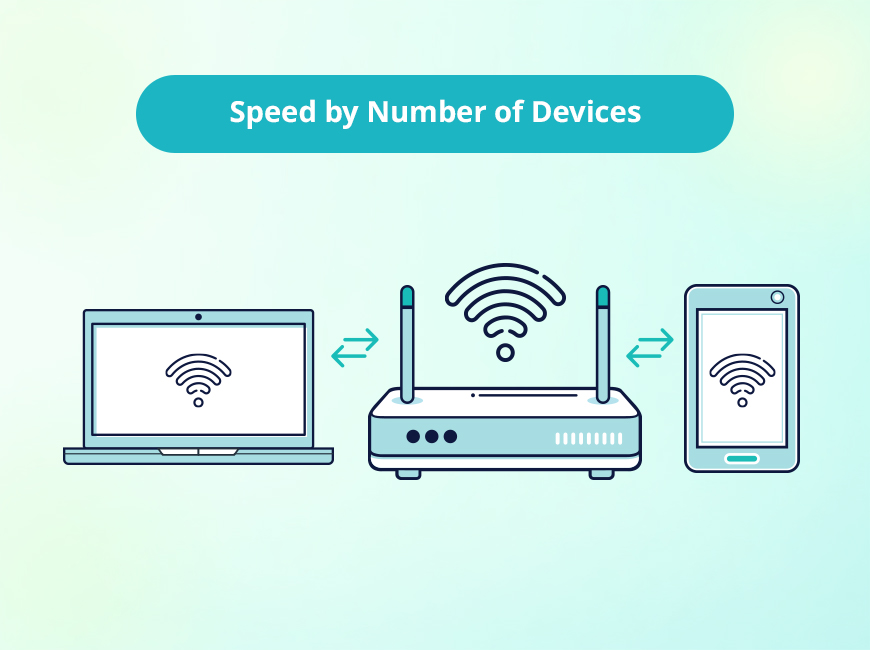
As a baseline, 100 Mbps comfortably supports five to seven devices for everyday tasks. But a household running 15 or more connected devices, like smart home gear, security cameras, and a couple of 4K streams, needs at least 300-500 Mbps to avoid peak-hour congestion

The mistake most households make is counting only laptops and TVs. The average U.S. internet household now runs around 17 connected devices, and many of them pull data continuously in the background, whether anyone is using them or not. 

This guide covers the math behind device counts, a tier-by-tier breakdown from 100 Mbps to 1 Gbps, the smart-home upload trap that quietly saturates cable plans, and why your hardware can throttle a fast plan before it ever reaches your screen. 

Key Takeaways: Internet Speed by Device Count 

  • The right speed depends on simultaneous active devices, not total connected devices. A home with 25 devices where only four are active at once needs far less than the raw count suggests.
  • Active and passive devices are not the same load. A 4K stream or video call pulls 4–25 Mbps; a smart plug or sensor pulls under 1 Mbps. Counting them equally produces either an oversized bill or a plan that buffers.
  • Upload is the hidden constraint for smart homes. Four 2K security cameras uploading continuously can consume 12–20 Mbps, which is enough to saturate a typical cable plan’s upload capacity.
  • Fiber’s symmetrical upload removes that ceiling entirely; most cable plans are asymmetrical, pairing fast downloads with limited upload.
  • Your router can be the real bottleneck. Connect 30 devices to an aging Wi-Fi 5 router on a gigabit plan and you’ll get congestion that has nothing to do with your ISP.
  • The FCC defines broadband as 100 Mbps down / 20 Mbps up, but multi-person households with 4K streaming, gaming, and remote work should plan well above it. 

Internet Speed by Device Count: The Quick Answer 

The right internet speed comes down to how many devices are active at the same time and what each one is doing. Not how many are connected in total. 

For quick planning, use the 10 Mbps per device rule: allocate roughly 10 Mbps for every connected device. So a home with 30 connected devices would need a 300 Mbps internet plan to stay clear of peak-hour bottlenecks. It’s a conservative estimate, too. It assumes more simultaneous use than most homes actually hit, which makes it a safe starting point before you fine-tune. 

Plan Tier Active Devices (4K, gaming, calls) Passive Background Devices Optimal Household Size Where It Tops Out 
100 Mbps 1–3 Up to 10 1–2 people Buffers once two 4K streams run together 
200 Mbps 3–5 Up to 15 2–3 people Remote work plus evening streaming 
300 Mbps 4–7 Up to 20 2–4 people Sweet spot for modern remote-work homes 
500 Mbps 8–12 Up to 35 4–6 people Big game downloads alongside streaming 
800 Mbps 12–18 Up to 45 5–7 people Multi-office homes; heavy content creation 
1 Gbps 15+ 50+ Large families/power users Overkill unless you run home offices or servers 

Active vs. Passive Devices: The Distinction Most Speed Guides Miss 

Not all connected devices pull the same amount of bandwidth. Active devices are anything streaming, gaming, or running a call, and need 4 to 25 Mbps each. Passive devices, like smart plugs, sensors, or hubs, typically use under 1 Mbps each. Get as accurate count as possible to avoid shortchanging your internet connection, or paying for too much. 

Active Use Approx. Draw Notes 
4K HDR stream 15–25 Mbps Per stream; Netflix lists 15 Mbps minimum 
1080p HD stream 5–8 Mbps Per stream 
Video call (1080p) 3–4 Mbps up and down Upload matters as much as download 
Online gaming 5–25 Mbps Bandwidth is low; latency is the real demand 
Streaming to Twitch (1080p60) 6–8 Mbps upload Upload-heavy 
Passive Device Typical Draw Notes 
Smart plug / thermostat Under 0.1 Mbps Status signals only 
Smart speaker (idle) Under 0.5 Mbps Streams audio only in use 
Security camera (720p) 1–2 Mbps upload, continuous Adds up fast across multiple cameras 
Security camera (2K/4K) 3–5 Mbps upload, continuous Saturation risk at 4+ cameras 
Smartphone (background sync) 0.1–1 Mbps Cloud backup, app updates 

The Smart-Home Upload Trap 

Most households size their plan around what they actively do without thinking about other activity on their home network. That’s where smart homes get caught. 

Four 2K cameras uploading at once consume roughly 12 to 20 Mbps continuously. A standard cable internet plan with around 20 Mbps of upload is effectively maxed out by those cameras alone and leaves nothing for a Zoom call, a cloud backup, or online gaming and streaming. Download speed is irrelevant to this problem; it’s purely an upload ceiling. 

The fix is to total your simultaneous upload demand before choosing a plan. Fiber internet symmetrical speed eliminate the issue because the upload speed is as fast as the download speed; cable plans on higher upload tiers (DOCSIS 3.1 or newer) ease it. See what fiber and high-upload plans are available at your address

How Many Devices Can Each Plan Tier Handle? 

The capacity table above is your starting point, and the notes below add the one thing a table can’t show: where each tier breaks and what changes as your demand rises. 

100 Mbps suits one to two light users. But that barrier is easy to hit: two 4K streams (about 50 Mbps) plus one gaming session (25 Mbps) already consume 75 Mbps, leaving little for background traffic. Skip this tier if you have multiple remote workers or a camera system. 

200 Mbps is the natural step up for couples working from home. The real variable here is upload. At 200 Mbps, cable internet typically gives you 10–20 Mbps up, while fiber gives you the symmetrical 200 Mbps (equal download and upload speeds). For a camera-heavy home, that gap matters more than the download speed. 

300 Mbps is the sweet spot for most modern households and families with several remote workers or students. It’s enough for everyday mixed use without overpaying, which is why it’s our recommendation for the multi-person, mixed-use home. 

500 Mbps earns its keep on large downloads. A 100 GB game download takes about 25 minutes here versus two-plus hours on 100 Mbps. Most homes at this tier would gain more from a Wi-Fi 6 router than from upgrading to a gigabit speed tier. 

800 Mbps may not be the improvement it seems. The jump from 500 to 800 is far less noticeable than the jump from 100 to 300. You can justify it, though, based on device count and upload demand, not perceptible speed. 

1 Gbps is for large households, home servers, and content creators with heavy upload needs. For most homes it’s futureproofing rather than necessity, and it only delivers if your modem and router can handle multi-gig speeds. An older Wi-Fi 5 router will not push 1 Gbps to wireless devices no matter what the plan provides. You’ll need at least a Wi-Fi 6 router. 

Why Your Internet Feels Slow on a Fast Plan: Hardware Bottlenecks 

A fast plan can be choked by three hardware layers before it reaches your device: the modem, the router, and the Wi-Fi standard. Upgrading your internet plan will not fix a hardware bottleneck. 

The router is usually the real speed limit 

The biggest factor in serving many devices at once is MU-MIMO (Multi-User, Multiple-Input, Multiple-Output), a router technology that transmits to multiple devices simultaneously instead of cycling through them one at a time. 

  • Wi-Fi 4 (802.11n): fine for fewer than 10 devices; starts queuing connections above that.
  • Wi-Fi 5 (802.11ac): adds downlink multi-device support (MU-MIMO); adequate for most homes up to ~500 Mbps with under 20 active devices.
  • Wi-Fi 6 (802.11ax): adds OFDMA, which splits each channel into sub-channels so the router can talk to many devices at once, plus two-way multi-device support. This is the recommended solution for homes with 20+ connected devices.
  • Wi-Fi 6E / Wi-Fi 7: add the 6 GHz band for high-speed, near-uncontested connections; meaningful for dense device counts and multi-gig plans. 

The takeaway: 30 devices on a Wi-Fi 5 router will get bogged down on a gigabit plan, and a Wi-Fi 6 upgrade resolves it without needing to change your internet plan. 

Modem barriers: 

  • A gigabit Ethernet port caps real throughput around 940 Mbps, so any plan above 1 Gbps needs a modem with a 2.5 GbE (or faster) port.
  • DOCSIS 3.0 (cable (coax) networking standard) modems vary widely by channel count; low-channel (16×4) units cap around 300–500 Mbps in practice, while high-channel (32×8) units approach 800–960 Mbps. You’ll need a cable modem with DOCSIS 3.1 if your have a gigabit or faster plan for its lower latency and greater headroom.
  • Fiber plans use an ISP-supplied optical network terminal (ONT), which isn’t the bottleneck. You’ll need a router to distribute connectivity throughout your house from the ONT.
  • Internet provider equipment is often a generation behind. Buying compatible gear removes the barrier and can save $10–$15/month in rental fees

Bufferbloat under load 

Bufferbloat is congestion that occurs when a router’s buffer fills with large packets from downloads or streaming, delaying the small, time-sensitive packets that gaming and video calls depend on. You’ll notice it if your ping rate (latency) jumps from 20 ms to 150+ ms the moment someone starts a big download. It doesn’t matter how fast your internet plan is, it can happen even on a 500 Mbps plan. 

The fix is QoS (Quality of Service) in your router settings to prioritize real-time traffic; many modern routers do this automatically. You can test your ping with our internet speed test tool

Put devices on the right Wi-Fi band 

  • 2.4 GHz: has a longer range, better through walls, but congested and capped around 50–150 Mbps; it’s best for low-demand passive devices (smart devices, cameras, etc).
  • 5 GHz: has a shorter range, higher throughput, and less congestion; best for streaming, gaming, and work devices.
  • 6 GHz (Wi-Fi 6E/7): has the shortest range, highest throughput, almost no competing networks; best for high-demand devices near the router. 

Keeping passive smart-home gear on 2.4 GHz and active devices on 5/6 GHz improves perceived performance on any plan. 

How to Calculate the Right Speed for Your Household 

Use these three steps to find your target internet speed needs: count active simultaneous users, add their peak demand, then add 30% for background overhead. 

Step 1 — List peak-hour active use (typically 7–10 PM). Example: two 4K streams (50 Mbps), one gaming session (25 Mbps), one video call (4 Mbps), and one remote desktop session (15 Mbps) = 94 Mbps active demand. 

Step 2 — Add passive overhead. Example: four cameras (16 Mbps up), ten sensors and plugs (2 Mbps), and six phones syncing (3 Mbps) = 21 Mbps. 

Step 3 — Add a 30% buffer for firmware updates, backup bursts, and unplanned overlap. (94 + 21) × 1.3 equals about 150 Mbps minimum. Cross-check that with the 10 Mbps rule on 30 total devices (300 Mbps); it’s slightly more conservative but gives you plenty of cushion. 

If you have a lot of smart home devices, run the upload side separately: total your camera upload (2–5 Mbps each), add call upload (3–4 Mbps per simultaneous call) and any live streaming (6–8 Mbps). If that total exceeds 80% of your plan’s upload, you can expect saturation and sluggishness during peak hours. If it’s available in your area, consider fiber’s symmetrical speeds, which solve the problem now and offer room for growth down the road. 

How to Test Whether Your Plan Matches Your Devices 

Run a speed test during peak hours on a wired connection to isolate your ISP link from home network variables, then compare the result against your plan’s typical-speed disclosure on the Broadband Facts label. 

Test What to Look For 
Download / upload speed Matches your plan’s typical-speed disclosure 
Latency and jitter Under 30 ms ping; under 5 ms jitter 
Bufferbloat Grade A or B; C or below means QoS is needed 
Wi-Fi vs. wired A large gap points to a router or band-selection bottleneck 

After you’ve run the test, see how your speed test results compare to various speed tiers and use cases. If wired speed matches your plan but your Wi-Fi performance is poor, the issue is your router or Wi-Fi band assignment, not your internet provider

Upgrade your plan when a wired peak-hour test runs consistently below plan speed, both wired and Wi-Fi are slow, or your device count has grown a lot since you signed up. 

Upgrade the hardware when wired speed is fine but Wi-Fi lags, speeds vary room to room, you’re running 20 or more devices on a Wi-Fi 5 router, or your internet latency is high

It can be both: a gigabit plan delivered through a Wi-Fi 5 router to 30 devices will underperform a 500 Mbps plan on a Wi-Fi 6 router with QoS enabled.

Matching Your Internet Speed to Your Device Count 

The right plan is set by your simultaneous active device count and your upload demand, not the raw number of things connected to your network. The 10 Mbps per device rule gives you a clean baseline and room to expand, but running a speed test during peak-hour congestion and demand will help you dial it in. 

Two reminders most guides skip: for homes with 20+ devices, a router upgrade to Wi-Fi 6 often does more than a plan upgrade, and, smart-home households should size upload separately because cameras can saturate a cable plan before anyone notices. 

Want to see how your current plan actually performs? Run a speed test at TestMySpeed.com during peak hours, then compare faster plans and fiber options at your address.

FAQs: Internet Speed Based on Device Count

How many devices can 100 Mbps handle?

It can handle one to two active devices plus up to about ten passive smart-home devices. So, a one- or two-person household with light streaming would be fine on a 100 Mbps plan. It buffers once two 4K streams run at the same time, so it’s not a fit for multiple remote workers or a camera system. 

Is 300 Mbps enough for a family of four?

Yes, for most families. It handles four to seven active devices (several 4K streams, a few simultaneous video calls, and gaming) alongside up to 20 passive devices. It’s the sweet spot for multi-person homes with mixed moderate-to-heavy use. 

Do I need 1 Gbps internet?

Usually not. For typical use, gigabit is overkill. The benefits of gigabits speeds are to futureproof your home and overcome network congestion. It’s worth it for large households, home servers, or content creators with heavy upload demands, and if your modem and router support multi-gig throughput. 

Why is my internet slow with only three devices?

If you have slow speed but only a few devices using the connection, it is more likely due to hardware and interference than it is your internet plan. Common causes are an aging router, a weak Wi-Fi signal or wrong-band assignment, bufferbloat from a background download, or provider congestion at peak hours. A wired speed test isolates whether the problem is your internet provider or your home network. 

How much bandwidth does a smart home use?

Most individual smart devices sip bandwidth, using well under 1 Mbps each for plugs, sensors, and thermostats. The exception is cameras: a single 2K/4K camera uploads 3–5 Mbps continuously, so a four-camera system can demand 12–20 Mbps of upload around the clock. 

Does adding more devices slow down your internet?

More connected devices don’t necessarily slow things down, but more simultaneously active devices will compete for the same bandwidth and the router’s attention. Passive devices in the background have minimal impact; four people streaming and gaming at once is what creates contention. 

Does Wi-Fi 6 make a difference for multiple devices?

Significantly, once you pass roughly 20 connected devices. Wi-Fi 6’s OFDMA and two-way MU-MIMO let the router serve many devices at once instead of queuing them, which is exactly the congestion older routers create. For high-device homes, a Wi-Fi 6 upgrade often beats a plan upgrade. 

When should I upgrade my plan versus my hardware?

Upgrade the plan if a wired peak-hour test runs well below plan speed or your household has grown. Upgrade the hardware if wired speed is fine but Wi-Fi lags, performance varies by room, or you’re running 20+ devices on a Wi-Fi 5 router. A wired speed test is the fastest way to tell which one is your bottleneck. 

Gaming is one of the most connection-dependent things you can do online. And unlike streaming a movie or scrolling through social media, online gaming doesn’t give you the luxury of buffering. When you miss a shot, get rubber-banded across the map, or lose a match because your game froze for half a second, that’s not a skill issue. That’s a network issue. 

The good news? You probably don’t need a gigabit connection to play online games without lag. But you do need to understand the right metrics. In this guide, we’re breaking down exactly what internet speeds you need for gaming in 2026, including what upload speed and ping mean for your experience, a genre-by-genre breakdown, and how different internet connection types stack up. 

Not sure where your connection stands right now? Start with a speed test and come back to this guide to see how your speed test results line up with our gaming speed guidelines. 

Key Takeaways About Online Gaming Speeds 

  • For most online games, a download speed of 3–5 Mbps is the minimum. But 25 Mbps or more is where gaming starts to feel smooth.
  • Ping (latency) matters more than raw speed. A fast connection with high ping will still lag in fast-paced games like FPS shooters.
  • Upload speed is often overlooked but matters for multiplayer games that sync your position to a server in real time.
  • The type of internet connection you have (fibercable5G home internetsatellite) affects gaming far more than your plan tier alone.
  • Cloud gaming raises the bar significantly, requiring 15–35 Mbps or more just to stream a game from a remote server. 

The Three Metrics That Matter Most for Gaming 

Most people look at one number when evaluating their internet connection: download speed. And while download speed matters, it’s arguably the least important of the three metrics that define a good gaming experience. Here’s what you should actually be watching. 

1. Ping (Latency), the Most Critical Metric for Gamers 

Latency measures how long it takes a signal to travel from your device to the game server and back, expressed in milliseconds (ms). The lower the number, the better. This is what determines how responsive and seamless your gameplay feels. 

  • Under 20 ms: Excellent. The gold standard for competitive gaming.
  • 20–50 ms: Very Good. Smooth for nearly every game type.
  • 50–100 ms: Acceptable. Fine for casual play; may feel slightly sluggish in fast-paced titles.
  • 100+ ms: Poor. You will notice lag in any multiplayer game. 

High-latency connections, like traditional geostationary satellites, can have ping rates above 500 ms, which makes real-time multiplayer unplayable no matter how fast your download speed is. 

2. Download Speed: Enough Is Enough 

Games are actually pretty light on bandwidth compared to streaming video. The average online games are light on bandwidth compared to 4K streaming. Most games specify 3–6 Mbps as their minimum, though 25 Mbps gives you comfortable headroom for game updates, voice chat, and other background activities on your home network. 

Where download speed really matters is game downloads and updates. A 100 GB update on a 25 Mbps connection takes about nine hours. That same update on a 500 Mbps fiber line takes under half an hour. 

3. Upload Speed: Often Ignored, but Really Important 

In multiplayer games, your device is constantly sending data to the game server: your position, actions, aim data, inputs. That’s upload traffic from your device. While games don’t demand huge upload bandwidth, a poor upload speed can result in your character warping or other players seeing you in the wrong location. 

Most games need at least 1–3 Mbps of upload speed. If you stream your gameplay on Twitch or YouTube, that minimum jumps to 5–10 Mbps or more. Our Download vs. Upload Speed guide explains the difference in detail. 

Is Your Connection Fast Enough for Gaming? 

Run a quick speed test to see your current download speed, upload speed, and ping. 

Once you have your results, head to our Speed Test Results Explained guide to understand what the numbers mean for gaming and other activities. You’ll see how your ping, download, and upload speeds fall into Poor, Fair, Good, or Very Good ranges with specific guidance for gamers. 

Speed Requirements by Game Genre 

Not all games are created equal when it comes to the demands on your internet connection. A turn-based card game like Hearthstone is far less sensitive to latency than a competitive FPS like Valorant. The table below breaks down the recommended speeds and ping targets by game genre. 

Game Genre / Type Examples Min. Download Recommended Upload Speed Ping Target 
First-Person Shooter (FPS) Call of Duty, Valorant, Apex Legends 3 Mbps 25+ Mbps 3+ Mbps <30 ms 
Battle Royale Fortnite, PUBG, Warzone 3 Mbps 25+ Mbps 3+ Mbps <40 ms 
MMO / MMORPG World of Warcraft, Final Fantasy XIV 3 Mbps 15+ Mbps 1+ Mbps <80 ms 
MOBA League of Legends, Dota 2 3 Mbps 10+ Mbps 1+ Mbps <50 ms 
Sports / Racing FIFA, F1 24, Rocket League 3 Mbps 10+ Mbps 1+ Mbps <60 ms 
RPG / Open World Elden Ring, Baldur’s Gate 3, GTA Online 3 Mbps 15+ Mbps 1+ Mbps <80 ms 
Real-Time Strategy (RTS) StarCraft II, Age of Empires IV 3 Mbps 10+ Mbps 1+ Mbps <80 ms 
Fighting Games Street Fighter 6, Mortal Kombat 1 3 Mbps 10+ Mbps 1+ Mbps <30 ms 
Card / Turn-Based Hearthstone, Pokémon TCG Pocket 1 Mbps 5+ Mbps 1 Mbps <150 ms 
Cloud Gaming Xbox Cloud Gaming, GeForce NOW 15 Mbps (HD) 45+ Mbps (4K) 5+ Mbps <40 ms 

Sources: Minimum download figures are based on FCC broadband recommendations (4 Mbps for multiplayer gaming) and console manufacturer guidelines published by Xbox and PlayStation (3–6 Mbps download, 0.5–3 Mbps upload). Cloud gaming figures are sourced from NVIDIA’s official GeForce NOW system requirements (15 Mbps for HD, 25 Mbps for 1080p, 40–45 Mbps for 4K). Genre-specific recommended speeds and ping targets are editorial benchmarks informed by game developer documentation and industry testing; individual publisher minimums vary by title. 

A few notes on the table above: 

  • The minimum figures are enough to connect and play, but not necessarily enough to play well, especially on a shared home network.
  • FPS and fighting games are the most ping-sensitive genres. Even 60–80 ms can put you at a meaningful disadvantage against opponents with sub-20 ms connections.
  • Cloud gaming is in a category of its own. Because the game is rendered on a remote server and streamed to your screen, you’re essentially streaming video in real time. Low latency is critical, and you’ll need substantially more bandwidth than traditional gaming.
  • MMOs and RPGs are generally the most forgiving, as their servers often use “tick rates” that are slower than competitive shooters, giving higher-latency connections more tolerance.

Internet Connection Types for Gaming: How They Compare 

Your internet plan’s speed matters less than you might think if your type of internet connection is at odds with gaming needs. A 200 Mbps satellite plan might look great on paper but be borderline unplayable in fast-paced games due to high latency. Here’s how each connection type performs for gamers. 

Connection Type Typical Download Speed Typical Latency Good for Gaming? Best Use Case 
Fiber 300 Mbps – 5+ Gbps 5–20 ms Excellent Competitive/FPS gaming, cloud gaming, multi-device households 
Cable 100–500 Mbps 15–35 ms Very Good Most online gaming; watch for peak-hour slowdowns 
5G Home Internet 100–300 Mbps 20–40 ms Good Renters or areas without fiber; solid for most genres 
DSL 10–100 Mbps 20–50 ms Fair Turn-based, card games, or light MMOs on faster DSL plans 
Fixed Wireless 5–50 Mbps 30–70 ms Limited Casual gaming; avoid competitive FPS or cloud gaming 
Satellite (LEO / Starlink) 50–200 Mbps 20–60 ms Acceptable Rural gamers; latency is much better than traditional satellite 
Satellite (GEO / HughesNet) 12–150 Mbps 500–600 ms Not Ideal Last resort; high latency makes most online gaming unplayable 

A Word on Wi-Fi vs. Wired 

Your connection type matters, but so does how your device connects to your router. A wired Ethernet connection will almost always outperform Wi-Fi when it comes to gaming; not necessarily in raw speed, but in stability and latency. Wi-Fi introduces variables like signal interference, distance from the router, and competing devices that wired connections simply don’t have. 

If you’re seeing high ping or intermittent lag and you’re on Wi-Fi, try plugging directly into your router with an Ethernet cable. In many cases, that single change is more impactful than upgrading your internet plan. 

How Many Mbps Do I Really Need? A Practical Guide 

Here’s a straightforward way to think about your speed needs based on your gaming setup: 

Solo Gamer, Dedicated Gaming PC or Console 

If it’s just you, you’re not doing anything else on the network while you play, and you have a wired Ethernet connection; you can get away with 10–25 Mbps for most genres. But 25–50 Mbps is a comfortable sweet spot that gives you headroom for game updates and voice chat. 

Shared Household with Multiple Devices 

This is where bandwidth starts to matter more. If others in your home are streaming 4K video, on video calls, or downloading files while you’re trying to game, that shared bandwidth creates congestion. Aim for 100 Mbps or more in a multi-device household ideally with a router that supports Quality of Service (QoS) settings so you can prioritize gaming traffic. 

Competitive Gamer or Streamer 

If you’re playing at a competitive level, streaming your gameplay, or both, the requirements jump considerably. For simultaneous gaming and streaming, 50–100 Mbps upload is a practical target. More importantly, you want a connection with consistently low latency (under 20 ms), which typically means fiber or a high-quality cable plan with a router that can handle the load. 

Tips for Improving Your Gaming Connection Without Upgrading Your Plan 

Sometimes the issue isn’t your internet plan, it’s how you’re using it. Before you call your ISP or start shopping for a new plan, try these fixes: 

  • Switch to Ethernet. This is the single highest-impact change most gamers can make.
  • Check your router’s QoS settings and prioritize your gaming device.
  • Restart your modem and router. Cache issues and memory leaks can cause slowdowns that a quick reboot fixes.
  • Close background applications on your gaming device. Streaming services, cloud backups, and OS updates love to consume bandwidth at the worst possible moment.
  • Connect to a game server closer to your geographic location. Most games let you choose your region, and picking the nearest server can drop your ping significantly.
  • If you’re experiencing consistent issues, check whether your ISP is throttling your connection, particularly after heavy usage periods

Still not sure if the problem is your setup or your plan? Run a speed test and compare your ping, download, and upload numbers to the benchmarks in this guide. That’ll tell you quickly whether you need to upgrade your internet plan.

What Your Speed Test Results Actually Mean for Gaming 

Gaming doesn’t require a gigabit connection. What it requires is a connection with consistent, low latency and enough download speed to not get in the way. For most gamers, 25–50 Mbps with sub-50 ms ping covers the vast majority of what you’ll play online. 

Where it gets more nuanced is when you factor in your household, your game genre, your connection type, and whether you also stream your gameplay. Competitive FPS players and cloud gamers have higher requirements than someone who plays MMOs a few hours a week. 

The fastest way to know where you actually stand is to run a speed test. Check download speed, upload speed, and ping, then compare them to the benchmarks in this guide. If you’re not sure what you’re looking at, our Speed Test Results Explained guide will walk you through it. 

Your connection either has what it takes for the games you want to play, or it doesn’t. A speed test is a quick and easy way to find out.

Frequently Asked Questions: Best Speed for Online Gaming

What is a good internet speed for gaming?

For most online games, 25 Mbps download speed is the practical recommended minimum for a single gamer. At that speed, you’ll have enough bandwidth for other traffic on your home network and voice chat without impacting gameplay. But internet latency often matters more than blazing speed. A 10 Mbps connection with 15 ms ping will generally outperform a 100 Mbps connection with 120 ms ping in fast-paced multiplayer games.

Is 100 Mbps good enough for gaming?

Yes, 100 Mbps is more than enough for gaming in most scenarios, including households with multiple devices. The limiting factor at that speed is more likely to be your ping and connection stability than raw bandwidth. Where 100 Mbps can feel insufficient is in very active households or if you’re downloading large game files and gaming simultaneously. 

What is a good ping for gaming?

Under 20 ms is excellent and the target for competitive play. 20–50 ms is very good and suitable for nearly all game types. 50–100 ms is acceptable for casual gaming. Above 100 ms, you’ll start noticing lag in real-time multiplayer games. You’ll see the results of high latency in delayed inputs, missed shots, and rubberbanding. 

Does upload speed matter for gaming?

Yes, though less than download speed for most players. In multiplayer games, your device constantly sends data to the game server — your position, actions, and inputs — which are all dependent on upload speed. For standard gaming, 1–3 Mbps upload is usually sufficient. But if you stream your gameplay on Twitch or YouTube while gaming, you’ll need considerably more: at least 5–10 Mbps upload for 1080p streaming. 

Is fiber internet necessary for gaming?

You do not need to have fiber internet to game online, but it is the best option when available. Fiber offers the lowest and most consistent latency, along with symmetrical upload and download speeds. Cable internet is a strong alternative and handles gaming well for most users. The bigger concern is satellite internet. Traditional geostationary (GEO) satellite has latency above 500 ms, which makes real-time multiplayer gaming nearly impossible. LEO (low Earth orbit) satellite services are significantly better, with latency in the 20–60 ms range. 

Why does my internet feel slow while gaming even though my speed test shows fast speeds?

This is actually a very common situation. A fast download speed doesn’t guarantee a good gaming experience if your latency is high, you have high jitter (inconsistent ping), or there’s packet loss on your connection. Wi-Fi interference, a congested shared network, or an overloaded router can all contribute to lag even on a fast plan. Try switching to Ethernet and running a speed test. Look at your ping number specifically, not just the download speed. 

How much internet speed does cloud gaming require?

Cloud gaming services like Xbox Cloud Gaming and NVIDIA GeForce NOW require significantly more bandwidth than traditional gaming because they’re streaming video from a remote server in real time. Minimums range from 10–15 Mbps for standard quality up to 35+ Mbps for 4K streaming. Low latency is also critical. Most cloud gaming services recommend under 40 ms ping for a smooth experience. 

Can satellite internet handle online gaming?

It depends on the type of satellite. Traditional geostationary equatorial orbit (GEO) satellite internet has latency above 500 ms, which makes most real-time multiplayer games unplayable. Low Earth Orbit (LEO) satellite services have dramatically improved this, with latency typically between 20–60 ms, which is workable for most gaming genres outside of competitive FPS. If you’re a rural gamer on LEO satellite, casual and turn-based games will work well, though competitive shooters may still feel inconsistent. 

If your Xfinity internet connection has slowed to a crawl, you’re not alone, and the good news is that most slowdowns are easy to fix in just a few minutes. Xfinity runs on a hybrid fiber-cable (HFC) network that delivers fast speeds in most areas, but the connection that reaches your devices passes through your modem, your Wi-Fi, and every device sharing the network along the way. Issues at any of those points can drag your speed down well below the internet speed you are paying for

The quickest way to find out where the slowdown is happening is to run an Xfinity speed test and compare the number to your plan. Below, we walk through what causes slow Xfinity internet, how to fix it step by step, and the handful of Xfinity-specific quirks worth knowing about. 

Quick Take: Slow Xfinity Internet 

Most slow Xfinity connections trace back to one of the following: a Wi-Fi issue (distance or interference), outdated or mismatched equipment, network congestion during peak hours, too many devices sharing bandwidth, a loose coax connection, a local outage, or a plan that no longer fits your household. Start by restarting your gateway and testing on a wired connection. If a wired test is close to your internet plan speed, the problem is your Wi-Fi or a device, not Xfinity. 

Start by Testing Your Real-World Speed 

Before you change anything, get a baseline. A speed test will show you what you are getting at the time of the test. You can use the test results to compare the speed on your plan

Test the right way for an accurate reading: 

  1. Connect your device directly to your Xfinity gateway or modem with an Ethernet cable if you can. This provides the most accurate reading of your internet connection. 
  1. Close streaming apps, downloads, and extra browser tabs that use bandwidth in the background. 
  1. Run the test two or three times throughout the day, including once during the evening when your neighborhood network is the busiest. 

Now compare. On a wired connection, you should see at least 90% of your plan’s advertised speed. Over Wi-Fi, real-world speeds commonly land in the 30% to 50% range, which is normal.  

  • If your wired result is close to your plan but Wi-Fi is far below it, you have a Wi-Fi problem.
  • If the wired speed test comes in low, the issue is your equipment, your line, or Xfinity’s network. 

A note about upload speed: Xfinity’s cable internet plans are asymmetric, meaning uploads run far slower than downloads, often in the 10-35 Mbps range depending on your plan. A low upload speed is usually normal for cable. 

Why Is My Xfinity Internet Slow? The Most Common Causes 

Slow speeds rarely have a single universal cause. Here are the culprits we see most often and in the order we see them most. Many overlap with the various reasons internet slows down, but a few are specific to how Xfinity’s cable service works. 

1. It’s your Wi-Fi, not your internet 

This is the number one reason. Wi-Fi weakens over distance and gets blocked by walls, floors, metal, and appliances. The further you sit from your gateway, the slower and less stable your connection becomes, even when the internet entering your home is perfectly fast. 

2. Your devices are stuck on the 2.4 GHz band 

Xfinity’s xFi gateways broadcast two Wi-Fi bands under one network name. The 5 GHz band is fast but has shorter range; the 2.4 GHz band reaches further but tops out far lower, often around 20 to 50 Mbps. Sometimes the gateway parks a device on 2.4 GHz when it should be on 5 GHz, which can make a gigabit plan feel like a budget one. This is one of the most common reasons a single device feels slow while everything else is fine. 

3. Outdated or mismatched equipment 

A modem or router that is more than three or four years old may not support current standards. To get gigabit speeds on Xfinity, you need a DOCSIS 3.1 modem; an older DOCSIS 3.0 unit will cap you well below a gig plan. (DOCSIS, Data Over Cable Service Interface Specification, is a the cable broadband standard; newer versions (3.1 and up) provide better performance) Your devices matter too. An older laptop or phone with a dated Wi-Fi adapter can connect at only a fraction of your plan speed no matter how fast your service is. 

4. Network congestion during peak hours 

Xfinity is a shared cable network. When your whole neighborhood comes online in the evening, the local node can get crowded and everyone’s speeds drop a bit. If your connection is fine all day and but internet speeds start creeping around 7 to 11 p.m., network congestion is the likely cause. In some areas an oversubscribed node is a known issue that only Xfinity can resolve by upgrading the equipment serving your street. Or you can search for a new internet provider in your area

5. Too many devices competing for bandwidth 

Every phone, smart TV, security camera, console, and smart speaker draws from the same pool of bandwidth. A 4K stream, a large game download, and a cloud backup running at the same time can saturate a mid-tier plan on their own. The slowdown you feel may simply be everything happening at once. 

6. A loose coax connection or signal problem 

Xfinity’s signal reaches your modem through a coaxial cable, the same kind used for cable TV. A coax connector that is finger-loose, a damaged cable, or an old splitter or amplifier can degrade the signal and tank your speeds. This is a frequent and easily overlooked cause, especially after someone has been working near the wiring. 

7. Background updates and apps 

Automatic operating system updates, cloud syncing, and game patches can quietly consume most of your bandwidth. If your speed drops at random and recovers on its own, a background download is a likely suspect. 

8. An outage in your area 

Sometimes the problem is not on your end at all. Maintenance, a cut line, or equipment failure can slow or drop service for a whole area. The Xfinity app and the Xfinity Status Center will tell you whether there is a known internet outage in your area

9. Your plan no longer fits your household 

If nothing is technically wrong, but the internet still feels slow, then your plan may have been outgrown. A household that has added people, 4K TVs, remote work, and smart devices since signing up may simply need more speed than the plan provides. 

10. A note on throttling and data caps 

A common myth is that hitting your data cap slows your Xfinity connection. It does not. Most newer Xfinity plans now include unlimited data, while legacy plans may have a 1.2 TB monthly limit; going over that limit triggers overage charges rather than speed throttling

How to Fix Slow Xfinity Internet, Step by Step 

Work through these in order. The earlier steps resolve most slowdowns, and each one takes only a few minutes. 

  1. Restart your gateway. Unplug your Xfinity modem or gateway, wait 60 seconds, and plug it back in, or use the Restart option in the Xfinity app. This single step clears most temporary slowdowns. 
  1. Switch to a wired connection. Plug your computer directly into the gateway with an Ethernet cable and run our speed test tool. If the results are close to your plan’s speed, run the test again over Wi-Fi. Speeds are normally slower over Wi-Fi, but if they’re considerably slower, then your issue is with your Wi-Fi network. 
  1. Get your devices onto 5 GHz. In the Xfinity app you can view connected devices and, if needed, separate the two Wi-Fi bands so your nearby devices use the faster 5 GHz band. Naming the 5 GHz network separately makes it easy to connect to it on purpose. 
  1. Reposition your gateway. Move it to a central, elevated, open spot, away from thick walls, metal, microwaves, and other electronics. Placement alone often makes a noticeable difference. 
  1. Check your cables. Make sure the coax is snug at both the wall jack and the modem, and that no cables are pinched or damaged. Remove unnecessary splitters if you can. 
  1. Confirm your equipment can keep up. If you are on a gigabit plan, verify your modem is DOCSIS 3.1 and that the device you are testing on supports high speeds. Replace router hardware older than three to four years. 
  1. Reduce the load. Pause large downloads, lower streaming quality, and disconnect devices that do not need to be online while you test. 
  1. Check for an outage. Open the Xfinity app or the Status Center to see whether an outage is affecting your area. If there is one, the fix is on Xfinity’s side and you only need to wait. 
  1. Contact Xfinity. If a wired connection straight into the gateway is still slow after all of the above, the issue is likely on Xfinity’s end. Reach support through the Xfinity app, by phone, or by direct message in the Xfinity Community Forum, and tell them exactly what you have already tried. Note that an in-home technician visit may carry a charge if the problem turns out to be wiring inside your home and you are not on a service protection plan. 

Xfinity-Specific Things Worth Knowing 

Topic What to know 
Upload speeds Xfinity cable plans are asymmetric. Uploads of 10 to 35 Mbps are normal, even on fast download tiers. A low upload number alone is rarely a fault. 
Gigabit plans A gigabit plan needs a DOCSIS 3.1 modem and a device capable of those speeds. Wi-Fi and older hardware are the usual reasons a gig plan underperforms. 
Data caps Going over a data limit results in overage charges, not slower speeds. A maxed-out cap is not the reason your connection is slow. 
xFi Gateway Renting the gateway gives you band management and per-device usage in the app. Buying your own DOCSIS 3.1 modem and a Wi-Fi 6 router removes the rental fee and often improves Wi-Fi. 
Peak-hour dips Evening-only slowdowns usually mean neighborhood congestion. If they persist for weeks, ask Xfinity whether your local node is oversubscribed. 

When to Upgrade Your Plan or Switch Providers 

If you have worked through every step, your equipment is current, and a wired test still falls short of what you need, it may be that your plan or provider no longer fits. Count the devices and people share your internet connection, then weigh that against your plan’s speed. If you regularly run multiple 4K streams, game online, or rely on smooth video calls, you may simply need a faster plan, which will have more bandwidth for all of those needs. 

It is also worth knowing what else is available where you live. Depending on your address, a different connection type, such as fiber, may offer faster and more consistent speeds, including symmetric uploads. Compare internet providers and plans in your area to see whether a better option exists before you commit to an upgrade. 

Whatever you decide, keep testing. Running a quick Xfinity speed test before and after any change is the simplest way to confirm you are getting the speed you are paying for

Frequently Asked Questions About Slow Xfinity Internet

Why is my Xfinity internet so slow all of a sudden?

A sudden slowdown usually points to a temporary cause: a background download, a device stuck on the 2.4 GHz band, evening congestion, a loose coax connection, or a local outage. Restart your gateway first, then run a wired speed test. If a wired test is fast, but Wi-Fi is slow, the issue is your wireless setup. If both are slow, then check the Xfinity app for an outage. 

Why is my Xfinity internet slow at night?

Slowdowns that happen only in the evening are almost always neighborhood congestion. Xfinity’s cable network is shared, so when everyone nearby is streaming at once, speeds can dip. If it happens night after night for weeks, contact Xfinity and ask whether the node serving your area is oversubscribed. 

Why is my Xfinity upload speed so slow?

Xfinity’s cable plans are asymmetric, so uploads are designed to be much slower than downloads, commonly 10 to 35 Mbps. That’s normal. If you need faster uploads for work or content creation, fiber plans offer symmetric speeds and are worth comparing. 

How do I make my Xfinity Wi-Fi faster?

Move your gateway to a central, open, elevated location, get nearby devices onto the 5 GHz band, restart the gateway, and update or replace router hardware older than three to four years. If your home is large or has multiple floors, a mesh system or extender helps. A wired connection is always the fastest option.

How do I know if Xfinity is slow in my area right now?

Open the Xfinity app or visit the Xfinity Status Center to check for a reported outage at your address. If an outage is listed, the slowdown is on Xfinity’s side and will be resolved by their team. If no outage shows but speeds are still low, work through the troubleshooting steps above. 

Does the Xfinity data cap slow down my internet?

No. Many newer Xfinity plans include unlimited data, and customers on older plans with a 1.2 TB limit are charged overage fees for going over, not throttled. Exceeding a data cap does not reduce your speed, so a slow connection has another cause. 

My Xfinity Ethernet is fast but Wi-Fi is slow. Why?

That gap is the clearest sign of a Wi-Fi problem rather than a service problem. The likely causes are distance from the gateway, interference, or a device stuck on the slower 2.4 GHz band. Reposition the gateway, connect nearby devices to 5 GHz, and consider a mesh system for larger homes. 

What speed should I be getting from Xfinity?

On a wired connection, aim for at least 90% of your plan’s advertised download speed. Over Wi-Fi, 30% to 50% is common and still normal. If you are consistently below those benchmarks with a solid setup, learn how to confirm you are getting the speed you pay for, then follow up with Xfinity. 

Still seeing slow speeds? Run a free Xfinity speed test to see exactly what you are getting, then compare faster plans and providers in your area

Slow internet is one of those problems that starts as a minor annoyance and quickly becomes genuinely frustrating. If you’re a Spectrum customer and your connection has been feeling a little sluggish lately, you’re not alone. Most slow internet issues come down to a handful of common causes, and you can usually diagnose and fix them without ever needing to call customer service. 

Causes typically come down to network congestion, equipment that needs a restart, poor Wi-Fi conditions, or a loose cable. By running a speed test and working through a few quick checks, you can get things back on track in under 10 minutes. Knowing your actual speeds is the most useful piece of information you can have before troubleshooting anything. 

Quick Answer: Slow Spectrum Internet 

Spectrum internet is often slow during peak hours (7–11 PM) due to network congestion, equipment needing a restart, poor router placement, or a loose cable connection. Running a wired speed test first lets you know whether the problem is with Spectrum’s network or in your home.   

Run a Speed Test First 

Head to the Spectrum speed test at TestMySpeed.com and run it twice: once over a wired Ethernet connection directly connected to your modem or router, and once over Wi-Fi. 

The wired result is the one that matters most. It shows what your modem is actually receiving from Spectrum’s network. 

Compare that number to your plan’s advertised speed. You can find your specific plan by logging in to your Spectrum account, checking your most recent bill, or contacting Spectrum support. 

  • Wired speed is close to your plan speed: The issue is likely in your home Wi-Fi network or on a specific device, not with Spectrum’s service. 
  • Wired speed is significantly below your plan speed: The issue is more likely your modem, the coaxial cable connection, or something on Spectrum’s end. 

Could Your Spectrum Plan Be the Issue? 

If a wired speed test confirms you’re getting your full plan speed but things still feel slow, the issue may not be a problem at all. It may be that your household has simply outgrown your current tier. Spectrum’s plans run from 100 Mbps at the entry level up to 2 Gbps in some areas, with no data caps on any plan. 

One person streaming and browsing will be perfectly comfortable on 300 Mbps. A home with four or five people simultaneously streaming in 4K, working on video calls, and gaming online will start to feel the limits of that same plan pretty quickly. If that sounds familiar, it might be worth looking at Internet Premier (500 Mbps) or Internet Gig (1 Gbps). 

The Most Common Reasons Spectrum Internet Runs Slow 

There’s rarely just one explanation. Most slow internet situations involve a combination of factors, all happening at once. Here are the causes that come up most often. 

1. Network Congestion, Especially in the Evening 

This is the single most common reason Spectrum internet feels slow after work hours. Spectrum runs on a shared cable network, meaning the capacity on your local network node is divided among all the households in your area. When many people are online simultaneously, everyone’s speeds can dip

The FCC’s Measuring Broadband America report defines peak usage hours as 7 PM to 11 PM on weeknights, noting that “more people are attempting to use the Internet simultaneously, giving rise to a greater potential for congestion and degraded user performance.” This is a shared infrastructure issue that affects all cable-based internet providers, not just Spectrum. 

If your speeds are consistently slower in the evenings but feel normal during the day, it may be due to node congestion. Restarting your modem won’t change this. The most practical workarounds are scheduling large downloads and backups for daytime hours, and switching to a wired Ethernet connection for video calls or streaming during peak times. 

2. Your Modem or Router Needs a Restart 

This is the first and easiest fix, and it works more often than you might expect. Modems and routers build up cached data over time and can slow down as a result. A restart clears that out and re-establishes a fresh connection to the network. 

You can restart your equipment in three ways: 

  • My Spectrum App: Tap Services, select Internet, choose your equipment from the list, and tap Restart Equipment. 
  • Spectrum account online: Sign in, go to the Your Services tab, select Internet, pick your equipment, and hit Restart Equipment. 
  • Manually: Unplug the modem from the wall, wait a full 60 seconds, then plug it back in. If you have a separate router, let the modem fully reconnect before restarting the router. 

Worth knowing: a restart and a factory reset are not the same thing. A restart simply reboots the device and clears its memory. A factory reset wipes all your custom settings and restores the default configuration. Always restart first; only reset if you have a specific reason to. 

Spectrum also recommends rebooting your equipment roughly once a month as a general maintenance practice, not just when problems arise. If your speed tier was recently upgraded, Spectrum notes that rebooting your modem is required to receive the new speeds. 

3. Outdated or Underpowered Equipment 

Your modem and router have more influence on your real-world speeds than most people realize. If either device is a few years old, it may not be capable of delivering the full speed your plan allows. 

Spectrum’s faster plans require a DOCSIS 3.1 (the current modem standard) modem to deliver full speeds. You’ll need a router with at least the 802.11 N Wi-Fi standard for speeds up to 300 Mbps, and a router with 802.11 AC Wi-Fi for faster tiers. If your router predates those standards, it will cap your Wi-Fi speeds regardless of your plan. Spectrum includes a free modem with its plans, so if you’re using their equipment and it’s aging, it’s worth contacting them about a replacement. 

Router technology has improved significantly in recent years. If your router is more than four or five years old, upgrading to a Wi-Fi 6 model can make a meaningful difference in both speed and reliability, especially in homes with many connected devices. 

4. Wi-Fi Interference or Poor Router Placement 

Wi-Fi signals are more sensitive to their environment than most people expect. Walls, floors, appliances, and even neighboring networks can all reduce your signal strength and effective speeds. Where you place your router matters more than most people realize. 

Stay within roughly 125 feet of your router for a reliable Wi-Fi signal. Beyond that range, or through multiple walls, speeds degrade noticeably. Thick materials like concrete, brick, and tile reduce that effective range even further. 

A few placement adjustments that make a real difference: 

  • Put your router somewhere central in your home rather than in a corner, closet, or utility room. 
  • Elevate it: a shelf or countertop works better than the floor. 
  • Keep it away from microwaves, cordless phones, and baby monitors, which operate on overlapping frequencies. 
  • If you’re connecting on the 2.4 GHz band, try switching to 5 GHz for faster speeds at shorter range. 

For larger homes with multiple floors or thick walls, a mesh Wi-Fi system is often more effective than trying to stretch a single router’s signal. 

5. Too Many Devices Sharing the Connection 

Every device on your network uses a share of your available bandwidth. Disconnect devices not in use, including iPads, phones, and tablets that maintain background connections even when you’re not actively using them. 

In a household with multiple people streaming, gaming, and on video calls at the same time, even a fast plan can start to show strain. If your router supports quality of service (QOS) settings, you can use them to prioritize bandwidth for specific devices or traffic types, helping keep important activities running smoothly even when the network is busy. 

6. Loose or Damaged Cables 

A loose coaxial cable is one of the most commonly overlooked causes of slow or intermittent Spectrum internet. The coaxial cable runs from your wall outlet to the back of your modem, carrying the signal from Spectrum’s network into your home. Even a slightly loose connection can significantly degrade speeds. 

Check that all connections are properly secured and that there are no loose or damaged cables. Make sure the coaxial cable is hand-tightened at both ends: at the wall outlet and at the back of your modem. Then check your Ethernet cables for any visible damage like kinks, bends, or wear. If you have pets, check for chew marks too. 

7. A Local Service Outage 

An active outage will make your internet feel slow or completely unresponsive. It’s a quick thing to rule out before spending time on other troubleshooting steps. You can also check real-time internet outage maps for a broader view of service disruptions in your area. 

You can check outage status through the My Spectrum App by going to Services and selecting Internet. There’s a chat feature in the app where you can type “Am I in an outage?” and get a direct answer for your specific address. Spectrum’s Storm Center also lets you sign up for outage alerts and proactive service status notifications. 

8. Using the My Spectrum App for Diagnostics 

The My Spectrum App does more than check for outages and restart your equipment. It includes a built-in diagnostic tool that can identify connection problems specific to your account and address. 

To run a diagnostic: open the app, tap Services, select Internet, and tap Run a Test. The app will check your modem’s connection status, signal levels, and whether the issue is on your end or Spectrum’s network. If it detects a problem it can fix remotely, it will often do so automatically. If it finds something that requires a technician, it will tell you that too, and give you the option to schedule a visit directly from the app. 

The diagnostic tool is worth running before you call support. It gives you specific information about what’s wrong rather than a generic troubleshooting script, and it can save you a significant amount of time on the phone. 

9. A VPN Slowing Down Your Connection 

If you use a VPN, it could be why your internet feels slow, even when your Spectrum connection is perfectly healthy. VPNs route your traffic through an intermediary server, which adds distance and processing overhead to every request. Depending on the VPN provider, the server location, and the load on that server, the speed penalty can range from barely noticeable to significant. 

A few things that make VPN slowdowns worse: connecting to a server in a distant country, using an older VPN protocol, or running a free VPN service that throttles bandwidth or oversells server capacity. 

The fastest way to confirm that a VPN is the culprit is to disconnect it and run a speed test. If your speeds jump back to normal, the VPN is the issue, not Spectrum. 

If you need to stay on a VPN, try these fixes first: 

  • Switch to a server geographically closer to your location 
  • Change your VPN protocol to WireGuard if your provider supports it; it’s significantly faster than older protocols like OpenVPN 
  • Upgrade to a paid VPN service if you’re on a free plan 

Worth noting: if a speed test run directly through your Spectrum connection (VPN off) shows slow speeds, the VPN isn’t the cause. Work through the other troubleshooting steps in this article. 

10. Viruses, Malware, or Background Programs 

Sometimes the slowdown has nothing to do with your network at all. BitTorrent, viruses and adware, and strict firewall settings are common causes of slow speeds on an otherwise healthy connection. Spectrum includes a free Security Suite with its internet plans that can scan for harmful software. 

Background processes are easy to overlook. Cloud backups, automatic software updates, and apps that sync in the background can quietly consume significant bandwidth. Before running a speed test, close any programs you aren’t actively using and pause pending downloads. That gives you a much more accurate picture of your actual connection speed. 

How to Fix Slow Spectrum Internet 

If you’re not sure where to start, work through these steps in order. Most problems show up somewhere in the first five. 

  1. Run a speed test. Go to TestMySpeed and test wired first, then over Wi-Fi. Note both results. 
  1. Check for an outage. Open the My Spectrum App, go to Services, select Internet, and ask the chat assistant whether there’s an outage at your address. 
  1. Restart your modem and router. Unplug the modem, wait 60 seconds, plug it back in, and let it fully reconnect before restarting the router. Wait two minutes before running another speed test. 
  1. Check your cables. Hand-tighten the coaxial cable at both the wall outlet and the modem. Inspect Ethernet cables for damage. 
  1. Test with Ethernet. Plug a laptop directly into your modem or router with an Ethernet cable and retest. A significant improvement over Wi-Fi means the issue is your wireless network, not Spectrum’s service. 
  1. Reduce connected devices. Disconnect idle devices and pause large downloads or updates. 
  1. Reposition your router. Move it to a central, elevated spot away from walls and other electronics. 
  1. Clear your browser cache. A bloated cache can slow down browsing even on a healthy connection. 
  1. Scan for malware. Run Spectrum’s included Security Suite or a trusted antivirus tool. 
  1. Contact Spectrum support. If speeds are still low after all of the above, call Spectrum at 1-833-267-6094 or chat through the My Spectrum App. If remote support doesn’t resolve it, ask specifically for a technician visit. 

Does Spectrum Throttle Your Internet Speed? 

It’s a fair question, especially when your internet slows down at a predictable time every evening. The short answer, directly from Spectrum: no, Spectrum doesn’t throttle speeds. But there can be a lot of causes of slow speeds.” 

That position is also supported by the FCC’s Measuring Broadband America program, which monitors ISP performance and has generally found that cable providers deliver speeds in line with their advertised tiers. Peak-hour slowdowns on cable networks are caused by shared node congestion, not deliberate speed reduction. 

That distinction matters because the solutions are different. Congestion is a shared infrastructure issue that no amount of modem restarting will fix. The most effective responses are to schedule heavy usage outside peak hours, use a wired connection when speeds matter most, or upgrade to a higher-tier plan that gives you more headroom when the network is busy. 

If your speeds are consistently low at all hours, not just evenings, that points to an equipment issue, a line problem, or a plan that’s simply too slow for your household’s needs. 

When to Call Spectrum Support 

Not everything can be resolved at home. A few situations where it makes sense to get Spectrum involved directly: 

  • Your wired speed test results are consistently far below your plan’s advertised speed. 
  • Your connection keeps dropping repeatedly throughout the day. 
  • You’ve worked through the troubleshooting steps, and nothing has improved. 
  • Slow speeds affect multiple devices, and you’ve already confirmed there’s no local outage. 

When you contact Spectrum, have your speed test numbers ready, along with whether the issue affects wired and Wi-Fi connections or just one of them, and approximately when the problem started. You can reach Spectrum at 1-833-267-6094, via chat in the My Spectrum App, or at spectrum.net/support

If a phone or chat session doesn’t resolve it, ask for a technician visit. A technician can inspect the coaxial line from the street into your home, the tap outside your house, and the node serving your neighborhood. These are things that can’t be fixed remotely.

Frequently Asked Questions About Slow Spectrum Internet

Why is my Spectrum internet slow at night?

Spectrum operates on a shared cable network, so speeds tend to dip during peak hours, typically 7 to 11 PM, when many households in your area are online at the same time. The FCC’s Measuring Broadband America program identifies 7 to 11 PM as the primary congestion window for residential broadband. This is network congestion, not throttling. Scheduling large downloads for off-peak hours and using a wired Ethernet connection during busy evenings are the most reliable workarounds. 

Why is my Spectrum Wi-Fi slow, but my wired connection is fast?

If a wired speed test shows normal speeds but Wi-Fi feels sluggish, the problem is within your home network, not with Spectrum’s service. Common causes include distance from the router, interference from walls or nearby electronics, too many connected devices, or an older router that can’t handle your plan’s full speed. Repositioning your router, switching to the 5 GHz band, and reducing connected devices are good first steps. 

Does Spectrum throttle internet speeds?

Spectrum does not throttle speeds. Evening slowdowns are caused by shared network congestion at the node level, not intentional speed reduction. If speeds are slow at all times of day, the likely causes are an equipment issue, a line problem, or a plan that’s undersized for your household. 

How do I fix slow Spectrum internet?

Start by running a speed test to see what speeds you’re actually getting. Then check for outages in the My Spectrum App, restart your modem and router, check your cable connections, and test with a wired Ethernet connection to isolate the problem. If speeds remain low after working through those steps, contact Spectrum at 1-833-267-6094 or request a technician visit. 

What speeds should I be getting with Spectrum?

That depends on your plan. Spectrum’s tiers offer up to 100 Mbps, 500 Mbps, or 2 Gbps. Run a wired speed test and compare your result to your plan’s advertised speed. Getting within 80 to 90 percent of the advertised number is generally considered normal performance for cable internet. Significantly below that is worth troubleshooting. 

Why does my Spectrum internet keep dropping?

Repeated disconnections are most often caused by a loose or damaged coaxial cable, an overheating modem or router, or a problem on Spectrum’s network. Check all cable connections and restart your modem. If drops continue after those steps, contact Spectrum for a line inspection. Repeated disconnections at predictable times often point to an issue at the node or tap level that requires a technician. 

It’s easy to blame your internet provider when your connection slows down. But more often than not, it’s not an issue with your ISP. Most causes of slow internet are within your home or from poor Wi-Fi network performance. Don’t worry, most of those issues are easy to fix and, better yet, free. 

Before you call your provider or start looking for a faster internet plan, it’s worth knowing that a few minutes of troubleshooting can recover the speed you already pay for. This guide walks through the fixes that get results, starting with the easiest, so you can get a faster connection without spending anything. 

Quick answer: How to improve your internet speed: Start by running a speed test to confirm the gap between what you pay for and what your real-world speed. Then restart your modem and router, move the router to a central spot, connect important devices via an Ethernet cable, switch nearby devices to the 5 GHz band, update your router firmware, and clear devices that are hogging bandwidth. These steps fix the most common slowdowns for free. 

First, Find Out How Fast Your Internet Is

Start by running a free speed test and writing down your download speed, upload speed, and ping. This will give you a baseline of how your internet connection is performing at the time of the test. 

Now compare those speed test results to your plan’s speeds. Providers advertise “up to” speeds, so seeing results around 20% below your plan is normal. If you’re consistently landing 30-50% or more below what you pay for, something in your setup is causing a bottleneck. 

Here’s a trick that helps to quickly diagnose slow speeds. Run one test over Wi-Fi, then run a second test on a device connected directly to your router with an Ethernet cable. If the wired test is much faster, your problem is Wi-Fi, not your plan. If both tests come back slow, the issue could be caused by your equipment or something happening with the provider’s network. 

Why Your Internet Feels Slower Than Your Plan

Your plan speed and your real-world speed are rarely the same. A signal travels from your provider’s network to your modem, out through your router, over the air, and finally to your laptop or phone. Every one of those handoffs can shave off speed. (Unless you’re connected via an Ethernet cable, of course.) 

The usual suspects are Wi-Fi interference, an aging router, too many devices fighting for bandwidth, network congestion during peak hours, and the occasional case of internet provider speed throttling. But there can be many reasons your internet is slow

For context, the Federal Communications Commission (FCC) defines broadband internet as having 100 Mbps download and 20 Mbps uploadPlenty of households still fall short of that. If your real-world speed feels stuck, you’re far from alone, and you may not need a new plan to climb out of that bottom tier. 

Quick Fixes You Can Do Right Now (Free)

Start here. These actions only take a few minutes, cost nothing, and solve most internet speed issues. 

Restart Your Modem and Router

It sounds too simple to matter, but it works. Unplug both your modem and router (or your gateway modem/router combo device), wait about 30 seconds, then plug the modem back in first. Once it’s established a connection with your provider’s network, plug your router in. 

A restart clears memory clutter, drops stale connections, and forces your gear to reset channels and processes. If you only do one thing on this list, do this one. And it doesn’t hurt to do this once every couple of weeks. 

Move Your Router to a Better Spot

Wi-Fi radiates outward in a sphere, and it hates obstacles. A router stuffed in a closet, parked on the floor, or tucked behind the TV is diminished before it ever reaches you. 

Put your router somewhere central in your home, elevated, and out in the open. Keep it away from thick walls, metal objects, microwaves, and cordless phones, all of which scramble the Wi-Fi signal. Moving a router from a corner to the middle of the house can be the difference between two bars and full strength. For more on this, see how to boost your Wi-Fi signal

Use the Right Wi-Fi Band

Most modern routers broadcast two bands: 2.4 GHz and 5 GHz. Each has strengths and weaknesses. The 5 GHz band is much faster but covers a shorter range, while 2.4 GHz reaches farther but moves more slowly and gets crowded easily. 

The rule is simple. Connect devices close to the router, such as a gaming console or work laptop, to the 5 GHz band. Leave distant or low-demand devices, like a smart thermostat in the garage, on 2.4 GHz. Many routers label these as separate networks, so it’s worth logging in and sorting your devices. 

[H3] Connect with an Ethernet Cable 

A wired connection is faster, steadier, and has lower latency than Wi-Fi ever will. For anything that stays put, like a desktop, a smart TV, or a gaming rig, run an Ethernet cable straight to the router. 

You free up that device from Wi-Fi entirely, and you free up wireless bandwidth for everything else in the house. It’s the single most reliable upgrade you can make, and a cable costs a few dollars. 

Clear Off Unused Devices

Every connected device takes a slice of your bandwidth, even when nobody’s using it. Phones backing up photos, a tablet auto-updating apps, a security camera streaming around the clock, and that smart speaker in the kitchen all add up. 

Disconnect what you’re not using. Pause cloud backups and large downloads until off-hours. If your speed mysteriously tanks every evening, it’s often a roommate or family member streaming in 4K, not your provider. 

Settings Tweaks That Make a Real Difference

Once the quick wins are done, a few changes inside your router’s settings can squeeze out more speed. You’ll reach these by logging into your router’s admin page, usually by typing an address like 192.168.1.1 into your browser. 

Update Your Router’s Firmware

Firmware is the software that runs your router, and outdated firmware can quietly cap your speed or leave security holes open. Manufacturers push updates that improve performance and stability, but most routers don’t install them automatically. 

Log into your router, look for a firmware or update section, and apply whatever’s available. Newer routers often have an option to update from a phone app, which makes this a one-tap job. 

Change Your DNS Server

Your DNS server is the internet’s address book, translating website names into the numbers your device connects to. The default DNS from your provider isn’t always the fastest and swapping it can speed up how quickly pages start loading. 

Free public options like Cloudflare’s 1.1.1.1 or Google’s 8.8.8.8 are often quicker and more reliable. You can change DNS on your router so it applies to every device at once, or on a single computer or phone if you’d rather test it first. This won’t raise your raw Mbps, but it can make browsing feel noticeably snappier. 

Turn on QoS for the Apps That Matter

Quality of Service, or QoS, is a router setting that lets you prioritize certain traffic. Think of it as a fast lane you control. 

If your video calls stutter whenever someone starts a download, QoS can tell your router to put work and gaming traffic first and let big downloads wait their turn. Not every router offers it, but if yours does, it’s a powerful way to make a fixed amount of bandwidth go further. 

Lock Down Your Network

If your Wi-Fi password is weak or widely shared, you may be feeding neighbors and freeloaders on your dime. Every uninvited device is bandwidth you’re not getting. 

Set a strong, unique password and use WPA3 encryption if your router supports it. Changing your Wi-Fi password also kicks every device off the network, so they must reconnect, which is a clean way to clear out anything you didn’t authorize. 

Fix the Device, Not Just the Connection

Sometimes the connection is fine, and the device or network is the bottleneck. If one laptop or phone is slow while everything else flies, focus there. 

Close the browser tabs and background apps you’re not using, since each one can sip bandwidth and memory. Clear your browser cache now and then. Run a malware scan because hidden software can hijack your connection. Keep your operating system updated. And remember that an older phone or laptop may simply have a dated Wi-Fi chip that can’t hit your plan’s speeds no matter what, even when newer devices in the same room do. The same logic applies whether you’re trying to speed things up for remote work or smooth out a video call. 

Check Whether Your Provider Is Throttling You

If you’ve worked through everything above and speeds are still capped, your provider might be deliberately slowing you down. Some throttle specific traffic like streaming or gaming, and some slow your whole connection after you cross a monthly data cap. 

A quick way to test for this is to run a speed test normally, then run it again with a VPN turned on. If the VPN version is faster, throttling is likely. Our guide on whether your ISP is throttling your internet walks through how to confirm it and what to do next. 

When a Free Fix Isn’t Enough

Honesty matters here because not every slowdown is free to fix, and chasing tweaks on broken hardware just wastes your evening. 

If your router is more than three or four years old, it probably doesn’t support Wi-Fi 6 or Wi-Fi 6E, and it may be the single thing holding you back. A new router is a one-time cost that’s often far cheaper over time than a permanently higher monthly bill, and it can unlock speed you’re already paying for. If your home is large or has multiple floors, a mesh Wi-Fi system spreads coverage where a single router can’t reach. 

Here’s the decision rule. If your wired speed test hits your plan’s speed, but Wi-Fi falls short, the fix is your equipment, not your plan. If even a wired test comes in well below what you pay for, and a restart and provider check don’t help, then your plan or provider may genuinely be the limit. At that point, it’s worth comparing internet providers and plans in your area to see whether a better deal exists, because in many markets, you can get more speed for the same money. 

Get Better Performance, Not a Higher Monthly Bill

Most slow internet is a setup problem wearing a billing-problem disguise. Measure first with a speed test, fix the free stuff in order, and you’ll recover the speed you already own before you ever consider paying more. 

Run a test, work down this list, then test again. The difference is usually bigger than people expect, and it didn’t cost anything. 

Frequently Asked Questions: Improve the Internet Connection You Have

Can I increase my internet speed without paying more?

Yes, in most cases. Restarting your router, repositioning it, switching to Ethernet, using the 5 GHz band, updating firmware, and clearing off idle devices can all recover speed for free. Paying for a faster plan only helps if your equipment can already deliver your current plan’s speeds and you’ve confirmed the gap is on your provider’s side. 

Does restarting my router actually make it faster?

Often, yes. A restart clears memory clutter, drops stale connections, and lets your router pick a less congested wireless channel. It’s the fastest free fix and resolves a large share of everyday slowdowns. 

Why is my Wi-Fi slower than my plan speed?

Wi-Fi loses speed to distance, walls, interference, and crowded channels, so wireless results are almost always than a wired connectoin. To check, run a speed test over Wi-Fi and again on a device plugged in with Ethernet. A big gap points to a Wi-Fi issue rather than your provider. 

Is Ethernet really faster than Wi-Fi?

For most home setups, yes. A wired connection is faster, more stable, and lower in latency than Wi-Fi. For stationary devices like desktops, smart TVs, and consoles, Ethernet is the most reliable speed boost you can make. 

Does changing my DNS server speed up my internet?

Changing DNS won’t raise your raw download speed, but a faster DNS provider like Cloudflare’s 1.1.1.1 or Google’s 8.8.8.8 can make pages start loading more quickly, so browsing feels snappier overall. 

How often should I restart my router?

Restarting once a month is plenty for general upkeep, and any time your speed drops suddenly. If you find yourself restarting weekly just to stay online, that’s a sign your router may be aging out and worth replacing. 

Will a new router increase my speed without upgrading my plan?

It can. If your router is more than three or four years old and doesn’t support Wi-Fi 6, it may be capping speeds you already pay for. A modern router is a one-time purchase that often delivers faster, more reliable performance without touching your monthly bill. 

Mobile Gaming & Internet Speed

In the dynamic world of mobile gaming, having a stable, fast connection from reliable internet providers is essential. The internet speed provided by your ISP matters significantly, whether you’re a casual or hardcore gamer. Let’s explore popular genres and their connectivity needs to determine your ideal mobile gaming speed with the right internet providers.

Casual Games: Light & Easy

Casual games encompass a wide range of low-intensity titles on mobile devices, from brain teasers like Sudoku to hyper-casual tapper games. With minimal real-time interactions and low data usage, casual games have relatively modest internet speed requirements.

A basic 3-8 Mbps connection should provide a smooth gaming experience without disruption. You can enjoy lag-free gaming sessions without needing the highest internet speeds. Top Casual Games include:

  • Cosmic Rewards: Casual games with play-to-earn rewards like gift cards to Amazon and Target.
  • Words with Friends 2: Chat and expand your vocabulary with word game matches

Life in the cloud requires fast internet

default graphic

Online Multiplayer Games: Real-Time Challenges

Online multiplayer games bring players together for intense real-time collaboration and combat. Here, fast reflexes and split-second decision-making are essential – any delay due to lag can mean losing.

To enable seamless competitive gameplay, aim for download speeds of at least 20-25 Mbps. A low-latency connection is also equally crucial for lag-free gaming. Top Multiplayer Games include:

  • Call of Duty Mobile: FPS action and varied multiplayer modes
  • Clash Royale: Real-time card battles against online opponents

Cloud Gaming: The Future of Mobile Play

Cloud gaming has emerged as an exciting development, allowing gamers to stream gameplay directly from remote servers. With your commands and inputs being instantly transmitted online, cloud gaming demands higher bandwidths for smooth data transfer and minimal latency.

For the optimal cloud gaming experience, target download speeds of 25-50 Mbps at a minimum. Fast cloud gaming requires consistently high internet speeds – especially with immersive titles consuming up to 10GB per hour. Top Cloud Gaming Services include:

  • Xbox Cloud Gaming: Stream Xbox console games directly to your phone
  • Amazon Luna: Cloud game streaming for Prime members
Factors Impacting Mobile Internet Speed

Factors Impacting Mobile Internet Speed

Several factors can affect your mobile internet speed, and being aware of them can help you optimize your gaming experience.

  • Network Congestion: High network traffic during peak hours or in densely populated areas can cause slow internet speeds.
  • Physical Obstructions: Thick walls, large buildings, and natural barriers can weaken your Wi-Fi signal or interfere with cellular reception.
  • Data Plan Limitations: Many mobile data plans come with data caps or fair usage policies. After reaching your monthly data allowance, your internet speed may be throttled.
  • Signal Strength: The strength of your cellular signal or Wi-Fi connection directly affects your internet speed.
  • Device Performance: The capabilities of your mobile device play a role in internet speed.

Find how much Internet Speed do you need

Your household may want faster internet speeds.

<50 Mbps

Great for individuals to browse the internet, check email, and other basic browsing.

50-100 Mbps

Great for streaming Netflix, videos, and online meetings.

100-200 Mbps

Great for streaming high quality videos, fast downloads, video games, and multiple devices.

200+ Mbps

Great for doing almost anything at ultra fast speeds.

Optimizing Mobile Gaming Speed & Performance

Factors like network congestion, poor signal strength, and device performance can hamper your mobile speeds and disrupt gameplay. Consider these tips:

  • Consider gaming during off-peak hours or switching to a less congested network if possible to enjoy smoother gameplay.
  • To enhance your connection, position yourself closer to the router, or use Wi-Fi extenders for better coverage.
  • Upgrading to a more generous data plan or a wireless internet plan can prevent disruptions during your gaming sessions.
  • If you experience slow speeds or frequent disconnections, check your device’s signal indicator and switch to a network with a stronger signal if possible.
  • Consider upgrading to a device with better performance. If you’re a casual gamer, optimizing your current device may improve your gaming experience.

Choose the Right Mobile Internet Speed for Gaming

Choosing the right mobile internet speed is essential for a smooth and enjoyable gaming experience. Consider your gaming habits, research speed requirements for your favorite apps and titles, and select a high speed internet plan that aligns. With matching connectivity, you can optimize performance, reduce lag and buffers, and immerse yourself in mobile play anytime, anywhere.