Key Takeaways
- Advertised speeds vs. reality: Internet providers advertise maximum speeds, but real-world results vary by connection type, time of day, and network congestion.
- The best diagnostic tool: Running a speed test is the fastest way to confirm whether slow internet is caused by your home setup or your provider.
- Know your metrics: Download speed, upload speed, and latency (ping) all impact performance differently.
- Troubleshoot first: Many slow internet issues can be resolved by optimizing your equipment and Wi-Fi setup before upgrading your plan.
- Next steps: If results stay poor after troubleshooting, consider upgrading hardware or switching connection types.
Internet providers advertise “up to” speeds, but what you actually get depends on your connection type, your equipment, and what’s happening on your network at any given moment. A speed test gives you the real number, and this guide helps you understand what it means.
Use it to interpret your download speed, upload speed, and ping results; troubleshoot common performance issues; and decide whether it’s time to upgrade your plan or switch providers.
What Is an Internet Speed Test?
An internet speed test is an application that measures how fast your internet is at that specific moment in time.
These tests generally measure the following key metrics:
- Download speed: How fast you pull data from the web.
- Upload speed: How fast you send data to the web.
- Ping (Latency): The reaction time of your connection.
- Jitter: The consistency of your latency, or how much it fluctuates.
It takes less than a minute to complete. However, keep in mind that results can vary depending on your device (phone vs. laptop), your connection type (Wi-Fi vs. Ethernet), and even the time of day.
Run It Again. This Time, You’ll Know Exactly What You’re Looking At.
One test gives you a number. A second test gives you a pattern. Run another and actually understand what your connection is doing.
Re-Test My Speed NowWhat Your Speed Test Results Mean
The numbers on your screen tell a story about your digital life. Here is how to read them.
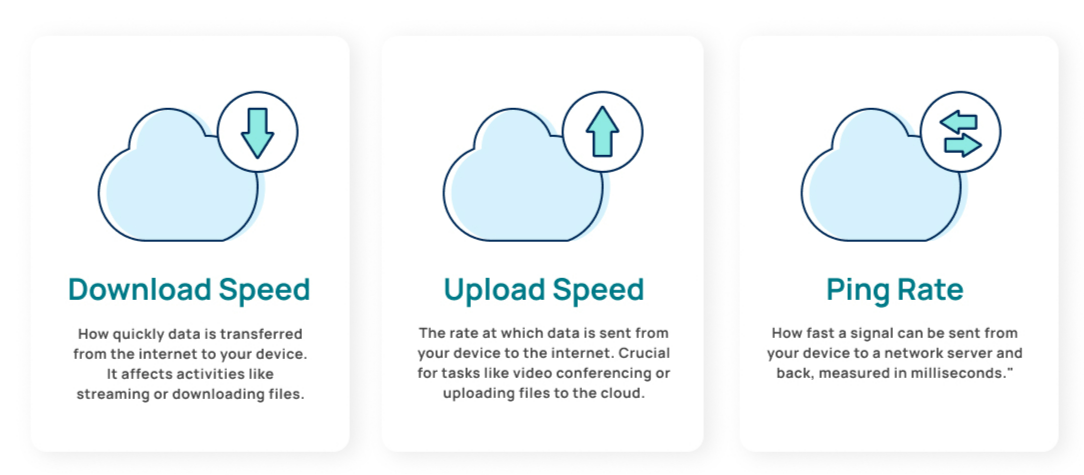
Download Speed
This measures how fast your device receives data. This is the metric that affects how quickly webpages load, how smooth your Netflix stream looks, and how fast you can download files.
Performance Ranges:
- Poor (up to 99.9 Mbps): Struggle city. You might experience buffering on HD video and slow page loads.
- Fair (100-199.9 Mbps): A reliable baseline for smaller households. Heavy multitasking or downloading large files may cause lag.
- Good (200–499.9 Mbps): Good for most households. Supports HD streaming and general browsing for a few devices.
- Very Good (500+ Mbps): Smooth sailing. Great for 4K streaming, large downloads, and multiple users.
Upload Speed
This measures how fast you can send data from your device to the internet. While often overlooked, upload speed is critical for video calls, backing up files to the cloud, and working remotely.
Performance Ranges:
- Poor (up to 5 Mbps): Video calls may freeze or look grainy, and sending large email attachments will take a long time.
- Fair (5-19 Mbps): Sufficient for standard Zoom calls and posting photos to social media.
- Good (20-49 Mbps): Ideal for clear video conferencing, hosting livestreams, and managing standard cloud backups.
- Very Good (50+ Mbps): Essential for large file transfers, professional content creation, and supporting multiple remote workers simultaneously.
Latency
Also known as latency, ping measures the reaction time of your connection—how fast a signal travels to a server and back. High ping causes “lag,” which is the enemy of responsiveness.
Performance Ranges:
- Poor (100+ ms): Noticeable delays. You will likely experience internet lag, audio syncing issues (“talk-over”), and slow-loading web pages.
- Fair (50 to 99 ms): Acceptable for most browsing and streaming on Netflix. However, you might notice slight delays in fast-paced games or occasional hiccups in video calls.
- Good (20 to 49 ms): Perfectly responsive for almost all activities. You can game, stream, and video chat without noticeable delay.
- Very Good (up to 19 ms): Instant response. This is the gold standard, essential for competitive gaming, professional trading, and seamless real-time interactions.
Jitter
Jitter measures how consistent your latency is from moment to moment. While ping tells you the average reaction time of your connection, jitter measures how much that reaction time varies. Even with a decent ping, high jitter causes stuttering video calls, choppy audio, and unpredictable lag in online games.
Performance Ranges:
- Poor (30+ ms): Noticeable instability. Video calls will stutter or freeze, VoIP calls may sound robotic, and online games will feel inconsistent even if your ping looks acceptable.
- Fair (15–29 ms): Manageable for most browsing and streaming, but you may notice occasional hiccups during video calls or in fast-paced multiplayer games.
- Good (5–14 ms): Reliable for gaming, video conferencing, and streaming without noticeable interruption.
- Very Good (under 5 ms): Rock-solid consistency. Ideal for competitive gaming, professional video calls, and real-time applications where stability matters as much as speed.
Types of Internet Connections and Their Impact
Internet connection types significantly influence the outcomes of speed tests. Each type has unique characteristics that affect speed, reliability, and overall performance:
Fiber
- Typical speeds: 300 Mbps–5 Gbps
- What to expect: Fiber uses light signals to transmit data. It usually scores the highest on speed tests, offering symmetrical upload/download speeds and very low ping.
- Verdict: The gold standard for speed and reliability.
Is fiber available in your area? Check availability and compare providers easily.
Cable
- Typical speeds: 100 Mbps–1 Gbps
- What to expect: Uses coaxial cables (like those for TVs). It is fast and reliable, but uses a shared network. You might see speed test results dip during peak hours (evenings) when your neighbors are all online.
- Verdict: A strong balance of speed and availability.
5G Home Internet
- Typical speeds: 100 Mbps–1 Gbps
- What to expect: 5G Home Internet delivers broadband wirelessly over a cellular network. Speed test results vary based on tower proximity, network congestion, and local 5G band availability. Upload speeds are typically lower than download speeds.
- Verdict: A compelling cable alternative where 5G coverage is strong, but speeds and reliability can be inconsistent.
DSL (Digital Subscriber Line)
- Typical speeds: 10–150 Mbps
- What to expect: DSL uses phone lines and is widely available, but speeds drop the further you are from the provider’s hub. On a speed test, expect higher latency than fiber or cable.
- Verdict: Good for browsing and basic streaming, but often struggles with heavy loads.
Satellite
- Typical speeds: Varies widely, up to 150 Mbps (GEO); up to 250 Mbps (LEO)
- What to expect: Vital for rural areas, but signals have to travel to space and back. This results in naturally high latency (ping) on speed tests, even if download speeds are decent. Low Earth Orbit (LEO) satellite internet is faster and has lower latency due to its lower orbit compared to geostationary equatorial orbit (GEO) satellite internet.
- Verdict: Essential for remote locations, though weather can impact stability.
Comparing Internet Connection Types At-A-Glance
| Connection Type | Avg Download Speed | Avg Upload Speed | Avg Latency | Best For |
| Fiber | 500-1,000+ Mbps | 500-1,000+ Mbps | 10-20ms | Gaming, streaming, work-from-home, multiple devices, large file transfers |
| Cable | 100-500 Mbps | 10-50 Mbps | 15-35ms | Streaming, general browsing, households with moderate usage |
| 5G Home Internet | 100-300 Mbps | 20-50 Mbps | 20-35ms | Urban and suburban areas without fiber, renters, or households wanting an easy setup |
| DSL | 10-100 Mbps | 5-20 Mbps | 20-45ms | Light browsing, email, single users with basic needs |
| Satellite (GEO) | 25-100 Mbps | 3-10 Mbps | 500-600ms | Rural areas with no other options (avoid for gaming and video calls) |
| Satellite (LEO) | Urban and suburban areas without fiber, renters or households wanting easy setup | 10-20 Mbps | 20-50ms | Rural areas, remote work, streaming (where cable and fiber are unavailable) |
Understanding Internet Provider Speeds
It is important to remember that ISPs advertise “up to” speeds. This is the maximum bandwidth delivered to your home under perfect conditions, usually via a wired Ethernet connection.
Wi-Fi adds interference and distance variables, so wireless speed tests will almost always be lower than the advertised number. A “good” result is usually within 50–200 Mbps of your plan’s maximum (if you have a high-speed plan). If you are paying for 500 Mbps and getting 450 Mbps over Wi-Fi, you are in great shape.
Reasons for Slow Internet
There are many reasons why you might be experiencing slower internet than normal. Here are the three most common reasons for slow internet that you can easily fix on your own in as little as 10 minutes.
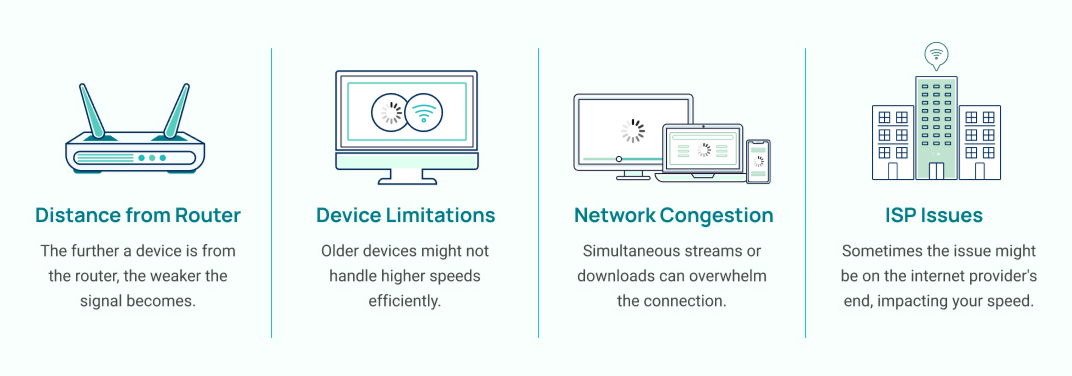
- Router placement (10 min): Wi-Fi signals struggle to move through walls and metal. Move your router to a central, open location, elevated off the floor. For more on placement, see Reasons for Slow Internet.
- Restart modem/router (5–10 min): It’s a cliché for a reason. Restarting clears the memory and refreshes the connection.
- Too many devices (5 min): Background downloads on idle tablets or consoles can hog bandwidth.
- Wi-Fi interference (10–20 min): Microwaves and baby monitors can disrupt signals. Try switching your router channel via its admin settings.
- ISP congestion: If tests are only slow at 8:00 PM, it’s likely network congestion.
Find how much Internet Speed do you need
Your household may want faster internet speeds.
Up to 99 Mbps
Good for a single person checking email and basic browsing.
100-199 Mbps
Great for streaming HD video and standard work-from-home tasks.
200-499 Mbps
Ideal for families, gaming, and multiple devices streaming at once.
500+ Mbps
Power user territory. Necessary for 4K streaming, large file transfers, and smart homes with dozens of devices.
Advanced Troubleshooting Tips for Internet Speed
If the basics didn’t work, try these advanced steps:
- Update firmware: Check your router manufacturer’s app or website. Outdated software can throttle speeds.
- Enable QoS: Quality of Service settings allow you to prioritize specific traffic (like your work laptop) over others (like the kids’ YouTube).
- Test via Ethernet: Plug a computer directly into the modem. If the speed is fast there but slow on Wi-Fi, the issue is your router, not your ISP.
How to Run an Internet Speed Test
Testing your internet speed helps you determine if you’re getting what you’re paying for and whether it’s time to upgrade your plan. Go to TestMySpeed to run an internet speed test, then follow these steps for the most accurate results:
1. Use an Ethernet Connection
Connect your computer directly to your router with an Ethernet cable for the most accurate internet speed. This gives you a baseline for what your connection is capable of delivering.
2. Test Your Wi-Fi Performance
Run a separate speed test over Wi-Fi to see how your wireless network performs. Test from multiple locations:
- First, test right next to your router
- Then, test from rooms farther away where you typically use devices
Significant speed drops indicate Wi-Fi coverage issues rather than problems with your internet connection itself.
3. Minimize Network Activity
Before testing, pause downloads, close streaming services, and ask others in your household to temporarily disconnect their devices. Other active connections can skew your results.
4. Test at Different Times
Run speed tests during both peak hours (evenings and weekends) and off-peak times (weekday mornings or late nights). If you notice significantly slower speeds during peak times, you may be experiencing network congestion from your ISP, which could indicate it’s time to consider a more robust connection type or plan.
Fresh Test. Real Numbers. No Guesswork.
TestMySpeed gives you accurate, real-time speed data every time. What you see is exactly what your connection is doing right now, not an estimate.
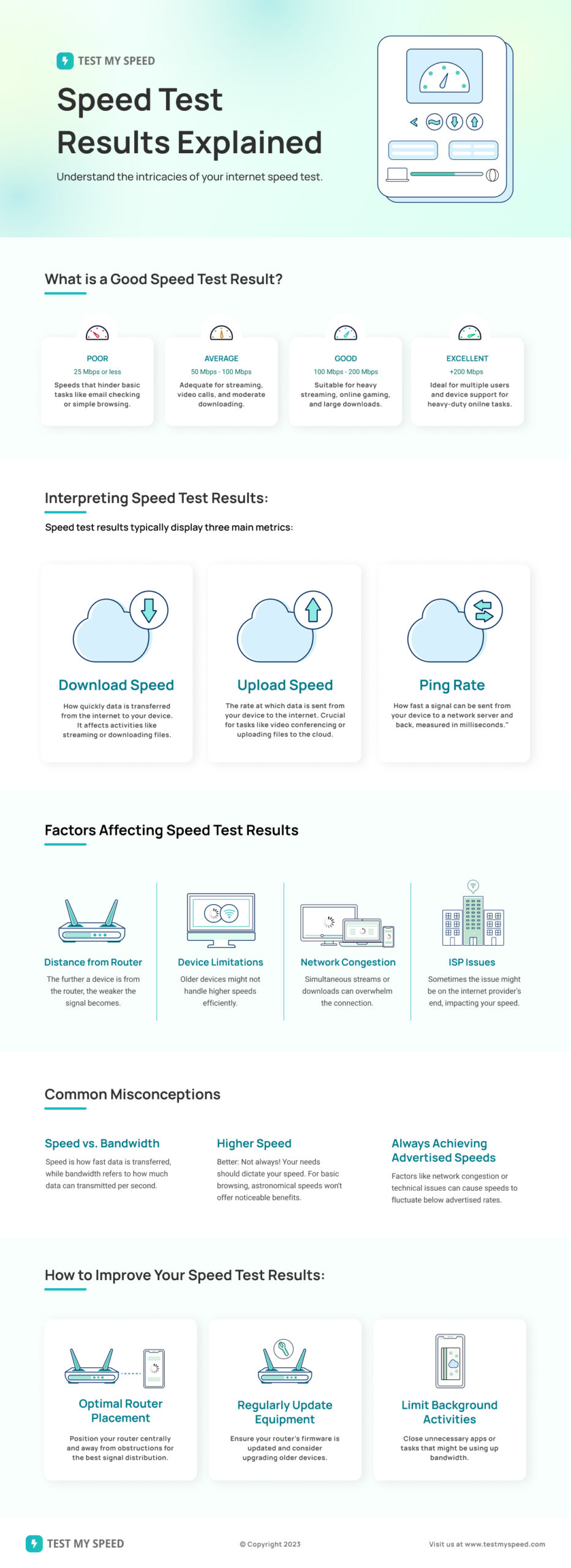
Run a Free Speed TestInfographic: Internet Speed Test Results Explained
What to Do After Your Speed Test
Running a speed test is just the first step. Once you know your numbers, you have real leverage to troubleshoot your setup, push back on your provider, or make a confident decision about upgrading your plan or switching connection types.
Start with the basics: restart your router, test over Ethernet, and rule out Wi-Fi as the culprit. If speeds are still falling short after troubleshooting, check whether your plan matches your household’s actual needs. And if your provider consistently underdelivers, it may be time to explore other options in your area.
FAQs: Understanding Internet Speed and Speed Tests
Why is my internet slower at night?
Evening hours (roughly 7-11 PM) are peak usage times when most people in your neighborhood are streaming, gaming, and browsing simultaneously. Cable and DSL connections are particularly susceptible to this network congestion because you share bandwidth with nearby users. Fiber connections typically handle peak times better due to higher capacity and interference resiliency.
Why is Wi-Fi slower than Ethernet?
Wi-Fi signals must travel through air and walls, losing strength and speed along the way, while Ethernet cables provide a direct, interference-free connection. Wi-Fi speeds are also affected by distance from your router, physical obstacles, other electronic devices, and the number of connected devices competing for bandwidth. For activities requiring maximum speed and stability, like gaming or large file transfers, Ethernet is always superior.
You can test for Wi-Fi dead zones in your home by running an internet speed test when you’re close to the router, then from the area(s) in your home that are farthest from it. If the speeds are significantly slower, you may want to consider Wi-Fi extenders or a mesh Wi-Fi system.
What is a good download speed?
For a single person doing basic browsing and streaming, 25-50 Mbps is sufficient. Households with 2-4 people streaming HD video, gaming, and working from home should aim for 100-200 Mbps. Larger families or those with multiple 4K streams and heavy usage need 300-500+ Mbps to avoid slowdowns.
What is a good upload speed for Zoom?
Zoom requires 3-4 Mbps upload speed for HD video calls, but you should have at least 10-15 Mbps upload to ensure stable performance, especially if others in your home are using the internet simultaneously. For hosting larger Zoom meetings or presenting with screen sharing, 20+ Mbps upload is ideal. Cable and DSL often struggle here due to lower upload speeds compared to fiber.
What is a good ping for gaming?
Under 20ms is excellent for competitive online gaming, 20-50ms is good for most gaming, 50-100ms is playable but may feel slightly laggy in fast-paced games, and anything over 100ms can cause noticeable delays. Fiber typically delivers the lowest ping, followed by cable, while satellite (especially GEO) is problematic for real-time gaming.
How many times should I run a speed test?
Run at least 3-5 tests and average the results, as individual tests can vary due to momentary network fluctuations. Test at different times of day (morning, afternoon, evening) over several days to get a complete picture of your connection’s performance. If results vary wildly, it may indicate inconsistent service that needs troubleshooting.
Is satellite internet always slower and laggier? (LEO vs GEO)
Traditional GEO (geostationary equatorial orbit) satellite is both slower and laggier due to signals traveling 22,000+ miles to space and back, resulting in 500-600ms latency that makes gaming and video calls frustrating. Modern LEO (low Earth orbit) satellites like Starlink orbit much closer at 300-900 miles, delivering latency of 20-50ms (comparable to cable internet) and faster speeds of 50-200 Mbps. LEO satellite has transformed rural internet access into a viable option for most online activities.
Is 100 Mbps fast enough?
Yes, for most households. 100 Mbps is enough for one or two people streaming HD video, browsing, and handling video calls simultaneously. The FCC defines 100 Mbps as the minimum threshold for broadband internet because it’s enough for the basics, and light to moderate use.
Where it is in households with multiple users. If several people are streaming 4K, gaming online, and video conferencing at the same time, 100 Mbps may not be enough. A household such as this will be better off with at least 200 Mbps.
The other variable is upload speed. The FCC minimum recommended upload speed is 20 Mbps. Many types of internet connections, particularly cable and DSL, deliver much lower upload speeds, sometimes as low as 10–20 Mbps. If you work from home, host video calls, or back up large files to the cloud regularly, upload speed is often more critical than download speed.
Why does my speed test show faster than my actual experience?
Several factors can create a gap between that number and what you actually experience day to day. The most common culprit is Wi-Fi. Speed tests run on a device connected via Ethernet will almost always outperform those over wireless, where distance, walls, and interference all reduce performance. If your speed test result looks great but your connection feels slow, try testing from the same location and device you normally use.
Network congestion is the other major factor. Your internet provider shares bandwidth across many customers in your area, and during peak hours (typically evenings and weekends) that shared capacity gets stretched. A speed test at 10 AM on a Tuesday may be much faster than your actual evening experience.
Other contributors include background apps consuming bandwidth during normal use, the performance of the specific website or service you’re trying to reach, and the age and processing power of your devices themselves.