Fast, reliable internet is essential for everything we do today. From streaming 4K movies and competitive gaming to remote work and video calls. But sometimes, even a “fast” internet connection feels slow. You might have great download speeds, but your video calls still freeze, or your game’s characters teleport across the screen.
The invisible, typical culprit? Network jitter.
Network jitter, the irregular arrival time of data packets, can ruin your online experience even if your speed test shows high numbers. It creates lag, choppy audio, and frozen streams that make real-time communication frustrating.
Not to worry. Here we explain exactly what jitter is, why it happens, and practical steps to fix it.
Ready to check your connection? Run a speed test on TestMySpeed to see if jitter is affecting your performance.
Key Takeaways
- Jitter: Jitter is the inconsistent arrival of data packets, which disrupts real-time apps like Zoom and online gaming.
- Main causes: Network congestion, wireless interference, and outdated hardware are top culprits.
- Simple fix: Testing your connection regularly helps you spot jitter early.
- Optimization: You can fix jitter by using wired connections, prioritizing traffic with QoS, and upgrading old routers.
- First step: Run a speed test to diagnose if jitter is slowing you down.
What Is Network Jitter?
In simple terms, network jitter is the variation in the delay of data packets traveling across your network.
Think of your internet connection like a delivery truck convoy. In a perfect world, every truck (data packet) arrives at the destination at exact, regular intervals. Jitter is what happens when some trucks hit traffic, some speed up, and others get lost. They arrive at random times, bunching up or leaving long gaps.
This creates disruption in real-time applications like VoIP, online gaming, and video calls, where timing is everything.
Jitter vs. Latency vs. Packet Loss
There are six main internet connection types available today: Fiber, Cable, DSL, Satellite, Fixed Wireless, and 5G. The main factor in your decision is usually availability; depending on where you live, you likely have access to only two or three of these.
Here is a quick breakdown of what each type typically offers:
| Metric | Ideal Range (2026 Standards) |
| Jitter | Below 30ms (ideally <20ms for gaming) |
| Latency | Below 50ms |
| Packet Loss | 0% |
TestMySpeed CTA banner, mint gradient background with a teal speedometer icon, an eyebrow line, a header about connection consistency, body copy about testing again or finding steadier providers, and a button.
Test your connection or find steadier providers.
High jitter means your connection is inconsistent, not just slow. Test your connection or find steadier providers at your address.
Types of Network Jitter
Not all jitter is the same. Understanding the type can help you fix it.
- Constant Jitter: Predictable, steady delays. This often points to a consistent bottleneck in your network.
- Transient Jitter: Sudden, short-term spikes. usually caused by a temporary glitch or burst of traffic.
- Short-term Jitter: Rapid fluctuations lasting only milliseconds. This is common in unstable Wi-Fi connections.
What Causes Network Jitter?
If you are experiencing high jitter, one of these five culprits is likely to blame:
1. Network Congestion
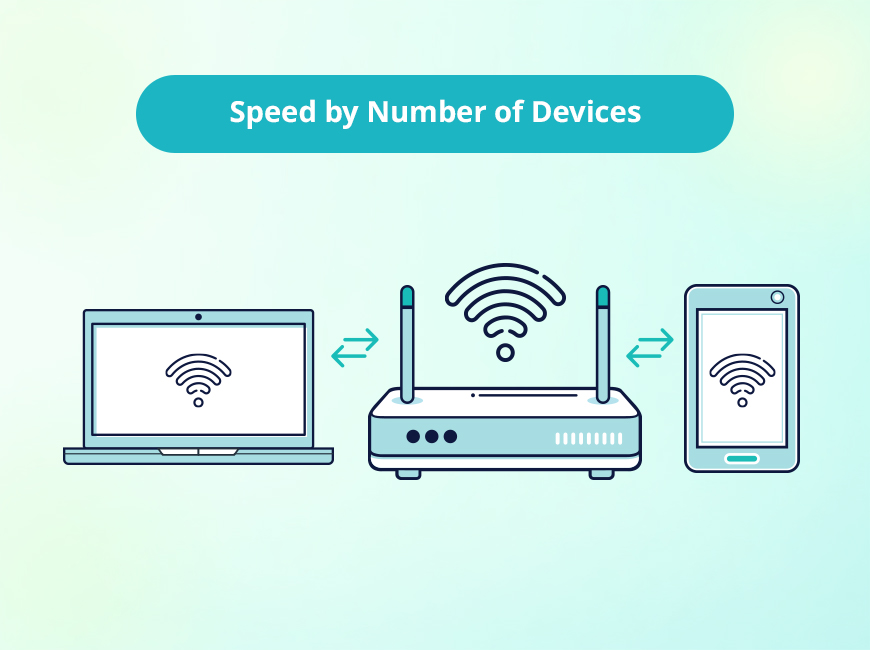
This is the most common cause. When too many devices in your home (or neighborhood) compete for bandwidth, data packets get stuck in a queue. It’s like a traffic jam on the highway.
2. Wireless Interference
Wi-Fi signals are radio waves, and they can be disrupted. Microwaves, baby monitors, and even your neighbor’s Wi-Fi network can interfere with your signal, causing packets to arrive irregularly.
ning, check our guide on 15 reasons for slow internet to see if network congestion is the culprit.
3. Hardware Limitations
Using an outdated router (5+ years old) or a modem that can’t handle modern speeds will cause bottlenecks. Old firmware or overheating hardware can also lead to inconsistent performance.
4. Bandwidth Usage
Are you downloading a massive 100GB game file while trying to host a Zoom meeting? Heavy bandwidth usage saturates your connection, leaving no room for real-time data to pass through smoothly.
5. Route Changes
Sometimes, the issue isn’t in your home. Data travels across the public internet through various “hoops.” If a major pathway changes or goes down, your packets might take a longer, slower route, increasing latency and jitter.
Effects of Network Jitter
High jitter ruins the experience for specific activities:
- VoIP & Video Calls: You’ll hear robotic voices, choppy audio, or talk over one another because of delays.
- Online Gaming: This is the “lag” gamers dread. High jitter causes rubber-banding (where your character snaps back to a previous location) and delayed reactions.
- Streaming: While buffering usually relates to speed, high jitter can cause stuttering live streams or pixelation, especially in 4K.
How to Measure Network Jitter
You can’t fix what you don’t measure. Here is how to spot jitter:
- Online Speed Tests: Use tools that specifically track jitter, not just download speed. TestMySpeed provides detailed metrics including ping and jitter.
- Ping Commands: On your computer (Command Prompt on Windows or Terminal on Mac), type ping google.com -n 30. Watch the time (ms) values. If they jump wildly (e.g., 20ms, then 150ms, then 30ms), you have jitter.
- Continuous Monitoring: For advanced users, tools like PRTG Network Monitor can track jitter over 24 hours to find patterns.
Pro Tip: Test your internet at different times of the day (morning vs. peak evening hours) to get accurate results.
How to Fix Jitter and Optimize Your Network
If your speed test results show high jitter (above 30ms), try these fixes:
1. Switch to Wired Ethernet
This is the single most effective fix. Wi-Fi is convenient, but Ethernet is stable. Using a Cat6 Ethernet cable eliminates wireless interference entirely.
2. Optimize Your Wi-Fi
If you must use Wi-Fi:
- Switch to the 5 GHz or 6 GHz band (faster and less crowded than 2.4 GHz).
- Move your router to a central, open location.
- Use a mesh system if your home has dead zones.
3. Enable Quality of Service (QoS)
Most modern routers have a QoS setting. This feature allows you to tell your router which traffic matters most. You can prioritize “gaming” or “video calls” over “downloads,” ensuring your Zoom call doesn’t lag just because someone is downloading a file.
4. Manage Bandwidth Usage
Schedule heavy downloads (like game updates or cloud backups) for 2 a.m. when no one is using the internet.
5. Upgrade Hardware
If you are renting a generic router from your ISP, it might be time to buy your own. Look for routers that support Wi-Fi 6E or Wi-Fi 7 for better handling of multiple devices.
Jitter Is Annoying, but Fixable
Network jitter is a common annoyance, but it is manageable. You don’t have to settle for glitchy video calls or laggy gaming sessions. By understanding what causes jitter—congestion, interference, or bad hardware—you can take control of your connection.
Start by measuring your connection today. Knowledge is power, and knowing your jitter score is the first step toward a smoother online life.
Remember to check your stability now: Run a speed test on TestMySpeed to see if jitter is affecting your connection.
FAQs: Understanding Jitter
What is network jitter?
Network jitter is the variation in latency (delay) over time. It means your data packets are arriving at irregular intervals.
How does jitter affect video calls and gaming?
It causes “lag spikes,” robotic audio, frozen video frames, and delayed inputs in games.
What causes high jitter?
The main causes are network congestion, wireless interference, outdated hardware, and poor cabling.
How can I reduce jitter?
Use a wired Ethernet connection, enable QoS on your router, and minimize bandwidth-heavy tasks during important calls.
Can a VPN help with jitter?
Sometimes. If your ISP is taking a bad route to a game server, a VPN might force a more direct path. However, adding encryption usually adds a small amount of latency.