Your internet plan advertises one big number. But behind that number are two speeds that work very differently, and understanding both is key to knowing whether your connection is actually built for how you use the internet today.

Download speed determines how fast content reaches your device: streaming video, loading pages, and joining calls. Upload speed determines how fast your device sends data back: your video on a Zoom call, files syncing to the cloud, anything you share or create online.

This guide breaks down what download and upload speeds actually mean, what separates a fast connection from a frustrating one, and how to figure out which speed is holding you back.

Key Takeaways About Internet Speed

  • Download speed controls how fast content reaches you, including streaming, browsing, and loading files.
  • Upload speed controls how fast you send data out, such as video calls, cloud syncing, and content creation.
  • Most residential internet plans are asymmetrical, meaning download speeds far outpace upload speeds. This works for casual users, but remote workers and content creators should prioritize plans with strong upload speeds, not just the advertised download speed.
  • Fiber is the only widely available internet connection type offering symmetrical speeds, making it the gold standard for households that both consume and create content online.
  • The FCC defines broadband as 100 Mbps download and 20 Mbps upload, which is a useful baseline, but multi-person households with 4K streaming, gaming, and remote work will want significantly more.
  • Bandwidth is capacity; speed is performance. A high-bandwidth connection reduces congestion when multiple devices are active simultaneously, even if raw speeds look similar on paper.
  • Latency (ping) matters as much as speed for real-time activities. A fast connection with high latency will still produce lag on video calls and in online games.
  • Speed test results reflect a moment in time. Wi-Fi interference, router age, and network congestion can all reduce real-world performance well below your plan’s advertised speeds.

What is Download Speed?

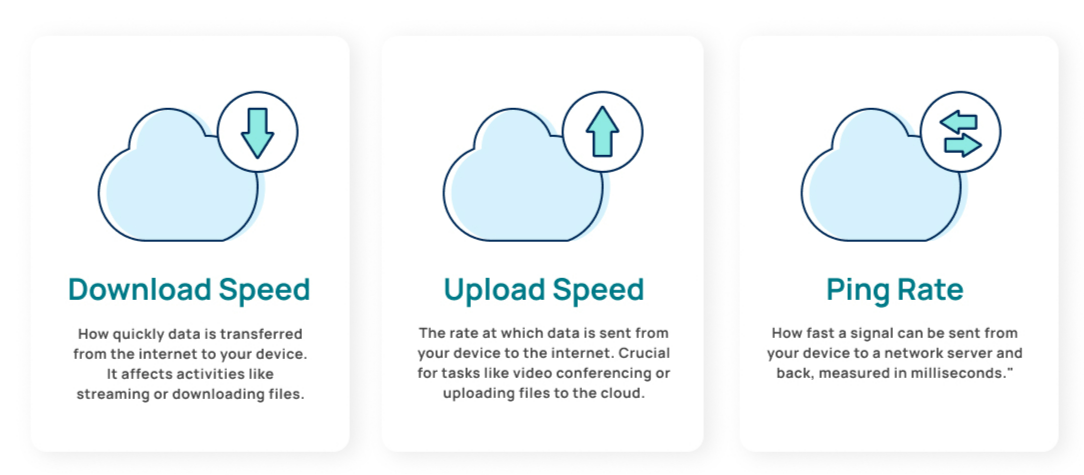
Download speed is how fast your internet connection can transfer data from the internet to your device. It is the speed internet providers use to advertise plans, and it affects the majority of your online life. It powers activities like: 

  • Loading web pages
  • Streaming music and movies (especially in HD or 4K)
  • Downloading large files or software updates
  • Scrolling through social media feeds

If you enjoy watching movies in 4K, you’ll need a fast download speed to ensure smooth playback and minimal buffering. Technologies like fiber internet and cable internet, as well as select 5G internet providers, typically offer the fastest download speeds.

What is Upload Speed?

Upload speed is how fast your connection can move data from your device to the internet. While it often gets less attention than download speed, it is becoming increasingly vital for remote work tasks such as video conferencing. 

  • Upload speed is most beneficial for: Video calls (Zoom, Teams, Google Meet): Your outgoing video stream relies on stable upload speeds. Zoom recommends a minimum upload speed of 2 Mbps per person, per call for HD.
  • Cloud storage syncing (Google Drive, Dropbox, iCloud, OneDrive): Every photo, document, and backup pushed to the cloud is upload traffic.
  • Remote desktop and cloud-based work tools: Sending your inputs and screen data to a remote server requires consistent upload bandwidth.
  • Content creation and live streaming: Video uploads, podcast files, and live streams are entirely dependent on uploads.

If you are a remote worker who frequently freezes during meetings or a content creator trying to post a video, a slow upload speed is likely the culprit. Even if your download speed is fast, an upload speed bottleneck can significantly impact your workflow and productivity.

What Are Symmetrical Speeds?

Symmetrical speeds mean your upload and download speeds are identical. Symmetrical speeds are common with fiber internet and are advantageous for remote workers, content creators, and large uploads. Asymmetrical speeds mean your download speed is significantly faster than your upload speed.

Most residential internet plans are asymmetrical because most connection types only offer asymmetrical speeds, and most online activities require getting data to users’ devices. If you work from home, use cloud apps or backups, or send large files, look for plans with fast upload speeds, not just the big download number on the advertisement.

How Much Speed Do You Need? 

It depends on how you use the internet and how many people share the connection, but for basic tasks like checking social media, sending email, and browsing, 50 Mbps should be a good internet speed for one person.

Households with multiple people sharing a connection to stream, game online, and work from home will need much more than 50 Mbps. For reference, the Federal Communications Commission (FCC) defines broadband internet as having download speeds of at least 100 Mbps and upload speeds of at least 20 Mbps.

Here is a breakdown of internet speed recommendations based on usage: 

Find how much Internet Speed do you need

Your household may want faster internet speeds.

50 Mbps

Great for basic browsing and email. Best for 1–2 devices.

50-99 Mbps

Great for streaming Netflix, videos, and smooth online meetings. Best for 3–4 devices.

100-499 Mbps

Great for streaming high-quality videos, fast downloads, and online gaming with minimal lag. Best for 5–8 devices.

500+ Mbps

Great for heavy 4K streaming, competitive gaming, remote work, and large smart homes. Best for 10–12 devices.

What Is Internet Bandwidth?

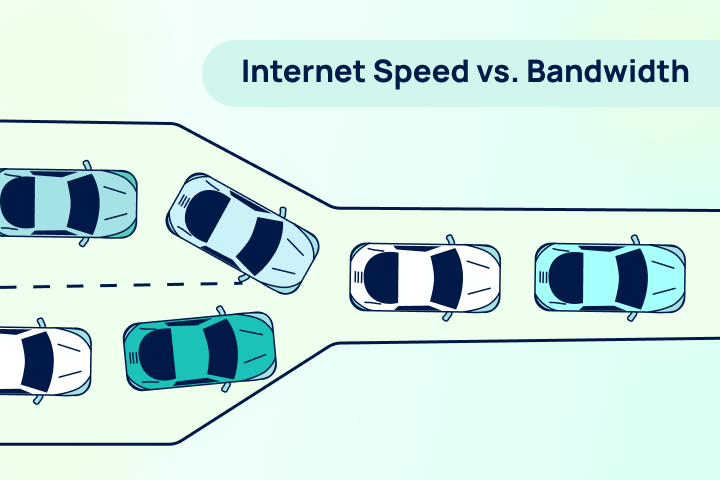
Bandwidth is the total capacity of your internet connection, or the maximum amount of data that can move through it at any given moment. Think of bandwidth like a highway. The bandwidth is the number of lanes on that highway. A wider highway (higher bandwidth) allows more cars (data) to travel side-by-side simultaneously. This capacity is crucial for modern households where remote work, streaming 4K video, and online gaming occur simultaneously. 

If you have a narrow highway (low bandwidth) and try to push too much traffic through it, everything slows down. That’s why having sufficient bandwidth is critical for Zoom meetings and ensuring your video streaming doesn’t buffer constantly. 

Bandwidth vs. Internet Speed: What’s the Difference?

While they are often used interchangeably, the concepts of internet bandwidth vs speed are distinct. 

  • Bandwidth answers the question “How much?” It is the total number of lanes on a highway. The more lanes you have, the more cars (data packets) can travel side-by-side at the same time without causing a traffic jam. 
  • Speed answers the question “How fast?” It is the pace at which an individual car moves from Point A to Point B. Even if the highway has 10 lanes, a single car can only get to its destination as fast as its engine and the speed limit allow. 

Comparing Download Speed, Upload Speed, and Latency by Internet Connection Type

The type of internet connection you have determines the download and upload speeds you can get.

Connection TypeMax Download SpeedMax Upload SpeedAvg LatencySymmetrical?
FiberUp to 10 GbpsUp to 10 Gbps1–10 msYes
CableUp to 2.5 GbpsUp to 200 Mbps10–35 msNo
5G Home InternetUp to 1 GbpsUp to 200 Mbps10–30 msNo
Fixed WirelessUp to 100 MbpsUp to 20 Mbps20–50 msNo
DSLUp to 100 MbpsUp to 20 Mbps25–70 msNo
LEO Satellite (Starlink)Up to 200–500 MbpsUp to 20–40 Mbps20–60 msNo
GEO Satellite (HughesNet, Viasat)Up to 25–100 MbpsUp to 3–10 Mbps500–800 msNo
Max speeds reflect advertised plan speeds under ideal conditions. Latency figures represent typical ranges under normal operating conditions.
Cable upload speeds are improving with the rollout of DOCSIS 3.1 and the emerging DOCSIS 4.0 standard, which promises multi-gigabit symmetrical speeds over coaxial infrastructure, but availability remains limited as of 2026.

Recommended Internet Speeds by Online Activity

Speed requirements vary widely by what you’re doing, and most people only think about download speed. The table below lists minimum and recommended speeds for both download and upload across six activity categories, plus a latency sensitivity rating that matters just as much as raw speed for real-time activities. 

ActivityMin DownloadRec. DownloadMin UploadRec. UploadLatency Matters?
SD Video Streaming (480p)1 Mbps3 MbpsLow
HD Video Streaming (720p/1080p)5 Mbps10 MbpsLow
4K / Ultra HD Streaming15 Mbps25 MbpsLow
Live TV Streaming (HD)5 Mbps10 MbpsModerate
Casual / Browser Gaming3 Mbps5 Mbps1 Mbps3 MbpsModerate
Console / PC Online Gaming3 Mbps25 Mbps1 Mbps5 MbpsHigh
Competitive / FPS / Battle Royale10 Mbps50 Mbps3 Mbps10 MbpsCritical
Game Downloading / Updates25 Mbps100+ MbpsLow
Cloud Gaming (GeForce Now, Xbox Cloud)15 Mbps35 MbpsCritical
Email & Basic Web Browsing1 Mbps5 Mbps1 Mbps3 MbpsLow
Video Calls — 1:1 HD (Zoom, Teams)1.5 Mbps5 Mbps1.5 Mbps3.8 MbpsHigh
Video Calls — Group HD (Zoom, Teams)2.5 Mbps10 Mbps2.5 Mbps3.8 MbpsHigh
Cloud File Syncing (Drive, Dropbox)2 Mbps10 Mbps2 Mbps10+ MbpsLow
Remote Desktop (RDP, VDI)1 Mbps10 Mbps1 Mbps5 MbpsHigh
Large File Transfers / FTP10 Mbps50+ Mbps10 Mbps50+ MbpsLow
Social Media Browsing2 Mbps5 Mbps1 Mbps2 MbpsLow
Uploading Photos / Short Videos2 Mbps10 MbpsLow
Live Streaming (Twitch, YouTube Live)3 Mbps10–20 MbpsModerate
Smart Home Devices (cameras, speakers)1 Mbps5 Mbps0.5 Mbps2 MbpsLow
Music Streaming (Spotify, Apple Music)0.1 Mbps0.5 MbpsLow
Software / OS Updates5 Mbps25+ MbpsLow
Backing Up to Cloud (Time Machine, Backblaze)5 Mbps25+ MbpsLow
Video File Uploading (YouTube, Vimeo)5 Mbps25+ MbpsLow
Minimum speeds represent the floor for functional performance. Recommended speeds include headroom for real-world variability, background traffic, and multiple simultaneous users.
Upload speeds marked ‘—’ indicate the activity generates no meaningful upload traffic.
Latency ratings: Low = not sensitive to delay; Moderate = noticeable above 100 ms; High = noticeable above 50 ms; Critical = noticeable above 30 ms.

How to Test Your Internet Speed

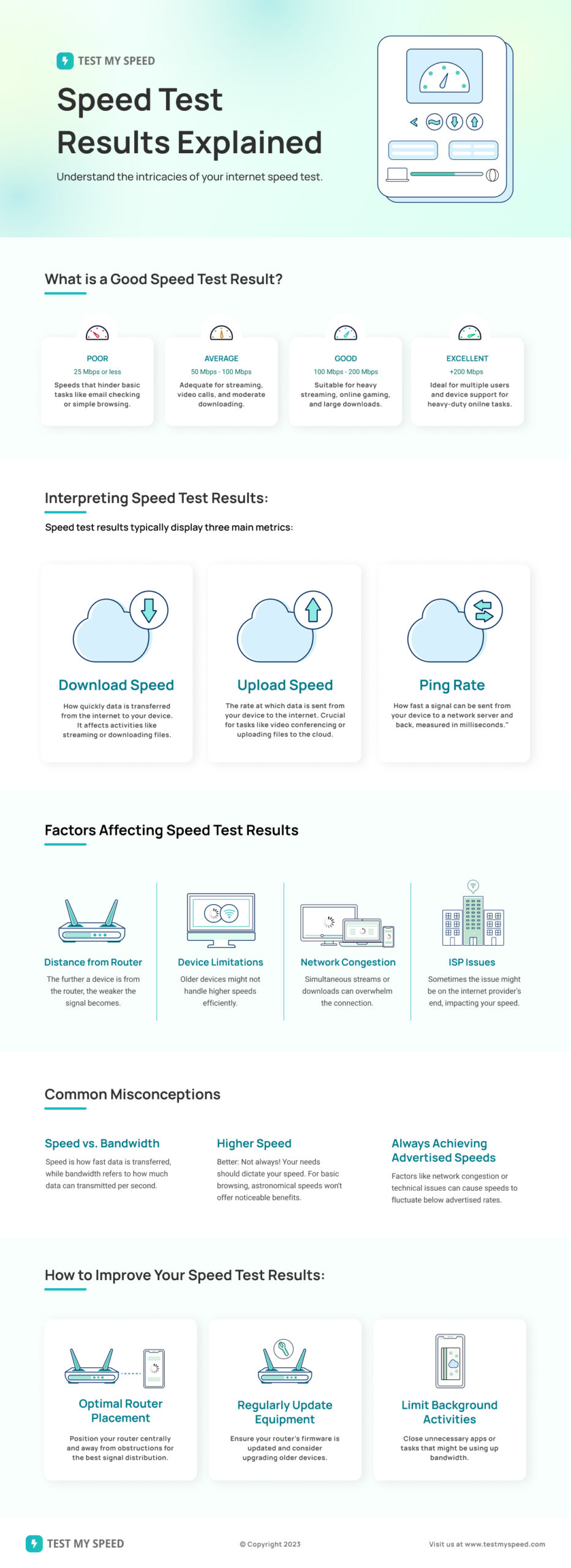
If you are unsure if you are getting what you pay for, you should run a test. Internet speed test results usually measure three things: 

  1. Download Speed (Mbps): How fast you pull data. 
  1. Upload Speed (Mbps): How fast you send data. 
  1. Ping (ms): How quickly your network responds (latency). 

You can easily check your current performance using our tool at TestMySpeed.com. Keep in mind that results can differ from advertised speeds due to Wi-Fi interference, older routers, or network congestion. 

Speed Test Results Tiers

If you’ve already used TestMySpeed and want help understanding your results, here is a quick guide to what your numbers mean for your internet experience.

Your Speed Is Poor (up to 99 Mbps) 

If your results are poor, your internet provider could be throttling your speeds, your home network might be causing slow internet performance, or your current connection could be struggling with modern usage demands. You probably experience frustration with buffering, dropped video calls, and slow downloads. Upgrading to a faster internet plan could reduce those interruptions and make your daily digital life much smoother. 

Your Speed Is Fair (100-199 Mbps) 

If your results fall in this bucket, your download and upload speeds are average. You can handle basic tasks like browsing and email just fine. However, you might notice that streaming videos buffer occasionally, or your video calls might get grainy or laggy if someone else in the house is online. If you have a full house, you might want to compare faster plans in your area.  

Your Speed Is Good (200-499 Mbps) 

Your results show above-average download and upload speeds. Everyday activities like browsing, streaming in HD, and remote work should run well most of the time. You may notice some buffering with 4K streaming or lag during online gaming, especially if multiple devices are connected at once. Overall, your connection holds up well, but it’s worth comparing faster plans in your area. 

Your Speed Is Very Good (500+ Mbps) 

Great news! Your connection is fast and well-suited for heavy usage. These speeds support smooth HD streaming, quick file uploads, and clear video calls. Your low ping likely supports responsive online gaming, too. If you are still having issues, it might be a hardware problem rather than a speed problem. 

Frequently Asked Questions About Download and Upload Speeds

Is upload speed important for gaming?

Yes, but mostly indirectly. Most online games don’t use much bandwidth, but they do need a steady connection. Upload becomes important when: 

  • Voice chat is running (small but constant upstream traffic)
  • You’re streaming gameplay on Twitch or sharing video
  • Someone else on your network is uploading (cloud backups, sending photos or videos), which can clog the upstream and raise latency (lag) 

If your household is doing anything besides just playing, aim for at least 5 Mbps upload speed during play, and 10+ Mbps if you stream regularly. 

Is 25 Mbps enough for a family?

Yes, 25 Mbps can be enough for a family if your use is light (1-2 HD streams, browsing, maybe one video call). However, 25 Mbps will struggle with multiple 4K video streams, several simultaneous video calls, and cause low upload speeds. For better results, aim for at least 100 Mbps download speed and 20 Mbps upload speed. 

Why is my speed test fast, but Zoom still lags?

Your speeds may be fast, but Zoom needs stable latency (ping), low jitter, and low packet loss, which can be poor even when speeds are good. The usual culprits are Wi-Fi interference, a weak signal, or congestion on your home network (or the internet provider) that spike latency. Try connecting via an Ethernet cable, move closer to your Wi-Fi router, or pause uploads during calls. You can also enable QoS on your router to prioritize devices or types of traffic on your home network. 

What’s a good ping (ms)?

Ping (latency) is the time it takes data to go from your device to the nearest network server, and back. It’s measured in milliseconds (ms), and lower is better, and consistency matters (low jitter). Here’s how to gauge latency: 

  • 0–20 ms: excellent
  • 20–50 ms: good for gaming and video calls
  • 50–100 ms: okay, but lag becomes more noticeable in fast games and calls
  • 100+ ms: expect delays and talk-over issues 

Also watch for packet loss, which causes stuttering and choppy video during video conferencing. 

What’s the difference between Mbps and MB/s?

  • Mbps = megabits per second (what internet providers use to advertise speed tiers)
  • MB/s = megabytes per second (what downloads often display)

8 bits = 1 byte, so: MB/s = Mbps ÷ 8 

A 100 Mbps internet connection can download data at 12.5 MB/s in idea conditions. But many factors on your network can reduce speed and performance. Notice the capitalization of the “B”: b = bits, B = bytes.

What is a good download and upload speed?

For most homes, 100 to 300 Mbps for downloads and 20 to 50 Mbps for uploads is a good range. Download speed is used for streaming, browsing, and gaming. Upload speed is used for video calls, saving files online, and sharing files.

If you work from home or have multiple people on video calls at once, focus on upload speed. Most cable and DSL plans do not provide enough upload speed, and it is the one you are most likely to use up first.

What’s the best internet speed for gaming?

Online gaming needs less internet speed than most people think. Xbox and PlayStation both suggest at least 3 Mbps for downloads and 1 Mbps for uploads. For a smooth, competitive experience, 25 Mbps download and 5-10 Mbps upload are recommended, with a latency (delay) under 50 milliseconds.

For competitive or fast-paced games, delay and sudden changes in delay are more important than just having high speed. A 50 Mbps fiber connection with 5 milliseconds of delay will work better than a 500 Mbps cable connection with 40 milliseconds of delay in any real-time game. Using a wired Ethernet cable is much better than Wi-Fi for steady, low-delay gaming.

How can I tell if I’m getting the internet speed I pay for?

Run a speed test when your device is connected to an Ethernet cable, not Wi-Fi, and compare your download and upload speeds to your plan speeds. Wi-Fi can lose signal, making your internet seem slower than it really is, so a wired test is the most accurate.

Take your speed test result, divide it by the speed your plan promises, and multiply by 100 to get a percentage. If you usually get 80% or more, your plan is working well. If you get less than 60-70% on a wired connection, there may be too much traffic, equipment problems, or an issue you should report to your internet company.

Is gigabit internet worth it?

Gigabit internet is worth it for homes with 6 or more people using the internet at once, for heavy online work, for big file transfers, or for creating content. For homes with 1 to 3 people, 300 to 500 Mbps is usually enough.

The more important question is whether you’re getting gigabit on fiber or cable. Fiber gigabit is typically symmetrical (1 Gbps download and 1 Gbps upload) which is transformative for households with heavy upload traffic. A gigabit cable connection often delivers 1 Gbps download speeds, but only 35–50 Mbps upload, meaning you’re paying a premium for download speeds you probably won’t use while your upload ceiling stays low.

What internet speed is considered fast?

The FCC defines broadband as 100 Mbps for downloads and 20 Mbps for uploads. This is the current federal standard for high-speed internet. In real life, 200 to 500 Mbps download is considered fast for most homes and can easily handle several 4K videos, video calls, gaming, and saving files online at the same time.

Upload speed is a better indicator of a plan. A plan with 500 Mbps download but only 10 Mbps upload is not really fast for people working from home, even if it sounds good in ads. A connection with 200 Mbps download and 100 Mbps upload (usually fiber) will feel faster for daily use.

How do latency and ping affect internet speed?

Latency, or ping, is the time, in milliseconds, it takes for data to go from your device to a server and back. High latency causes video calls to break up, game delays, and slow web page load times, even if your internet is fast.

For most things, a ping under 50 milliseconds is fine. For competitive gaming or live collaboration, under 30 milliseconds is best. Fiber and cable usually give you 1 to 35 milliseconds. GEO satellite connections have 500 to 800 milliseconds of delay, which makes real-time activities almost impossible, no matter how fast your download speed is.

When should I upgrade my internet plan?

Consider upgrading if your wired speed test often shows less than 60-70% of the speed your plan promises, if more people are now using your internet than before, or if tasks like video calls or saving files online are slowing down your daily work.

Before you pay for a faster plan, check whether your internet connection type is the real problem. With cable or DSL, upgrading your plan will not really improve your upload speed because the technology has limits. If upload speed is your issue, switching to fiber or 5G home internet will help more than paying for faster cable.

Know the Benefits of Download and Upload Speeds

Understanding the difference between download and upload speeds is key to choosing the right internet plan for your household. Whether you are battling a grainy Zoom feed or waiting hours for a game to update, the culprit is often a mismatch between your plan’s capacity and your household’s actual needs. In a world where we “upload” our lives just as much as we “download” entertainment, having sufficient bandwidth and low latency is no longer a luxury.

It’s a necessity.

Is your internet actually delivering what you pay for?

Few things are more frustrating than when you’re in the middle of a project or a suspenseful part of a TV program, and your internet suddenly slows down. Dreaded buffering ruins your show flow. While there are several reasons for slow internet, one frequent culprit may be that your internet service provider is throttling your connection. Let’s discuss what it is, why providers do it, and the best ways to avoid this pesky problem.

Key Takeaways About Internet Throttling

  • Throttling is intentional, not accidental. When your provider slows your connection, it’s a deliberate policy decision, not a glitch, bad weather, or a Wi-Fi fluke.
  • There are three main types. Internet providers can throttle your entire connection during peak hours, target specific apps like Netflix or gaming services, or kick in automatically once you hit a monthly data cap.
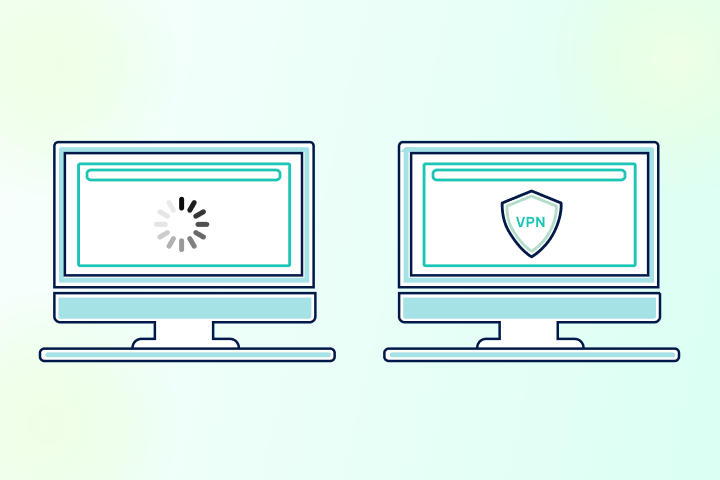
  • You can test for it at home in minutes. Run a speed test without a VPN, then again with one. If your speeds improve with the VPN on, selective throttling is likely the cause.
  • The fix depends on the cause. A VPN helps with app-based throttling. Better data habits or a plan upgrade to address cap-based throttling. And if your home network is the culprit, switching ISPs won’t solve it.
  • VPNs help, but not always. A VPN can bypass activity-based throttling, but it won’t override a hard data cap, and some ISPs throttle VPN traffic itself.
  • “Unlimited” doesn’t always mean unlimited. Most unlimited plans still throttle speeds after a usage threshold is reached, especially on mobile and hotspot data.
  • Throttling is legal under federal law as of January 2025, following a court ruling that struck down FCC net neutrality protections. Some states, including California, Washington, and Oregon, still enforce their own anti-throttling laws.
  • You have recourse. If your provider isn’t delivering advertised speeds, you can file a complaint with the FCC; internet providers are required to respond.

What is ISP Throttling?

Internet throttling (or bandwidth throttling or data throttling) is when your internet service provider (ISP) deliberately slows down your upload and download speeds based on your plan, your usage, the time of day, or what you’re doing online.

Throttling isn’t the same as typical internet or Wi-Fi problems. A weak signal or unresponsive connection is usually temporary or tied to local conditions, such as your router or the weather. Throttling is an intentional policy decision made by your provider, and it can be surprisingly hard to detect on your own.

It’s worth noting that the average internet user won’t encounter throttling on a regular basis, and many providers have moved toward unlimited data options to reduce it. Still, it does happen, and knowing what it looks like can save you a lot of frustration.

How Throttling Works

Internet providers use network tools to monitor how much data your connection uses, identify the type of traffic, and slow it down or deprioritize it based on their policies. Throttling can target your entire connection or just specific activities:

  • All-traffic throttling: Your provider temporarily slows everything down, often during peak hours when the network is congested.
  • Application-based throttling: Only certain apps or services are affected, like streaming video, online gaming, and file sharing, which are common targets, while general browsing works as expected.
  • Usage-based throttling: Your connection performs normally until you hit a data cap for the billing cycle, at which point your provider reduces your speeds for the remainder of the month.

Throttling is usually mentioned in the fine print of your plan agreement, but it’s easy to miss since providers rarely make it obvious. Be sure to ask about data policies when renewing, switching, or purchasing internet service.

How to Tell If Your Internet Connection Is Being Throttled

You don’t have to guess. Throttling tends to follow recognizable patterns, and there are simple tests you can run at home to get a clearer answer.

Common Signs of Throttled Internet vs. Normal Slow Internet

You might be dealing with throttling if:

  • Slow only during evening hours: speeds are fine in the morning but tank around 6–10 p.m.
  • Certain apps always lag: Netflix, YouTube, or games buffer even when other sites are fine.
  • Data use warning: Your speed drops off after you reach a monthly data limit.

You’re more likely dealing with “normal” slow internet if:

  • Your Wi-Fi signal is weak in certain rooms.
  • Your router or modem is several years old.
  • Too many devices are connected at once.
  • Only one website or app is slow, and other people report that it’s slow, too.

If you aren’t sure which camp you fall into, the next step is to run a simple throttling test.

Step-by-Step Test: How to Check If Your ISP Is Throttling You

You don’t need any special tools to get started. Here’s a simple 4-step test you can do at home.

Step 1: Run a Baseline Speed Test

If you can, connect your device to the router with an Ethernet cable; a wired connection is far more accurate than Wi-Fi.

  • Make sure nobody else in your household is streaming, gaming, or downloading large files.
  • Run a speed test at TestMySpeed.
  • Compare them to the advertised speeds of your plan.

You don’t have to hit your advertised speed perfectly, but if you’re getting a fraction of what you pay for, especially at different times of day, something’s off.

Step 2: Run the Same Test While Connected to a VPN

Next, you’ll run the test over again using a reputable VPN:

  • Open your VPN application and connect to a nearby server, as proximity usually means faster speeds.
  • Run the same speed test again, but this time with everything else the same, no extra streaming, and the same device.
  • Compare the VPN result to your baseline result.

If your connection is substantially faster with a VPN than without one, that can indicate that your ISP throttles certain types of traffic or services. A VPN hides what you do, making it more difficult for the ISP to single out specific apps.

Step 3: Test at Different Times of the Day

Perform both tests with and without VPN at: 

  • At peak time, usually early evening
  • Early morning or late at night; off-peak times

If your speeds only nosedive at peak times, then congestion-based throttling or network crowding is likely. If speeds are bad 24/7, it’s much more likely to be an equipment, wiring, or plan-speed issue.

Step 4: Check Your Data Usage and Plan Details

Log in to your ISP account. Look for:

  • Your data consumption for the month
  • Any data-cap limit on your plan
  • Any warnings or notes about reduced speeds after a certain amount of data

If your speeds fall off sharply after you hit that limit, that’s textbook data-cap throttling.

How Do I Stop or Reduce Throttling?

You can manage data use, upgrade your data plan, or connect through a VPN to work around throttling. And it’s worth troubleshooting your home network to rule it out as a bottleneck. Try the following tips to see if they improve slow internet issues.

If It’s Network Congestion

Congestion-based throttling is tied to peak hours, so the simplest workarounds are about timing and connection quality:

  • Schedule large downloads, game updates, and 4K streaming for off-peak hours if possible (late at night or early in the morning).
  • Use Ethernet cables for your highest-demand devices so your Wi-Fi isn’t the bottleneck.
  • Consider upgrading your speed tier so that even a throttled connection stays usable.

If It’s a Data Cap

If you’ve hit your monthly data limit, your provider may be entirely within its rights to slow you down. But here are a few ways to manage it:

  • Track your usage through your internet provider account, router app, or device settings to see what’s burning through your data. Common culprits are 4K streaming, large game downloads, and automatic cloud backups.
  • Switch from 4K to HD streaming to significantly reduce data consumption.
  • Ask your provider about higher-cap or unlimited data plans, but read the fine print carefully. Many plans advertised as unlimited still throttle speeds after you reach a certain usage threshold.
  • If you’re constantly hitting your cap and throttling is affecting your daily life, it may be worth moving to a plan that actually fits your usage. Over time, that can be cheaper than paying overage fees or dealing with degraded service.

If It’s Selective (App or Activity-Based) Throttling

If your general browsing is fine, but streaming, gaming, or torrenting always lags, your internet provider is likely targeting specific types of traffic. A virtual private network (VPN) is your best tool here. It encrypts your activity so your provider can’t identify what you’re doing and therefore can’t target it for throttling.

A VPN is most useful when:

  • Web browsing feels normal, but streaming or gaming is consistently slow.
  • The same service performs dramatically better when you’re connected to a VPN.
  • Your speed tests show improvement with the VPN on.

Keep your expectations realistic, though. A VPN won’t bypass a hard data cap because your provider can still track data consumption, but it has limited visibility of what you’re doing online. 

VPNs also add a small amount of latency because your traffic is routed through an extra server, and some ISPs throttle VPN traffic itself. A reputable paid VPN is worth the investment over a free one, which is more likely to be slow or unreliable.

Fix Common Home Network Bottlenecks

Before blaming your provider, it’s worth ruling out your home network as the source of the problem. Even if your connection is throttled, getting your home network set up properly ensures you’re squeezing every bit of speed out of it.

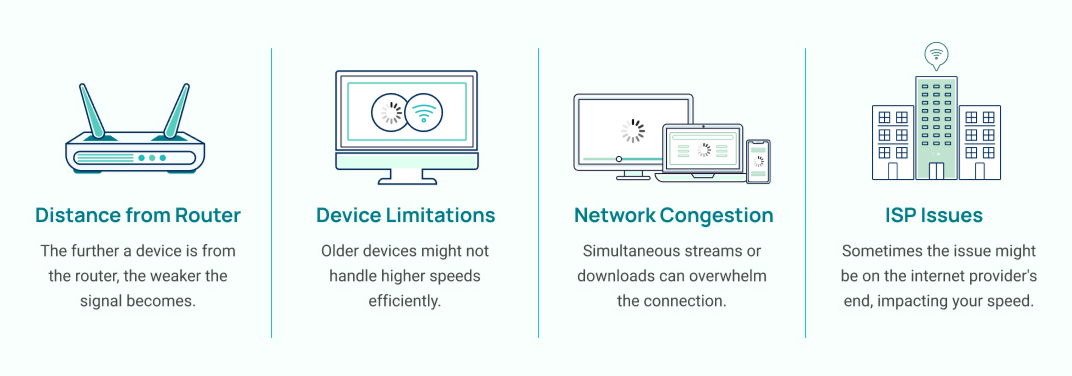
  • Update old equipment. An aging modem or router can cap your speeds even if your plan is faster. Check with your provider about an upgrade if you lease your modem or router.
  • Improve Wi-Fi coverage. Place your router centrally, away from thick walls and large metal appliances. If you have a large home, a mesh Wi-Fi system can eliminate dead zones far more effectively than a single router.
  • Connect priority devices with an Ethernet cable. Gaming PCs, streaming boxes, and work laptops all benefit from a wired connection.

If Your Internet Provider Won’t Help

If you’ve done your homework and you’re still not getting the speeds you pay for:

  • Call your provider directly and ask why your speeds don’t match your advertised plan. Take notes on who you spoke with and what they said.
  • File a complaint with the FCC if you believe you’re not receiving advertised service. ISPs are required to respond to FCC complaints.
  • Consider switching providers. Look for fiber, cable, or fixed wireless options in your area, and prioritize plans with no data caps or a documented history of less throttling. Providers like EarthLink are known for prioritizing network performance, CenturyLink offers DSL plans with no data caps, and Starlink can be a solid option in rural areas where other choices are limited — though its latency is higher than wired alternatives.

When It’s Time to Switch Internet Providers

If your provider’s policies are too strict, or you’re just tired of fighting throttling, it might be time to move on.

Good reasons to switch:

  • You hit your data cap each month and get throttled for weeks.
  • You can’t get a straight answer from support about why your speeds keep dropping.
  • Competitors in your area offer no data caps or more generous terms.

Before you switch:

  • Compare the plans available in your area by speed, data cap, and price.
  • Look for unlimited or no-cap options whenever possible.
  • Beware of hidden charges and promo pricing that expires quickly.

If there is a better option out there, switching can be the cleanest long-term fix for throttling headaches. 

Is Throttling Legal?

As of January 2, 2025, bandwidth throttling is legal at the federal level in the U.S. as long as ISPs follow disclosure rules. Previous FCC rules restored net neutrality, which included bans on throttling and paid prioritization. But the Sixth Circuit Court of Appeals struck down those rules on the grounds that the FCC doesn’t currently have the authority to enforce them. 

As a result, there is no active nationwide ban on throttling (Reuters, January 2025). 

Depending on where you live, throttling may be restricted by your state. Some states, including California, Washington, and Oregon, have their own open-internet laws that ban throttling within the state. Those laws survived the 2025 ruling (LA Times, January 2025). 

For most users, your ISP can legally slow you down as long as they disclose this in the plan.

Don’t Let ISP Throttling Slow You Down

Internet throttling is frustrating when you’re paying for high-speed and are getting anything but. The key is to:

  • Spot the signs: slowdowns at specific times, on specific apps, or after a certain amount of data usage.
  • Test your connection: run internet speed tests with and without a VPN at various times throughout the day.
  • Know your plan: check for data caps, fine print, and ‘network management’ language in your plan details.
  • Decide what to do next: manage your data, upgrade your plan, troubleshoot issues at home, or switch providers altogether.

You deserve the speeds you’re paying for. If your current ISP keeps slowing you down, it’s worth checking what other internet options are available in your area, especially plans with higher caps or no data caps.

Frequently Asked Questions About ISP Throttling

Will a VPN stop throttling?

Sometimes. Throttling based on specific network activities, such as streaming or downloading, will be stopped (because the ISP cannot see what activity is happening over VPN). But some ISPs get around this by throttling all VPN connections.

Is internet throttling legal in the United States?

Generally, yes, provided it is clearly disclosed in your plan or in your provider’s policies. Most ISPs are allowed to manage traffic, enforce data caps, and slow speeds when you’ve exceeded your plan limits. What they can’t do is mislead you about what you’re getting or hide the important details from you.

What’s the difference between throttling and slow internet?

Throttling is a deliberate slowdown by your internet provider, based on your plan, your usage, or what you’re doing online. Slow internet could be caused by almost anything: weak Wi-Fi, old equipment, too many devices, or even a slow website. Testing your internet speed with Ethernet, trying a VPN, and checking your plan details helps you figure out which one you’re dealing with.

Does throttling happen on mobile and hotspot data, too?

Yes, and it’s especially common on mobile plans marketed as “unlimited.” Most major carriers throttle video streaming quality by default and reduce your speeds significantly once you’ve burned through your monthly “premium data” allotment, which can be as low as 20–30GB depending on your plan. Hotspot data is often on an even shorter leash, with its own threshold that kicks in before your main data cap. If your phone’s hotspot feels sluggish, check your plan details; there’s a good chance you’ve hit a tier your carrier doesn’t advertise prominently.

Can my ISP tell I’m using a VPN, and will they throttle that too?

Yes, providers can detect VPN traffic even though they can’t see what you’re doing through it. The encrypted connection and routing pattern are recognizable. Most providers don’t throttle VPN use, but some do, particularly if you’re on a congested network or a plan with strict traffic management policies. If you notice your speeds are consistently slow both with and without a VPN, the VPN itself may be getting deprioritized. Switching to a reputable paid VPN that offers obfuscation features can help, as these are specifically designed to make VPN traffic harder to identify.

How do I find out what my ISP’s data cap and throttling policy actually is?

Start by logging into your ISP account online. Your plan details page will usually list your monthly data allowance and what happens when you exceed it. You can also check your provider’s website for their network management or broadband disclosure page, which providers are federally required to publish. If your provider participates in the FCC’s Broadband Label program (which became mandatory for most ISPs in 2024), that label will clearly list your data cap, typical speeds, and any network management practices. When in doubt, call your internet provider directly and ask specifically about data thresholds and speed reduction policies.

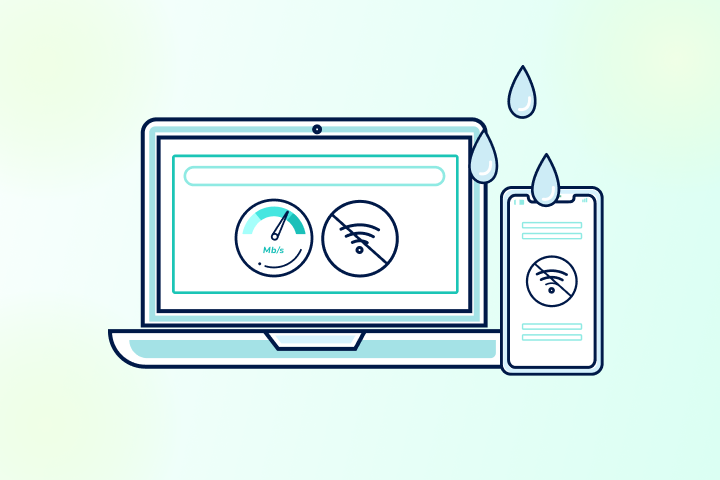
Yes, the weather can affect internet speed. But some types of internet connections are more susceptible. Wireless connections (satellite, fixed wireless, and 5G home internet) are the most likely to degrade during inclement weather. Fiber, cable, and DSL internet are rarely affected by weather conditions. Below, we explain how each connection type behaves in bad weather and what to do.

Key Takeaways: Weather and Internet Performance

  • Yes, weather can affect internet performance, but mostly on wireless internet connections (satellite, fixed wireless, some 5G).
  • Not usually your Wi-Fi itself: power blips or congestion cause many “storm” slowdowns.
  • Satellite: rain fade and snow or ice on the dish cause dropouts.
  • Fixed wireless & 5G: wet foliage, rain, and wind, and mmWave sensitivity; improve line of sight.
  • Fiber, Cable, and DSL: weather rarely affects the signal; issues typically result from power or plant damage.

Before You Blame the Weather

Weather can disrupt internet service, but sometimes, weather isn’t the cause. Most slowdowns are:

IssueSymptomsCheckFix
Power blips/outagesLEDs look wrong; Wi-Fi says “no internet.”ISP outage map; ONT/modem/router lightsPower-cycle the ONT/modem, then the router; use a UPS
Network congestionSlow even on Ethernet at busy times; high latencyTest off-peak vs. peakSchedule big tasks off-peak; enable QoS; consider a faster plan or backup connection
Home network issues (mostly wireless)Sluggish connectivity from an overloaded router/gateway, poor proximity, or obstructed equipmentError lights on the router or the gateway? Router in a cabinet or obstructed?Unplug the modem, then the router, for a few minutes; move closer to the router; place it in a central location away from walls and furniture

Does Weather Affect Fiber Internet?

Rarely. Fiber internet carries light through glass, so the weather doesn’t interfere with the signal itself. Issues usually come from power outages or physical damage to cables or network equipment.

What actually happens

  • Rain, snow, cold, and heat: Minimal effect on the optical signal; problems arise if the optical network terminal (ONT) or distribution gear loses power or gets damaged.
  • Flooding, construction, or ice on aerial runs: Physical damage or equipment failure, not “slowdowns.”
  • In-home Wi-Fi: Weather doesn’t affect your fiber speed, but it can reveal weak Wi-Fi placement or interference.

Quick diagnostics

  • Check your provider’s outage map or app.
  • Plug a laptop into the router (or ONT, if supported) via Ethernet and compare it to Wi-Fi.
  • Verify ONT lights (Power, Alarm) and router WAN status.

What you can do right now

  • Power-cycle the ONT and router if service is unstable after a storm.
  • Test with an Ethernet connection to rule out Wi-Fi.
  • If the ONT indicates errors or there’s no light on the fiber jack, contact your internet provider.

Be prepared

  • Put the ONT and router on a UPS to get through brief power outages.
  • Use surge protection and avoid crimped or tight bends in fiber drops.
  • Check the fiber entry point and ONT for damage, loose cables, or disconnects.

Weather and Fiber Internet At-a-Glance

Weather factorTypical impactWhat helps
Rain, snow, cold, heatVery low (signal unaffected)UPS; reboot after storms
Power outageLoss of serviceUPS; check neighborhood power
Physical damage (flood, backhoe, ice)Outage until repairedISP ticket; protect entry path

Does Weather Affect Cable Internet?

It can. Cable internet coaxial plants are resistant to weather events; however, water ingress, wind, ice on aerial lines, and power issues can still cause outages or temporary slowdowns.

What actually happens

  • Water ingress at connectors and splitters: Raises noise and attenuation, causing speed dips or timeouts.
  • Ice and wind on aerial spans: Physical strain can cause brief errors or outages.
  • Storm-driven congestion: After outages, many modems sync simultaneously, causing temporary slowdowns.
  • In-home coax and Wi-Fi issues: old splitters, long coax runs, or weak Wi-Fi signal diminish performance.

Quick diagnostics

  • Check the modem status page for downstream SNR/power and event log errors.
  • Bypass extra splitters and connect the modem to the first coax point.

What you can do right now

  • Reboot the modem and router to reset them and clear their caches.
  • Inspect and tighten coax connectors; remove cheap splitters.
  • Try a different coax outlet or a different cable.

Be prepared

  • Use weather-rated coax and quality splitters.
  • Create drip loops on outdoor runs to prevent water intrusion.
  • Plug the modem and router into a UPS, and keep your provider support information handy.

Weather and Cable Internet At-a-Glance

Weather factorTypical impactWhat helps
Heavy rain, ice, windNoise, brief errors, occasional outagesCheck connectors and splitters; reboot
Water ingressPersistent speed or latency issuesReplace fittings and splitters; tech visit
Post-storm congestionTemporary slow speedsSchedule high-demand tasks for off-peak hours

Does Weather Affect DSL Internet?

It can. DSL internet uses older copper pairs that are more vulnerable to moisture, corrosion, and electrical noise, and the weather can exacerbate these issues.

What actually happens

  • Rain and wet ground: Moisture raises line attenuation/noise then sync rate drops or disconnects.
  • Wind or ice damage to aerial loops: Physical stress can introduce intermittent faults.
  • Aging inside wiring and filters: If the voice line sounds noisy, DSL will also struggle.

Quick diagnostics

  • Listen for audible noise on the phone line with a corded phone.
  • Test the modem at the test jack (if accessible) to isolate faulty wiring inside or outside the home.
  • Check the modem’s status lights.

What you can do right now

  • Reboot the modem to retrain at a stable rate.
  • Replace microfilters and suspect wiring.
  • Use a short, high-quality phone cable from the wall to the modem.

Be prepared

  • Upgrade to fiber or cable internet where available.
  • Keep the modem and router on a UPS; use surge protection on the phone pair.
  • Ask your provider for a line check if rain reliably causes drops.

Weather and DSL Internet At-a-Glance

Weather factorTypical impactWhat helps
Rain or wet soilHigher attenuation or noise causes slowdownsTest at the provider network entry point, replace filters, and ask the provider for a line check
Wind and iceIntermittent faultsTechnician visit to repair or secure aerial runs
Aging inside wiringChronic instabilityRewire and shorten run; upgrade equipment

Does Weather Affect Satellite Internet?

Yes. Satellite internet uses high-frequency radio waves that are sensitive to precipitation and blockage, a phenomenon often called rain fade.

What actually happens

  • Heavy rain or snow: Precipitation absorbs and scatters the signal, causing slowdowns or brief dropouts.
  • Snow or ice on the dish: A physical blockage detunes or breaks the link until it clears or melts.
  • Storms near ground stations: Even if skies are clear at your house, weather along the network path can affect service.
  • Obstructions and low elevation angles: Trees and buildings, plus wet foliage, worsen marginal links.

Quick diagnostics

  • Check the app and your router for outage or obstruction messages and signal quality.
  • Compare performance under clear and stormy conditions to confirm the weather’s impact.
  • Inspect the dish view (sky clearance) for snow, ice, or debris buildup.

What you can do right now

  • Wait out intense cells—short dropouts are common in downpours.
  • Clear snow and ice from the dish (safely); ensure an unobstructed sky view.
  • Reboot the modem and router after severe weather to refresh operation.

Be prepared

  • Mount with a clear line-of-sight; consider a higher mast if trees or buildings intrude.
  • Use dish heaters or covers where supported; route cables with drip loops.
  • Put gear on a UPS; keep a backup connection (LTE/5G hotspot) for critical uptime.

Weather and Satellite Internet At-a-Glance

Weather factorTypical impactWhat helps
Heavy rain (rain fade)Slowdowns and dropoutsWait out cells; keep a clear line of sight
Snow or ice on the dishTemporary lossClear buildup; dish heater or shield
Storm near the ground stationRegional degradationRedundancy (hotspot); patience
Obstructions and wet foliageOngoing attenuationRelocate or mount on a mast; trim where allowed

Does Weather Affect Fixed Wireless Internet?

Sometimes. Fixed wireless internet delivers service from a nearby tower to a receiver at your home. Performance depends on signal frequency, line of sight, and distance, all of which can be influenced by weather.

What actually happens

  • Rain & heavy humidity: Water absorbs and attenuates radio waves, especially at higher frequencies, reducing signal strength for short periods.
  • Snow and ice: Accumulation on outdoor antennas or brackets can block or slightly detune the signal; wet, heavy snow is the worst culprit.
  • Wind: Can flex masts or slightly shift alignment, raising error rates until the gusts calm.
  • Foliage growth after rain: Leaves hold water and become more “radio-opaque,” adding seasonal or post-storm attenuation.
  • Temperature swings: Can affect cable loss and radio components at the margins, more noticeable on long runs or older gear.
  • Power outages: The link may be fine, but your equipment (or the tower/backhaul) loses power.
  • Licensed* links are generally more stable; unlicensed (e.g., 5 GHz) links can be more susceptible to interference, which wet foliage worsens.

*Licensed fixed wireless or 5G uses radio frequencies that the provider has exclusive rights to, and are more reliable and consistent. Unlicensed uses open or shared bands (Wi-Fi frequencies), which are cheaper and easier to deploy but more prone to interference and speed swings.

Quick diagnostics

  • Run a speed test over Ethernet vs. Wi-Fi to isolate local wireless issues.
  • Check signal quality (in the provider app or router UI); note if it drops during storms.
  • Inspect the antenna line of sight for new obstructions (leaves, ice, snow).
  • If speeds tank only on Wi-Fi, move the router or switch bands (2.4 GHz for range; 5 GHz for throughput).

What you can do right now

  • Reboot the receiver and router after severe weather.
  • Clear snow and ice from outdoor equipment (if safely accessible).
  • Reduce obstacles: position indoor receivers near a window facing the tower; avoid metal screens or low-E coatings if possible.
  • Try another band or channel in the admin app, if available.
  • Use Ethernet for critical devices during storms.

Be prepared

  • Mount outdoor gear securely; tighten brackets and use weather-rated coax/connectors.
  • Add a surge protector and a UPS for the modem and router.
  • Ask your provider about an external antenna upgrade or higher-gain equipment if you’re far from the tower.
  • Keep a backup option (mobile hotspot or satellite failover) for outages.

Weather and Fixed Wireless Internet At-a-Glance

Weather factorTypical impactWhat helps
Heavy rain or humidityMild to moderate attenuationReboot, relocate CPE, higher-gain antenna
Wet snow or ice on the gearTemporary dropoutsClear buildup; heated or rain-shielded mounts
High windBrief noise or alignment driftRigid mounting; check brackets
Leafy, wet foliageOngoing attenuationRaise or relocate antenna; trim where permitted
Power outageFull lossUPS; backup connection

Does Weather Affect 5G Home Internet?

It can—how much depends on which 5G band your service uses. Mid-band (sub-6 GHz) 5G home internet is generally resilient; mmWave (high-band) 5G delivers top speeds but is more sensitive to rain, obstruction, and even window coatings.

What actually happens

  • Mid-band (e.g., 2–4 GHz): Usually stable through typical rain and snow; tower congestion and power issues are more prevalent than weather itself.
  • High-band or mmWave (24–39 GHz): Offers multi-gig speeds at short ranges, but rain fade, and any obstruction (wet leaves, glass, even a hand over the gateway) can cause significant drops.
  • Inside the home: Low-E or metal-framed windows and foil-backed insulation can attenuate 5G signals, exaggerating weather-related dips.

Quick diagnostics

  • Check the gateway app for your current band (mid-band vs. mmWave) and signal metrics.
  • Move the gateway to different windows and walls; test again during and after inclement weather to see if band selection or signal path changes.

What you can do right now

  • Reposition the gateway to a window facing the tower; avoid metal screens and low-E coatings if possible.
  • Elevate the unit and keep it clear of large appliances or mirrors.
  • Force a band refresh by power-cycling (some apps also let you “optimize” placement).
  • Connect critical devices via Ethernet to remove local Wi-Fi variables.

Be prepared

  • Ask the provider about external antenna options or a different gateway model with better radios.
  • Use a UPS for your gateway during power outages.
  • Maintain a secondary connection (mobile hotspot, cable, DSL, or satellite) to ensure critical uptime.

Weather and 5G Home Internet At-a-Glance

Weather factorTypical Impact (Mid-band (sub-6) / mmWave (high-band)What helps
Moderate rain/snowLow / Moderate-HighReposition gateway; clear obstructions
Heavy rain (downpours)Low – Moderate / High (rain fade)Closer and a clear line of sight; external antenna
Wet foliage and obstructionsLow – Moderate / HighElevate gateway; different window
Power outagesHigh / HighUPS; backup connection

If Bad Weather Isn’t the Problem, What Is?

If the weather is clear, then the reasons for slow internet are likely within your home and under your control. Here are a few easy troubleshooting actions you can take to improve your internet connection.

Restart Your Router

Routers perform best when caches and tasks are purged. You can do this simply by restarting your router and/or modem. We recommend doing this at least once a month. Tasks and connections can bog down hardware, so this simple step can solve many issues.

Move Closer to Your Router

The strength of your Wi-Fi connection depends on how close you are to the router and what is between you and it. Wi-Fi signals slowly weaken with distance, and barriers like furniture and walls can interfere with or deflect them. You can fix this by moving closer to your router, investing in Wi-Fi extenders, and placing the router away from obstructions.

Upgrade Your Internet Plan

Sometimes the issue may be the internet connection. Cable internet, for instance, is more susceptible to network congestion. You can upgrade to a faster plan to offset this, or switch to a different internet service. Different internet activities require different bandwidths. And no matter what you do, there’s a limit depending on what you pay for. Upgrade your speed for your internet lifestyle and prevent headaches down the road.

How Can I Prepare My Internet for Inclement Weather?

If you’re in an area with frequent weather disruptions or connectivity is critical for your remote work, prepare now for outages. Here are quick, easy actions you can take to stay online or bounce back when storms hit.

Power: Put your ONT, modem, router, or gateway on a UPS; storms often cause brief power dips.

Surge protection: Use surge protection on power and (where applicable) repair cabling and wiring.

Cabling: Place drip loops on outdoor cables and replace corroded connectors and splitters.

Line of sight: Keep dishes, antennas, and receivers clear of snow, ice, and debris; maintain a clear line of sight.

Backup plan: Keep a mobile hotspot or neighbor’s guest Wi-Fi as a fallback for critical work.

Safety: Never access roofs during storms; when in doubt, schedule a tech visit.

Pro tip: Schedule a monthly reboot of your modem, router, or gateway, and a quarterly check of your cables and connections to optimize your home network.

Weather the Storm with Better Internet

Bad weather is one of those phenomena we cannot control. What we can control, though, is how we prepare for rainy days. If you’re looking for reliable internet that keeps you connected at all times, consider your connection type and the available providers in your area. Enter your ZIP code into our provider search tool to find the best providers and plans near you.

FAQs: Weather, Wi-Fi, and Internet Performance

Does the weather affect internet performance?

Yes, mainly for wireless options (satellite, fixed wireless, and some 5G). Fiber, cable, and DSL are usually impacted indirectly by power loss or physical damage, not the weather signal itself.

Can the weather affect the internet connection even if my power stays on?

Yes. Towers, nodes, or ground stations can lose power or suffer damage even if your home doesn’t. Rain, snow, and wet foliage can weaken wireless links.

Does bad weather affect Wi-Fi?

Indirectly. Outdoor weather doesn’t travel through your living room, but storm-related interference, power blips, and congestion can cause problems that feel like Wi-Fi issues. Always test Ethernet vs. Wi-Fi to isolate.

Does the weather affect Wi-Fi signal strength inside my house?

Not directly. What you’re sensing as “signal strength” is usually interference, poor router placement, or congestion—not the rain itself.

Can rain affect Wi-Fi or home internet speeds?

Rain can attenuate wireless backhaul (satellite, fixed wireless, mmWave 5G) and cause brief dropouts. For fiber, cable, and DSL, rain more often causes water ingress or power issues, not true Wi-Fi signal loss.

Why is satellite slower in storms (what is rain fade)?

Satellite uses high-frequency radio that precipitation absorbs and scatters (“rain fade”), so heavy rain/snow can reduce SNR and cause short outages, especially with snow on the dish.

Does snow or ice on my dish or antenna matter?

Yes. Snow and ice physically block or damage dishes and antennas. Clear it safely from the ground when bad weather passes; consider heaters or shields if available.

Will wind affect fixed wireless or 5G home internet?

It can. Wind flex can nudge outdoor antennas off alignment, and wet, leafy trees add attenuation. For 5G, mmWave is more sensitive to rain and obstructions than mid-band (sub-6 GHz).

Fiber is “weather-proof,” so why does mine drop in storms?

The glass signal is fine; the usual culprits are power outages (to your ONT or neighborhood gear) or physical damage from flooding/ice/backhoes. Check ONT lights and your ISP’s outage map.

Why does cable or DSL internet slow down after a storm, even when it’s sunny now?

Two reasons: post-outage congestion (many reconnections at once) and water ingress in coax and copper (cable and DSL), which raises noise and attenuation until fittings dry or are replaced.

How do I tell whether it’s weather, congestion, or Wi-Fi?

  • Weather: performance tracks the storm; wireless links drop briefly.
  • Congestion: slow, even on Ethernet, during peak times; higher latency and jitter.
  • Wi-Fi: Ethernet is fine; Wi-Fi isn’t. Moving closer to the router helps.

Quick fixes during storms (what actually helps)?

Use Ethernet for critical devices, reboot the modem, router, and/or gateway after outages, and ensure a clear line of sight for dishes and antennas.

Can window coatings or building materials affect 5G home internet?

Yes. Low-E glass, metal screens, and foil-backed insulation can attenuate indoor 5G home internet gateways, worsening any weather-related dips. Try a tower-facing window or ask about an external antenna.

Your internet speed and streaming experience are directly linked, but that doesn’t mean you can make all the difference in video quality or your enjoyment. The good news is that you don’t need the fastest, most expensive internet connection on the market. How much internet speed you need depends on what you’re watching and how many devices are sharing your home network.

Most homes need about 5 Mbps per HD (1080p) stream and 15-25 Mbps per 4K stream. From there, it’s math: multiply by the number of devices streaming simultaneously, add a little headroom, and you have your target number.

The faster your internet speed, the better quality video you can stream. And with less buffering and fewer disruptions.

Key Takeaways: Streaming Video and Internet Speed

  • Per-stream Mbps is what matters. Plan for about 5 Mbps for 1080p and 15-25 Mbps for 4K, depending on the platform and your settings.
  • Simultaneous streams need more speed. Two devices streaming at the same time require about twice the bandwidth, plus a little extra for any other devices using your network.
  • Buffering isn’t always about speed. The quality of your Wi-Fi, network congestion, and older devices can affect streaming quality, even with a fast plan.
  • Live streaming is less forgiving. It relies on real-time, steady connectivity rather than on the buffered playback used by on-demand video.
  • Streaming uses a lot of data. Netflix 4K can use up to 7 GB per hour, per device. Pay attention to your usage if you have a data cap on your internet plan.

Ready to see how your internet connection performs? Run a speed test, then compare your results to the tables below.

How Fast Should Your Internet Be for Streaming Video?

It depends on the quality you’re streaming and how many other users are sharing your network, but generally you’ll need 15-25 Mbps for 4K streaming and at least 5 Mbps for HD streams. Those speeds are per device, so multiply them by the number of other streams on your network and add 20% headroom for other connections.

Mbps Per Stream By Resolution

Here’s a look at the minimum and recommended download speed you need for the various video resolutions commonly available from today’s streaming platforms:

Video QualityTypical ResolutionGood Starting Point (Per Stream)Notes
SD480p1–3 MbpsFine for phones, small screens
HD720p3–5 MbpsCommon for tablets and smaller TVs
Full HD1080p5–10 MbpsThe everyday sweet spot for most homes
Ultra HD4K15–25 MbpsBig screens, sharper detail
8K4320pAt least 50 MbpsOften much higher, depending on settings

Official Streaming Service Recommendations

Each platform publishes its own speed requirements, and they do vary. Here’s a consolidated look at what the major services recommend:

Service720p1080p4KSource
Netflix3 Mbps5 Mbps15 MbpsNetflix Help Center
YouTube2.5 Mbps5 Mbps20 MbpsGoogle Support
Disney+5 Mbps (HD)5 Mbps25 MbpsDisney+ Help Center
Hulu3 Mbps (library)3 Mbps16 MbpsHulu Help Center
Hulu Live TV8 Mbps8 MbpsN/AHulu Help Center

Minimum vs. Recommended Internet Speeds for Streaming Video

Minimum speeds are the lowest speed at which playback will work under ideal conditions. That means that there isn’t any congestion on your provider’s network, no congestion on your home network, and that, if your device is connected wirelessly, your Wi-Fi network is working optimally. The moment your Wi-Fi dips, someone else starts a video call, or your router gets congested, that minimum threshold becomes a recipe for buffering.

Recommended speeds include a little headroom to account for the normal variability of your home network and your provider’s network. Aim for at least the recommended speeds to avoid buffering and frustration.

How Do You Calculate Internet Speed for Multiple Streams and Devices?

The Simple Method (5 Steps)

You don’t need complicated math. Here’s how to size your plan:

  1. Choose your typical resolution. Are most of your streams 1080p or 4K?
  2. Count simultaneous streams. How many TVs, tablets, and phones are actively streaming at the same time during peak household hours?
  3. Multiply per-stream Mbps. Use the tables above as your baseline.
  4. Add other high-usage activities. Gaming downloads, video calls, and cloud backups all consume bandwidth. Budget 5-10 Mbps per active video call, and more for active game downloads.
  5. Add a 25-30% buffer for Wi-Fi variability. Wireless connections aren’t perfectly efficient. A buffer keeps things smooth when signal strength fluctuates.

Quick Examples

  • Two 4K TVs at once: Start with 2 × (15–25 Mbps) = 30–50 Mbps, then add a 20% buffer.
  • One 4K TV + two 1080p streams: (15–25) + (2 × 5) = 25–35 Mbps, plus 20% buffer.
  • Mostly 1080p across three devices: 3 × 5 Mbps = 15 Mbps and 20% buffer.

How Does Internet Speed Affect Streaming Video Quality?

When you stream a video, your device continuously pulls data from a server. If your internet speed is too slow, the stream pauses while it loads more data. That pause is buffering, which makes for an aggravating viewing experience.

Here’s how your internet speed affects streaming:

What is Buffering?

Buffering is when your device temporarily downloads part of the video before it plays. A little buffering at the start is normal. Frequent buffering during a show usually indicates inconsistent download speeds or congestion on your home network.

Why Higher-Quality Video Needs More Bandwidth

It comes down to bitrate. A 4K stream delivers more pixel data per frame than a 1080p stream, and that data must arrive continuously. Higher resolution combined with a higher bitrate means your connection needs to maintain that speed consistently, not just average it out over a few minutes.

This is also why HDR content can push requirements slightly higher than those for standard 4K. HDR adds color and brightness data to the already-large 4K stream.

Do Frame Rates Affect Streaming Requirements?

Yes. A 60fps (frames per second) stream carries twice as much frame data as a 30fps stream at the same resolution. Live sports and some premium content are delivered at higher frame rates, which increases the required throughput. If you’re watching 4K at 60 fps with HDR, you’re at the top end of what any platform requires of your internet connection.

How Does Latency Affect Streaming?

For on-demand video, internet latency (the delay between a data request and its arrival) matters very little. Streaming apps compensate by buffering ahead. A connection with higher latency but consistent download speed will still stream video without too much trouble.

Latency does affect the quality of live content, watch parties, and interactive streaming. When you’re watching a live football game or participating in a synchronized watch party, data delivery delays create a lag between what you see and what’s actually happening. For most viewers, latency under 100ms is sufficient for live streaming, but the lower the latency, the better the experience.

Why Live Streaming Needs Steadier Real-Time Delivery

On-demand video can buffer ahead because the content already exists on a server. Live streams don’t have that luxury. The data is generated and transmitted in real time, which means your connection needs to be fast and stable, not just fast on average. That’s why platforms like Hulu recommend 8 Mbps for live TV, even though their on-demand libraries only require 3 Mbps.

What Else Affects Streaming Quality Besides Download Speed?

If your internet connection has a decent download speed but struggles to deliver consistent video streams, check these common bottlenecks.

On-Demand vs. Live Content

On-demand video can buffer streams by downloading data ahead of playback, which hides small speed dips. Live content has less wiggle room, so it can break down sooner on the same connection.

Simultaneous Users and Device Load

A single 4K stream might be fine. Add another stream, a video call, and a console updating in the background, and your connection is suddenly juggling multiple heavy tasks.

Distance to the Server

The internet is not one clean pipeline. Your stream travels through multiple networks, and performance can vary by region and time of day. You cannot control where a streaming service’s servers are, but you can control what happens inside your home.

Wi-Fi Signal Strength and Interference

Wi-Fi is convenient, but it is also the #1 reason “fast internet” feels slow. Thick walls, floors, neighboring networks, and router placement can cut the speed your device actually receives.

Peak-Time Congestion

Streaming demand spikes in the evenings. Even with a solid plan, you may see slower performance at peak hours, especially on crowded networks.

Device Limits

Older smart TVs and older streaming sticks often have weaker Wi-Fi radios. You might have a strong router and a fast plan, but the device itself still struggles to maintain a stable connection.

How Can You Improve Streaming Quality Without Upgrading Your Internet?

Before you pay more each month for faster internet that you may not need, try these easy fixes that can make a big improvement.

Use a Wired Connection When You Can

While not as convenient as Wi-Fi, a wired Ethernet connection is typically more stable for TVs and consoles than Wi-Fi. If your streaming device has an Ethernet port and you can run a cable to it, this will significantly improve streaming quality.

Reduce Competing Traffic

If streaming quality tanks when someone starts a download, that is a clear sign your network is overloaded and the router is struggling to balance bandwidth between your devices. Pause large downloads and close unused apps while you stream to free up more bandwidth for your device.

Improve Wi-Fi Signal in Simple Ways

  • Place your router in a central, elevated spot in your home
  • Avoid tucking it behind a TV or inside a cabinet
  • Use the 5 GHz Wi-Fi (faster) band for devices closer to the router, and 2.4 GHz (better range) for the devices that are farther from it

Adjust Streaming Quality Settings When Needed

Most apps auto-select the video quality, which is normally fine. But if you have data caps on your internet plan or if buffering is a constant problem while you stream, you can lower the video quality to help stabilize playback and moderate your data use.

Know When Upgrading Your Plan Actually Helps

Upgrading your internet plan makes sense if:

  • Your internet speed test results are slower than your target streaming quality requirements
  • Your home frequently runs multiple simultaneous streams
  • You already optimized your Wi-Fi network, and still cannot stream reliably

If your speed test meets the recommended thresholds but streaming is still rough, focus on improving Wi-Fi performance and device setup first.

How Much Data Does Streaming Use?

It depends on the video quality that you’re streaming, but a 4K video stream can use about 7 GB per hour.

Data Usage By Quality

QualityData Per Hour (Per Device)
SD (480p)Up to 1 GB
HD (1080p)Up to 3 GB
4K (Ultra HD)Up to 7 GB

Other platforms vary, but the pattern is consistent: higher quality always means more data. A household with three people watching 4K content simultaneously could consume over 20 GB in a single evening.

Data Caps: What To Do If You Have One

While unlimited data is becoming more common with internet plans, many providers impose monthly data caps, which can add overage fees or throttle your speeds once you hit the limit. Streaming video can clearly chew up a lot of your monthly data usage. If you have a cap:

  • Lower your default streaming quality. Setting HD as your maximum instead of 4K can cut consumption by more than half.
  • Schedule large downloads overnight. Game updates, software downloads, and cloud backups are easier to manage when they don’t compete with streaming and don’t count against daytime patterns.
  • Use your provider’s data monitoring tools. Most internet providers have a usage dashboard in their app or account portal. Check it weekly to see how much you’ve used and, more importantly, how much you have left.

What Internet Plan Speed Is Good for Streaming?

You don’t need to get the fastest possible speeds for streaming. It’s better to choose a plan that matches how you and others in your household use the internet.

Minimum Recommended Internet Speeds

The FCC raised the fixed broadband benchmark to 100 Mbps download and 20 Mbps upload. This is a useful baseline for households with multiple devices, remote work, and regular streaming. But even these benchmarks may be too little for most modern households.

Simple Plan Tiers by Streaming Scenario

  • Mostly 1080p, 1–2 streams at a time: Often comfortable in the 25–100 Mbps range, depending on Wi-Fi and other usage.
  • Mixed household, several devices, occasional 4K: 100–200 Mbps is a common “no drama” zone.
  • Multiple 4K streams, heavy usage, smart home devices: 200 Mbps and up gives more headroom and fewer slowdowns.

FAQs About Video Streaming Internet Speed

What internet speed do I need for 4K video streaming?

It depends on the platform, but the minimum speed is 15 Mbps. Minimum required speeds will work as long as your provider’s network and your home network are not bogged down by congestion, interference, or dated hardware. For reliable 4K streaming with some headroom, plan for at least 25 Mbps per 4K stream.

How Many Mbps Do I Need To Stream on Multiple Devices?

Add up the per-stream requirements for simultaneous streaming using the tables above, then add a 25-30% buffer to account for network congestion and Wi-Fi dropoff. For example, two 4K TVs and one 1080p tablet would need roughly 55 Mbps, or about 70 to 75 Mbps with the added headroom.

Why Does Streaming Buffer Even When My Speed Test Is Fast?

A fast speed test doesn’t rule out Wi-Fi interference between your router and your TV, congestion during peak evening hours, other apps or devices using your internet connection, or an older streaming device. Start by connecting your device via Ethernet and running a new test directly on the device. That narrows down whether the issue is Wi-Fi or the network.

What Speed Do I Need for Live Streaming?

Most live streaming services recommend 8 Mbps for HD live TV. Live streaming doesn’t buffer ahead like on-demand content does, so a stable and consistent connection matters as much as raw speed.

How Much Data Does Streaming Use Per Hour?

According to the Netflix Help Center, SD uses up to 1 GB per hour, HD uses up to 3 GB per hour, and 4K uses up to 7 GB per hour, per device. Other services will vary, but these are a reliable ballpark for budgeting against a data cap.

Is 25 Mbps Enough for Streaming?

For a single-stream household watching at 1080p, yes, 25 Mbps is enough. For a single 4K stream, 25 Mbps meets the recommended threshold for most platforms. But if two or more people are streaming simultaneously, 25 Mbps will feel tight. We recommend at least 50-100 Mbps to allow enough bandwidth for multiple devices.

Choose the Right Speed to Stop Buffering

You can solve most of your streaming problems without calling your internet provider or upgrading your plan. To find the right speed for your household, use the recommended speeds per stream and multiply them by the number of users in the house. For most homes, a 100 to 200 Mbps plan is sufficient, but don’t forget to add a little more to account for expected network congestion and Wi-Fi drop.

Before assuming you need a faster plan, run an internet speed test and compare your results to the speed recommendations in the tables above. If your tested speed meets your calculated target but you’re still experiencing streaming issues, the fix is likely in your setup: router placement, Ethernet connections, or reducing competing traffic.

If your speed test consistently comes up short, or if you’re regularly running 3 or more 4K streams, then you might want to consider upgrading to a faster internet plan.

When you run an internet speed test, you’re likely focused on the big number at the top: your download speed. But if you’ve ever experienced buffering videos, choppy Zoom calls, or a game character that teleports across the screen, you know that raw speed isn’t the only thing that matters. 

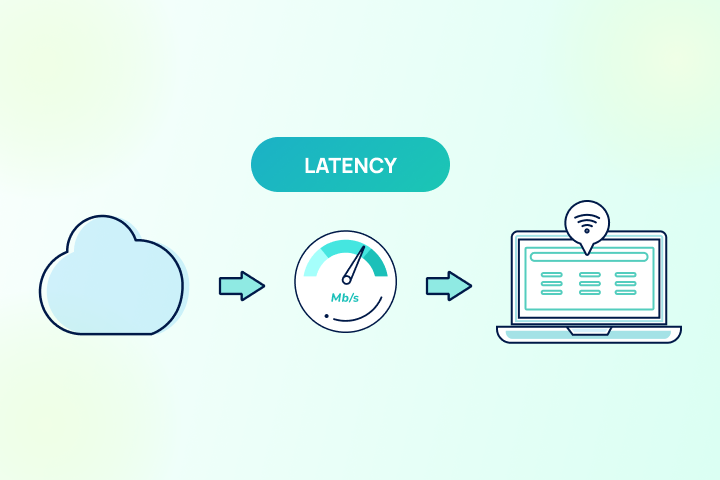
Enter latencythe invisible metric that often dictates how fast your internet actually feels. Also known as “ping,” “lag,” or “delay,” latency measures the time it takes for data to travel from your device to a server and back. 

In this guide, we’ll break down what latency is, how to interpret your ping vs latency results, and practical steps to fix internet lag for good. 

Key Takeaways: Internet Latency

  • Latency ≠ speed: Latency is a measure of delay (ms).
  • The Millisecond Metric: Latency is measured in milliseconds (ms); lower numbers are always better. 
  • Real-Time Impact: Low latency is critical for gaming, video calls, and real-time applications. 
  • Diagnosis: Running a speed test helps determine whether latency issues are inside your home or with your ISP. 
  • Optimization First: Many latency problems can be fixed by optimizing your setup before upgrading your plan. 

What Is Latency?

Latency is the time it takes for a data packet to travel from your device to a server and back again. 

Think of your internet connection like a highway. Bandwidth is the number of lanes on the road, determining how many cars can travel at once. Latency is the time it takes a single car to drive from Point A to Point B. 

Common Latency Terms Explained

  • Latency: The broad term for the delay in data transfer.
  • Ping: The utility program used to measure latency. When you “ping” a server, you are testing the latency.
  • Ping Rate: The resulting number from that test, measured in milliseconds (ms).
  • Lag: The noticeable delay you experience on your screen is caused by high latency.
  • Jitter: The variation in your ping rate over time. If your ping jumps from 20ms to 200ms and back, you have high jitter, which causes stuttering performance.
  • Packet Loss: Data packets that fail to reach the destination, causing delays and glitches. 

Why Latency Matters More Than You Think

There is a common misconception that “fast internet” simply equals high download speeds. While download speed determines how quickly you can pull a large file from the web, latency determines how responsive that connection is. If you have high latency, your internet will feel sluggish even with a gigabit connection. You might click a link and wait three seconds for the page to load, or ask a question on a video call only to have your colleague answer you five seconds later. Understanding latency is the key to diagnosing these real-world performance issues.

What Is Good Latency?

Good latency depends on what you’re doing online, but the lower the number, the better and more responsive your internet connection will be. Some online activities, like gaming and video conferencing, perform better with very good (low) latency. Whereas streaming video does not benefit from low latency. 

General Latency Benchmarks

  • Poor (100+ ms): Noticeable delays. You will likely experience internet lag, audio syncing issues (“talk-over”), and slow-loading web pages.
  • Fair (50 to 99 ms): Acceptable for most browsing and streaming on Netflix. However, you might notice slight delays in fast-paced games or occasional hiccups in video calls.
  • Good (20 to 49 ms): Perfectly responsive for almost all activities. You can game, stream, and video chat without noticeable delay.
  • Very Good (up to 19 ms): Instant response. This is the gold standard, essential for competitive gaming, professional trading, and seamless real-time interactions.

How to Test Your Internet Connection Latency

The best way to understand your current performance is to run a speed test. When you do, you will see three main numbers: 

  1. Download Speed: How fast data comes to you, measured in Mbps. 
  1. Upload Speed: How fast you send data out, measured in Mbps.
  1. Ping (Latency): The reaction time of your connection, measured in ms (millisecond). 

What Latency Reveals That Download Speed Doesn’t

High download speeds are great for streaming movies, but a high ping rate will ruin an online gaming session. If you see a low ping (under 20ms) but slow downloads, the issue might be bandwidth congestion. If you see high speeds but high ping (over 100ms), you are dealing with internet latency issues. 

To get the most accurate picture, try testing your connection in different scenarios: 

  • WiFi vs. Wired: Plug directly into your router to see if your WiFi signal is the bottleneck.
  • Peak vs. Off-Peak: Test at 8:00 PM (peak) and 8:00 AM (off-peak) to check for network congestion.

Who Needs Low Latency the Most?

While everyone benefits from a snappy connection, certain activities require lower latency more than others. 

Video calls (Zoom, Meet, Teams)

  • Symptoms: People talk over each other, awkward delays before someone hears you, lips out of sync, and distorted audio.
  • Why: Conversational turn-taking falls apart above 100 ms; jitter forces the app to buffer more, adding even more delay. Tiny bursts of packet loss cause the “robot voice.”
  • Quick win: Prefer Ethernet, block uploads from other devices during calls, and enable QoS/Device Priority for conferencing.

Online gaming

  • Symptoms: Missed shots, delayed inputs, rubber-banding, getting “peeked” before you see the opponent.
  • Why: Game engines expect consistent, low delay. Above ~50–60 ms, timing windows get tight; spikes (jitter) are worse than a steady 40 ms. Loss triggers rollbacks or desync.
  • Quick win: Wire the console or your PC, choose the nearest server and region, and turn on SQM or FQ-CoDel to prevent uploads and streams from blowing up your ping mid-match.

Cloud apps & SaaS

  • Symptoms: Menus feel sluggish, file trees take a beat to open, micro-delays add up to “why does this feel slow?”
  • Why: Each UI action chains multiple small requests. 40–60 ms per request adds up to seconds across a flow.
  • Quick win: Keep latency low and stable; if you’re on Wi-Fi, improve signal quality or use Ethernet for your primary workstation.

Streaming & live TV

  • Symptoms: Long start times when you hit Play, choppy live streams, and fluctuating video quality.
  • Why: Players buffer to mask jitter; when jitter and loss spike, they downshift quality or stutter.
  • Quick win: Reduce contention (pause large downloads), strengthen Wi-Fi, or watch via a wired streaming box.

Smart home & voice assistants

  • Symptoms: Noticeable pause between “Hey…” and response, delayed smart-light actions.
  • Why: Small requests are latency-sensitive; extra milliseconds break the illusion of immediacy.
  • Quick win: Improve Wi-Fi placement in IoT zones; avoid overcrowding 2.4 GHz if your devices support 5/6 GHz.

Remote Work

  • Symptoms: Typing lag, cursor jumps, and delayed screen draws.
  • Why: These tools stream interactions in real time; latency and jitter directly show up as lag.
  • Quick win: Use an Ethernet cable; prioritize the device; minimize background uploads (cloud sync, backups, drive uploads).

Bottom line: Throughput governs how much you can download; latency, jitter, and packet loss govern how responsive everything feels.

Comparing Latency by Internet Connection Type

The type of internet connection you have will determine how fast or slow your internet connection is.

Internet TypeTypical Latency (ms)Context
Fiber5–20Consistently lowest; great for gaming, calls, and cloud apps.
Cable15–40Can spike during congestion.
DSL20–40Older copper; stable but slower speeds and higher spikes than fiber.
Fixed Wireless Internet15–40RF interference and line-of-sight impact variance; good when the signal is strong.
5G Home Internet 20–50Performance varies by signal quality and network load; improving with L4S.
Satellite — LEO (Starlink)25–60Much lower than GEO; weather/obstructions and routing still matter.
Satellite — GEO (HughesNet & Viasat)500–650Long distance to orbit dominates round-trip delay; fine for browsing/streaming, not for twitch gaming or real-time calls.

What Causes High Latency (Lag)?

If your speed test results show high latency, the culprit usually falls into one of three categories:

1. Physical Distance & Routing

Every request has to travel to a server and back; the farther away that server is, and the more “hops” your traffic takes along the way, the higher your round-trip time. If you’re in New York connecting to a server in Tokyo, physics dictates a higher ping than connecting to a server in Chicago. Content Delivery Networks (CDNs) and regionally hosted services help by moving content closer to you, reducing the number of hops.

2. Network Congestion

Sometimes the issue isn’t in your house at all. Congestion occurs when too many people try to use the internet infrastructure at once. This is especially common with cable internet during “prime time” (7 p.m. – 10 p.m.), when everyone in your neighborhood gets home and starts streaming or gaming. Your internet connection type also plays a role here. Fiber is typically the least susceptible to congestion spikes, while cable and 5G home internet are more prone to them under heavy load. Satellites behave differently due to physics: LEO (low-Earth orbit) systems like Starlink orbit much closer to Earth, keeping round-trip times low (~20 ms), while GEO (geostationary equatorial orbit) satellites sit about 22,000 miles up, resulting in the highest latency of any connection type.

3. Home Network Causes 

This is the most common source of internet lag. 

  • Bufferbloat: Oversized queues in your router or modem, intended to manage traffic, end up adding significant delay whenever someone uploads a file, runs a cloud backup, or joins a video call. It can spike your ping heavily even when your baseline latency looks fine.
  • WiFi Interference: Walls, microwaves, and even your neighbor’s WiFi can degrade your signal. 
  • Router Placement: Putting your router in a cabinet or the basement limits its reach.
  • Overloaded Bandwidth: If someone is downloading a 100GB game file while you try to make a video call, your packets will get stuck in a queue.

4. Device-Level Causes 

An older computer struggling to run modern software can cause network lag. Too many open browser tabs or background applications (like Steam updates or cloud backups) can also hog your resources.

For a deeper dive into troubleshooting, read our article on 15 reasons for slow internet.

How to Reduce Internet Latency (Optimize First)

Before you call your ISP to upgrade your plan, try these quick fixes to lower your ping rate

Quick Fix Checklist 

  1. Use an Ethernet Cable: Wi-Fi is convenient, but a wired connection offers the most stable connection to your router and eliminates signal interference.
  2. Close Background Apps: Shut down bandwidth-heavy apps like Dropbox, OneDrive, or game launchers running in the background.
  3. Restart Your Gear: Restarting your modem and router clears the cache and can resolve temporary glitches.
  4. Limit Devices: If your internet traffic affects speed, try disconnecting smart home devices or phones that aren’t in use.

1. Optimize Your Wi-Fi Environment

If you cannot use Ethernet, follow these steps to make your wireless signal as efficient as possible:

  • Router Placement: Place your router in a central, high location. Avoid cabinets or basements that block signals.
  • Band Management: Separate your 2.4 GHz, 5 GHz, and 6 GHz networks so your high-performance devices select the best band. If your hardware supports it, enable Multi-Link Operation (MLO) on Wi-Fi 7 gear to smooth out spikes and dodge interference.
  • Update Firmware: Ensure your router is running the manufacturer’s latest software to benefit from the latest security and performance patches.

2. Advanced Router Tuning

To truly “lag-proof” your home, dive into your router’s settings (check your manual or the manufacturer’s website for specific instructions):

  • Enable Quality of Service (QoS): Use “Device Priority” settings to prioritize gaming, voice, and video traffic over lower-priority traffic, such as file downloads.
  • Fix Bufferbloat: Turn on Smart Queue Management (SQM) or FQ-CoDel. These modern algorithms stabilize latency even when someone else on your network is uploading a large file or streaming 4K video.

3. App and Network Level Adjustments

If home optimization isn’t enough, look at how your apps and provider handle data:

  • App Tuning: Real-time apps (games, Zoom, remote desktops) favor protocols such as UDP/WebRTC to minimize latency. Ensure your firewalls aren’t over-inspecting this traffic, as excessive security scanning can add jitter.
  • Check for L4S Support: On cable or 5G home internet, ask your provider if they support L4S (Low Latency, Low Loss, Scalable Throughput), which dramatically reduces “working” latency during congestion.
  • Consider a Connection Upgrade: If problems persist, consider your access type. Fiber delivers the lowest latency consistently. For rural satellite users, switching from older GEO systems to LEO services(like Starlink) can reduce latency from 600ms to under 60ms.

When Optimization Isn’t Enough

If you have optimized your home network and are still seeing poor latency results across multiple devices, the issue likely lies with your ISP. This is often due to aging infrastructure, network congestion, or ISP throttling

When It Might Be Time to Upgrade

Have you optimized your devices and network, but are still experiencing high lag? It may be time to consider upgrading your internet service or switching to a different connection type. 

  • Switch to Fiber: If available, fiber internet is the best way to lower latency. 
  • Cable Upgrades: If you are on an older cable plan, a newer modem-router combo from your ISP might handle congestion better. 
  • Ditch Satellite: If you rely on real-time applications, standard satellite internet will always be a struggle. Look for fixed wireless or 5G home internet options in rural areas. 

You can compare the best internet providers in your area to see if a lower-latency option is available.

Emerging Low Latency Technology to Watch

Two upgrades are reshaping how the internet handles latency. First, L4S (Low Latency, Low Loss, Scalable Throughput) is rolling out across major cable and mobile networks. Instead of letting queues swell during congestion and spiking your ping, L4S uses modern congestion signaling to keep interactive traffic (games, calls, cloud apps) responsive even when the line is busy. It’s also gaining app-side support from big ecosystem players (think game engines, GPU makers, and real-time comms platforms), which means you’ll see benefits without tweaking settings once your network and apps speak the same language.

Second, Wi-Fi 7 (with Wi-Fi 8/UHR on the horizon) addresses latency in the home. Features like Multi-Link Operation (MLO) let devices use multiple bands/links simultaneously and switch paths quickly when interference occurs, trimming worst-case spikes—the hiccups you actually notice—while improving reliability for voice, video, and gaming. In practical terms: pair an L4S-enabled access network with a modern Wi-Fi 7 router and clients, and you get lower “working latency” under load from the curb to your couch.

Frequently Asked Questions About Internet Latency

What is a good latency for gaming?

Ideally, you want a ping under 30 ms for competitive gaming. Anything up to 50 ms is acceptable, but once you cross 100 ms, you will experience noticeable lag. 

Why is my latency high but my speed is fast?

This usually means you have plenty of bandwidth (capacity) but are experiencing congestion or signal interference. It’s like a wide highway (high speed) that is stuck in bumper-to-bumper traffic (high latency).

Does Wi-Fi increase latency?

Yes. Wireless signals are subject to interference and signal loss. Using a wired Ethernet connection almost always results in lower ping. 

Is latency worse at night?

Often, yes. This is called “peak hours,” when everyone in your neighborhood gets home and starts streaming or gaming, causing congestion on the ISP’s local node. 

How can I lower my ping without upgrading my plan?

Start by using a wired connection, placing your router in a central location, and using your router’s QoS settings to prioritize your device.

What is the difference between latency, ping, and lag?

Latency: The actual delay measured in milliseconds (ms) for a request to go to a server and back.

Ping: The test/tool that measures latency.

Lag: The symptom you feel (stutter, delay, rubber-banding) often caused by high latency, jitter, or packet loss.

What is internet latency?

Internet latency is the round-trip delay—measured in milliseconds (ms)—for data to travel from your device to a server and back. Lower latency makes apps feel more responsive, independent of download and upload speeds.

What counts as high latency?

As a rule of thumb to gauge latency :

  • <20 ms = excellent
  • 20–50 ms = good
  • 50–100 ms = acceptable but noticeable
  • >100 ms = high latency (you’ll feel lag in games, calls, and interactive apps).

What is a good latency for everyday use?

For browsing, streaming video, and most cloud apps, 20–50 ms is a good target. It keeps pages snappy and streams stable even during light household activity.

Does Wi-Fi increase latency?

Yes. Wireless signals are subject to interference and signal loss. Using a wired Ethernet connection almost always results in lower ping.

Is latency worse at night?

Often, yes. This is called “peak hours,” when everyone in your neighborhood gets home and starts streaming or gaming, causing congestion on the ISP’s local node.

What is a good latency for gaming and video calls?

For online gaming, aim for <50 ms; competitive shooters and fast esports feel best at <20 ms.

For video conferencing and working remotely, staying <60 ms with low jitter avoids talk-over and lip-sync issues.

Why do I have latency issues even with fast internet?

Speed (throughput) measures how much data moves per second; latency measures how quickly each request gets a response. Distance to servers, Wi-Fi interference, router bufferbloat, and network congestion can all raise latency despite high Mbps.

How can I reduce latency at home?

There are several actions you can take to improve your internet latency. Check your router or gateway’s manual or the manufacturer’s website for device-based actions.

  • Use Ethernet for PCs, consoles, and TVs.
  • Improve Wi-Fi placement; pick cleaner channels; update firmware.
  • Turn on QoS/Device Priority for calls and games.
  • Enable SQM/FQ-CoDel on your router to control bufferbloat.
  • If available, choose fiber or providers advertising L4S/low-latency features.

Does the type of internet connection affect latency?

Yes, each type of internet has different inherent latency. Here are the typical latencies for each:

GEO satellite (HughesNet and Viasat): 500–650 ms.

What Latency Is Telling You

Latency affects how responsive your internet feels, often more than download speed does. By checking your ping regularly with a speed test, you can spot performance issues before they ruin your movie night or work presentation. 

Remember, most latency issues can be improved without switching providers; it just takes a little troubleshooting.


Slow internet is one of the most common and most fixable tech frustrations at home. Before you call your internet provider for tech support or upgrade your plan, it’s best to check your home network. Sometimes, your internet problems are caused by something in your house, like issues with your modem or router, device bottlenecks, or network settings, not your provider’s service.

With a little troubleshooting and a few adjustments, you can solve them quickly and easily. Here, we’ll cover the 15 most common reasons for slow internet, what is really going on in each case, and the fastest way to fix it. Start by running a speed test, then go through the list. Most people find the solution within the first few steps.

Key Takeaways

  • Slow internet is usually caused by device limitations, Wi-Fi setup issues, network congestion, or plan limitations. 
  • Running a speed test first helps identify whether the issue is inside your home or with your internet provider. 
  • Many slow internet problems can be fixed quickly without upgrading your plan. 
  • If fixes don’t help, your speed test results can indicate when it’s time to optimize equipment or upgrade service. 

What Causes Slow Internet?

Slow internet almost always falls into one of three categories: a device issue, a Wi-Fi setup issue, or a limitation on your internet provider’s side. Device issues include outdated hardware, too many apps running in the background, or a browser cache that’s grown too large to perform efficiently. Wi-Fi problems are usually caused by poor router placement, interference, or a router that’s overdue for a settings tune-up. Provider-side causes, like network congestion during peak hours, data caps, or throttling, are less common but worth ruling out, especially if the problem follows a consistent daily pattern.

Most of the time, the fix is easier than you think.

Run a Speed Test Before You Do Anything Else

Before you start troubleshooting, run a speed test and note your download, upload, and ping speeds. Running a speed test in a couple of ways can help you begin to identify slow internet problems.

Do two different speed tests; one wired via Ethernet and one wireless over Wi-Fi, while near the router. 

  • If the wired test results are within 10% or so of your internet plan speed, your internet connection is performing as it should.
  • If the speed results on the wired test are more than 10%-15% slower than your plan speed, then there’s likely an issue with your provider’s network. Check for outages or planned maintenance. If it doesn’t improve, contact your internet provider.
  • If the Wi-Fi test results are within 20% of your plan speed, your Wi-Fi is likely performing as it should. (Wi-Fi is always slower than wired due to the wireless hop and other connected devices.)
  • If the Wi-Fi speed test is more than 20% slower than your plan speed, you may have an issue with your Wi-Fi network, your device, or your router.

The 15 Reasons Your Internet Is Slow

1. Full Browser Cache and Cookies 

The first and easiest thing to check when you have a slow internet connection is your browser history. As you visit different websites, your browser automatically collects and saves bits of data (cookies and cache). As this data accumulates, your browser requires more processing power to perform optimally, which can feel like lag.

Quick Fix: 

  • Clear your entire browser history, including cookies and cached data, regularly.

2. Outdated Devices

Technology is always evolving, and older models are eventually phased out. Older phones, computers, or smart devices typically cannot support the speeds of modern networks, such as Gigabit internet. This can cause latency issues or connection drops, even if your internet plan is fast. 

Quick Fix: 

  • Check if your device needs a software update. 
  • If the device is very old, it may be time to upgrade to a newer model that supports modern Wi-Fi standards.
  • If you have cable internet, be sure that your modem and router are compatible with your internet provider’s service and that the modem’s version is at least DOCSIS 3.1.

3. Too Many Devices Using the Network 

All devices on a network share a finite amount of bandwidth. Your Wi-Fi router determines which devices need more, pulling from each to ensure all devices have some connection. Smartphone statistics show us just how many connected devices the average home has these days! Too many devices, and you risk overloading your equipment. 

Quick Fix: 

  • Disconnect devices that aren’t currently in use.
  • Schedule high-bandwidth tasks (like large downloads) for later.
  • Prioritize essential devices (like your work laptop) in your router settings.

4. Background Applications Using Bandwidth 

Applications running in the background—like automatic updates, cloud syncing services (e.g., iCloud or Dropbox), or even malware—can silently use up a significant portion of your bandwidth. This leaves less speed for the task you are actually trying to do. 

Quick Fix: 

  • Check your computer’s Task Manager (Windows) or Activity Monitor (Mac) to close unnecessary apps.
  • Schedule heavy tasks like system updates for off-peak hours.
  • Run a malware scan to ensure no malicious software is hijacking your connection.

5. Wi-Fi Network Is Public or Unsecured 

If your home network is publicly accessible without a password, anyone nearby can hop on. This is bad for two reasons: unauthorized users create congestion that slows your internet connection, and your network is left vulnerable to security risks. 

Quick Fix: 

  • Add a strong password to your Wi-Fi network immediately.
  • Use WPA2 or WPA3 encryption for better security.
  • Check your router’s admin page to see which devices are connected and kick out any you don’t recognize.

6. Router or Modem Needs a Restart 

Like all electronics, your modem and router need regular maintenance and rest to function at peak capacity. If you’re experiencing internet speed problems, it may be your equipment signaling that it needs a break. 

Quick Fix: 

  • Restart your modem and router. This clears the device’s internal memory and refreshes the connection to your ISP.
  • Try to do this at least once a month.

7. Poor Router Placement 

Wi-Fi signals travel in waves and need room to disperse. If your router is shoved under a desk or tangled in cords behind a TV, you are actively blocking the signal. This is a very common reason for slow internet connections. 

Quick Fix: 

  • Move your router to a central, open location in your home.
  • Elevate it off the floor and keep it away from other electronics that might cause interference.
  • Avoid using unnecessary cable splitters in your network setup, as they can introduce signal loss and degrade performance, especially if multiple splitters are used in succession.

8. Furniture or Walls Block Wi-Fi Signals 

In addition to where you put the router, what surrounds it matters. Objects made of thick materials like wood, metal, concrete, and sheetrock are common barriers to a stable Wi-Fi connection. 

Quick Fix: 

  • Rearrange furniture to clear the path between your router and your main devices.
  • Place the router on a higher shelf or table to help the signal travel over obstructions.

9. Home Is Too Large for Current Router 

Have you ever noticed that the farther away you are from your router, the worse your connection gets? Wi-Fi signals weaken over distance. If you have a large home, a single router might not be strong enough to reach every corner, creating “dead zones.” 

Quick Fix: 

  • Invest in a Wi-Fi extender or a Mesh Wi-Fi system to boost the signal throughout your home.

10. Interference From Neighboring Wi-Fi Networks 

In densely populated areas, such as apartment complexes, your Wi-Fi might experience interference from your neighbors’ networks. This is often due to overlapping Wi-Fi channels. 

Quick Fix: 

  • Log in to your router settings and switch to a less crowded WiFi channel.
  • If you have a dual-band router, switch your devices to the 5GHz band, which is usually faster and less congested than the 2.4GHz band.

11. ISP Throttling Your Speeds 

While less common, your slow internet could be due to ISP throttling. This is when a provider intentionally slows your internet speed, often to manage network congestion or because of the specific activity you are doing. 

Quick Fix: 

  • Use a VPN to hide your activity from your ISP, which can prevent content-based throttling.
  • Switch to a provider or plan that guarantees no throttling.

12. Hitting Bandwidth or Data Caps 

Some Internet Service Providers (ISPs) set limits on the amount of data you can use each month. Streaming data usage can add up quickly! If you exceed these caps, your ISP might significantly slow down your speeds or charge you extra. 

Quick Fix: 

  • Monitor your data usage regularly.
  • Upgrade to a plan with a higher data cap or, ideally, unlimited data.

13. Your Internet Plan Isn’t Fast Enough 

Sometimes the issue isn’t a glitch—it’s just that your usage has outgrown your plan. If you have added more people or devices to your home since you first signed up, your current bandwidth might not be enough. For example, do you know what is a good internet speed for Zoom? It might be higher than what you currently have. 

Quick Fix: 

14. Damaged or Outdated Cables 

Over time, the physical cables connecting your home to the internet (coaxial or fiber) can wear out or be damaged by weather or pests. This results in inconsistent speeds and frequent disconnections. 

Quick Fix: 

  • Inspect visible cables for kinks, frays, or chew marks.
  • Replace old Ethernet cables with newer Cat6 or Cat7 cables.
  • Contact your ISP to check the line coming into your house.

15. Using the Internet During Peak Hours 

Internet speeds often drop when everyone in your neighborhood gets online at the same time, usually in the evenings after work and school. This is known as “internet rush hour.” How internet traffic affects speed is a major factor for cable internet users in particular. 

Quick Fix: 

  • Schedule high-bandwidth activities (such as downloading large game files) during off-peak hours.
  • If this happens constantly, consider switching to fiber internet, which is less susceptible to neighborhood congestion.

How to Optimize Your Router Settings for Better Speed

Once you’ve ruled out physical placement and interference issues, the next step is to check your router’s settings. Most people set up their router once and never touch it again, but a few targeted adjustments can improve speed, reduce lag, and make sure the right devices get priority bandwidth when you need it.

Set Up Quality of Service (QoS) to Prioritize What Matters

Quality of Service (QoS) is a feature built into most modern routers that lets you control which devices or activities get first access to your available bandwidth. Without it, your router treats all traffic equally. A scheduled cloud backup or a software update can compete with your video call or online game.

With QoS configured, you can tell your router to give video conferencing and gaming priority over large downloads or streaming, so the things that matter most get more bandwidth even when the rest of your household is online.

How to configure QoS:

  1. Access your router’s admin page. Open a browser and type your router’s IP address into the address bar (commonly 192.168.1.1 or 192.168.0.1). Log in to your router using the username and password (usually found on a sticker on the router itself).
  2. Find the QoS section. Look for a menu labeled “QoS,” “Quality of Service,” “Traffic Management,” or “Bandwidth Control.” The location varies by brand (e.g., Netgear, ASUS, TP-Link).
  3. Enable QoS if it isn’t already turned on.
  4. Create priority rules. Assign higher priority to applications like Zoom, Teams, or gaming clients, and lower priority to background tasks such as cloud backups, OS updates, or large-file downloads.
  5. Save and apply. Your router enforces the rules immediately, but you may need to restart it.

Quick Fix: If you regularly experience lag during video calls or gaming while other devices are active, enabling QoS is one of the most effective fixes without requiring a plan upgrade or new hardware.

Switch to a Less Crowded Wi-Fi Channel

Wi-Fi operates across a set of channels within each frequency band. In dense areas (apartment buildings, neighborhoods packed with routers) multiple networks often land on the same channel, causing congestion that slows everyone down. Your router may be defaulting to a heavily used channel without knowing it.

Most routers default to “auto” channel selection, which isn’t always optimal. Manually selecting a less congested channel can noticeably reduce interference and improve throughput.

How to find and switch to a better channel:

  1. Download a free Wi-Fi analyzer app (such as WiFi Analyzer on Android, or NetSpot on Mac/Windows). These show you which channels nearby networks are using.
  2. Identify the least crowded channel. On the 2.4 GHz band, channels 1, 6, and 11 are the only non-overlapping options; stick to one of these. On 5 GHz, there are many more non-overlapping channels to choose from.
  3. Log in to your router’s admin page and navigate to the wireless settings.
  4. Change the channel from “Auto” to your chosen channel and save.

Quick Fix: If neighbors are on channels 1 and 6, switch to channel 11. Even small channel adjustments can reduce dropped packets and improve consistency.

Use the Right Frequency Band for Each Device

Most modern routers are dual-band (2.4 GHz and 5 GHz) or tri-band (which adds a second 5 GHz or 6 GHz band). Understanding the difference and matching your devices to the right band are among the easiest free performance improvements available.

  • 2.4 GHz: Slower top speeds, but better range and wall penetration. Best for smart home devices, IoT gadgets, and anything located far from the router.
  • 5 GHz: Faster speeds, shorter range, less interference. Best for streaming, gaming, video calls, and laptops.
  • 6 GHz (Wi-Fi 6E routers only): The fastest option with the shortest range. Best for the latest devices that support it and are in the same room or nearby.

If your high-bandwidth devices (streaming sticks, gaming consoles, laptops) are defaulting to 2.4 GHz, you may be leaving significant speed on the table.

Quick Fix: Give your 2.4 GHz and 5 GHz networks different names (SSIDs) in your router settings, for example, “HomeNetwork” and “HomeNetwork_5G,” so you can control exactly which band each device connects to.

Know Your Router’s Wi-Fi Generation (And Whether It’s Holding You Back)

Wi-Fi standards have advanced significantly in recent years. If your router is more than five to six years old, it likely tops out at Wi-Fi 5 (802.11ac), and it can become a bottleneck even if your internet plan is fast and your devices are new.

  • Wi-Fi 5 (802.11ac): Fast for everyday use, but limited in how efficiently it handles multiple devices at once.
  • Wi-Fi 6 (802.11ax): Offers better performance in congested environments, improved battery efficiency for connected devices, and faster real-world speeds, especially in homes with many devices online simultaneously. Features like MU-MIMO (Multi-User, Multiple Input, Multiple Output) and OFDMA allow the router to communicate with multiple devices simultaneously rather than one at a time.
  • Wi-Fi 7 (802.11be): The latest standard, offering significantly higher throughput and lower latency. Most beneficial for power users, dense device environments, and multi-gig internet plans.

Quick Fix: You don’t need to upgrade just because a newer standard exists. But if your router is over 6 years old, you’re experiencing consistent slowdowns across multiple devices, and you’ve already tried the other fixes in this guide, a Wi-Fi 6 router is a worthwhile upgrade. Prices have come down considerably, and the real-world improvement in busy households is noticeable.

Enable Beamforming If Your Router Supports It

Older routers broadcast Wi-Fi signals in all directions equally, like a light bulb. Beamforming, available on Wi-Fi 5 and newer routers, allows the router to focus its signal toward specific connected devices rather than radiating it in every direction. The result is a stronger, more reliable signal for devices that need it, with less energy wasted on walls and empty rooms.

Beamforming is often enabled by default on routers that support it, but it’s worth checking. Log into your router’s admin panel, search for “beamforming” under wireless or advanced settings, and make sure it’s turned on.

What Your Slow Internet Is Telling You 

Most issues are fixable without switching providers. Often, a simple restart or moving your router can work wonders. Speed test results guide smarter decisions, helping you understand if the problem is your equipment or your service line. Understanding the cause prevents you from overpaying for a plan you don’t need or under-buying for a household that demands more power. 

FAQs About Slow Internet

Why is my internet slow even though my speed test is normal?

If your speed test looks fine but certain apps, websites, or devices feel slow, the problem is likely not your internet connection itself. The culprit is usually a specific device with too many background apps running, a browser cache that needs clearing, or a single app that’s hogging bandwidth. Try closing unused apps, clearing your browser history, and checking whether the slowness is specific to one device or affects everything on your network.

Why is my internet slow at night?

Internet speeds often drop in the evening because more people in your neighborhood are online at the same time, streaming, gaming, and browsing after work and school. Cable internet is especially susceptible to this because neighbors share the same local network infrastructure. If slow evenings are a consistent pattern, scheduling large downloads for off-peak hours (late night or early morning) can help, and switching to fiber, which is less affected by neighborhood congestion, is worth considering if it’s available in your area.

Why is my Wi-Fi slow in one room but not another?

Wi-Fi signals weaken with distance and struggle to pass through thick walls, floors, and dense materials such as concrete or brick. If one room consistently has a weak signal, your router is likely too far away, or something in between is blocking the signal. Moving your router to a more central location or adding a Wi-Fi extender or mesh node is usually the most effective fix.

How do I know if my ISP is throttling my internet?

A good sign of throttling is when your speeds are consistently slow for specific activities, like streaming or gaming, but normal for everything else. You can test for it by running a speed test with a VPN enabled and comparing the results to one without a VPN. If speeds improve with the VPN on, your ISP may be limiting traffic based on the type of activity, which is a known throttling method.

Will upgrading my internet plan fix slow speeds?

Not always, and upgrading is often the last thing you need to do. Many slow internet problems stem from router placement, outdated equipment, or too many devices competing for bandwidth, none of which a faster plan will fix. Run a speed test first and compare the results to your current plan; if you’re already getting close to what you’re paying for, the problem is inside your home network, not your plan tier.

Cloud computing has changed the way we store, access, and process data. It has also quickly become an integral part of business and personal computing life. 

While all the processing usually takes place on a server, cloud computing relies on internet connectivity to function. And overall internet speed determines how efficiently we can engage with the cloud. Here’s a look at why internet speed is so crucial for cloud computing and why you should consider top speeds if you rely on the cloud.

Key Takeaways about Internet Speed for Cloud Computing

  • Cloud computing performance depends on consistent bandwidth, strong upload speeds, and low latency, not just top download speeds.
  • For 1080p video meetings, plan for about 4 Mbps download and 3 Mbps upload per participant.
  • Even normal cloud desktop use can cause speed spikes; browsing alone can require about 6 Mbps.
  • To size your plan, multiply per-user requirements by the number of simultaneous users, then add 20–30% headroom for Wi-Fi overhead and background syncing.

Internet Speed and Personal Cloud Computing

For personal cloud computing, a fast internet connection lets you access your data and applications quickly and smoothly. A slow internet connection will cause delays, buffering, stalls, and slow backups and syncs.

Using a faster internet connection for your cloud-based needs ensures a consistent data transfer rate and will foster:

  • Smoother streaming: If you stream movies or music from the cloud, a fast internet speed with low internet latency will minimize buffering.
  • More responsive applications: Cloud-based applications will respond more quickly with a fast internet connection and reduce data loss as the files sync.
  • Better gaming experience: If you game online, having the right internet speed for gaming helps avoid lag and improve gameplay. 
  • Reliable connections for all users: Faster internet speeds and more internet bandwidth ensure stable connections for all simultaneous users on your network.

Life in the cloud requires fast & reliable internet service.

default graphic

Internet Speed and Business Cloud Computing

More and more companies are pushing data, processing, and communications to the cloud. This is especially true with the rising number of remote workers in the marketplace and the need for online collaboration tools. A slow internet connection can stall real-time data-driven decisions and degrade critical communications. 

Video conferencing has become a collaboration staple in a remote working world. While it requires plenty of speed and bandwidth, video conferencing performs best with low latency. High latency can cause video and audio sync issues, garbled audio, and stuttering video.

How Cloud Computing Affects Your Internet Speed

The overall effect of cloud computing on your internet speed will depend on the specific cloud services you use, the tasks you perform, and your internet connection speed. 

Here are some additional things to keep in mind about how cloud computing can affect your internet speed: 

  • Video streaming services such as Netflix and Hulu require a lot of bandwidth, so they can slow down your internet connection if you are using them at the same time as other bandwidth-intensive applications. 
  • If many people in your area are accessing the internet at the same time, this causes congestion and will slow your internet speeds. This is most common in the evenings, when most people are home streaming, gaming, and browsing.
  • Your ISP can also affect your internet speed. Some internet providers offer dedicated high-speed internet plans for cloud computing, which can help to improve your internet speed.

Best Internet Speed for Cloud-Based Computing

The best internet speed for cloud computing depends on what you’re doing in the cloud and the number of people using the internet connection at the same time. Take a look at the table below to see what speeds various cloud-based activities require. They are based on one person, so consider them recommendations per person, given the internet connection.

Cloud Task Speed Requirements

Cloud taskRecommended bandwidth (per active user)When it matters mostNotes
1080p video meetings (per participant)3.8 Mbps download / 3.0 Mbps uploadHD camera on, screen sharing, busy networksTreat as per participant. Multiply by the number of callers and add 10-20% headroom.
1080p meetings (alternate)Up to 3.6 Mbps download / 3.6 Mbps uploadMeet-heavy collaborationUp to varies by resolution and network conditions; upload stability is important.
Cloud desktop, virtual desktop infrastructureUp to 10 Mbps per userCloud PCs, remote apps, and desktop streamingLatency is important here; aim for 100 ms or less.
Cloud-based documents (Docs/Sheets/Office Online)0.1–0.5 Mbps typical while editingReal-time typing, comments, and light collaborationThis is usually light bandwidth, but rich docs require more.
Cloud file syncing (Drive, OneDrive, Dropbox)Varies; can spikeUploading lots of files, large files, first-time sync, offline cache re-syncSyncing is mostly about upload and spikes; many tools let you throttle or pause syncing if it’s hogging bandwidth.

Internet Latency and Cloud Computing

Latency (often called lag or ping) is how long it takes your device to send input to a cloud service and receive a response. It affects how “snappy” cloud apps, video calls, and cloud desktops feel.

  • 150 ms or less: typically shouldn’t affect common work that doesn’t involve heavy rendering or video.
  • 150–200 ms: often still fine for text-focused work (typing, basic document tasks).
  • 200 ms or more: can start to affect your experience, especially if your connection is congested.

If your speed is fine but cloud work still feels laggy, check your latency by running a speed test. Once it climbs past 200 ms, performance can feel delayed even on fast connections.

Test Your Internet Connection

An internet speed test is quick and easyand will tell you your download and upload speeds, as well as latency (ping). Check out our guide on speed test results if you need help interpreting them. We recommend running a speed test once a month to monitor your internet connection.

Find how much Internet Speed do you need

Your household may want faster internet speeds.

<50 Mbps

Great for individuals to browse the internet, check email, and other basic browsing.

50-100 Mbps

Great for streaming Netflix, videos, and online meetings.

100-200 Mbps

Great for streaming high quality videos, fast downloads, video games, and multiple devices.

200+ Mbps

Great for doing almost anything at ultra fast speeds.

Optimize Your Internet Connection for Cloud Computing

If you have the fastest internet plan available or notice degradation while accessing the cloud, here are a few tips to help optimize your internet connection for the best cloud computing experience:

Upgrade Your Plan

If you’re regularly experiencing slow speeds, it might be time to consider upgrading to a faster internet plan, especially if multiple devices are connected simultaneously.

Use a Wired Connection

While Wi-Fi is convenient, use an Ethernet connection for faster, more stable performance, especially for critical tasks like video calls.

Optimize Your Wi-Fi

If you have to use Wi-Fi, place your router in a central and unobstructed location, and use the 5GHz band if your devices support it.

Update Router Firmware

Manufacturers regularly release firmware updates that can enhance the performance and security of your router. Check the manufacturer’s instructions to update it.

Reduce Bandwidth Drain

Close unnecessary applications or devices that might be consuming bandwidth and adding demand on your internet connection.

Use a VPN with Care

While virtual private networks (VPN) offer increased security, they can sometimes slow down your connection. If speed is a concern, consider using split-tunneling, which allows you to route only specific traffic through the VPN.

Check for Data Cap

Some ISPs have internet data caps and may throttle your speeds once you hit that limit. Check with your internet provider about their data policy.

Consider Quality of Service (QoS) Settings

Some routers have QoS settings that let you prioritize traffic for specific applications or devices. This can be useful if you need to ensure that cloud computing tasks have priority over other activities.

Frequently Asked Questions about Internet Speed for Cloud Computing

What internet speed do I need for cloud computing?

It depends on your tasks and how many people are online at once. Basic cloud docs do not require fast speeds, but video meetings, syncing, and cloud desktops add up fast. Estimate per active user, multiply by simultaneous users, and then add 20-30 % headroom for Wi-Fi drop and network activity. Google Meet can reach up to 3.6 Mbps upload and download at 1080p.

What upload speed is good for cloud computing?

Upload speed drives file syncing, backups, screen sharing, and how stable video calls feel. If your internet connection gets congested with uploads, cloud work can lag. Zoom recommends at least 3 Mbps upload speed for 1080p video per participant, and you’ll want more if multiple users are calling or uploading.

What latency is good for cloud work, and why does it matter?

Latency (ping/RTT) affects responsiveness, especially for cloud desktops and other interactive work. Latency of 150 ms or less shouldn’t affect typical use, but anything over 200 ms can impact your experience, even if your speeds are fine.

Does cloud computing slow down your internet?

Yes, cloud syncing, backups, or multiple devices competing for bandwidth can slow down your internet connection, especially upload. Bursty uploads can degrade calls and cloud desktops. You can alleviate this by pausing other activities during meetings, using Ethernet for your main device, and optimizing router Wi-Fi placement and QoS in your router settings.

Internet traffic slows your speed as demand spikes. The more people in your area who are online at the same time, the more likely you’ll notice a little sluggishness with your internet connection. This is most common during peak hours, typically in the evenings between 6 and 11 p.m. The increased traffic creates congestion that slows your internet speeds and increases latency and jitter

  • Internet Traffic: The amount of data moving over a network increases with more users online. 
  • Network Congestion: The effect that increased traffic has on a network, which can reduce performance. 

Besides an increase in users, there are a few other factors that affect internet traffic and slow performance. We’ll cover what those are, how to test your internet connection for congestion or Wi-Fi issues, and, most importantly, how to optimize your home network to combat the effects of internet traffic. 

Key Takeaways About Internet Traffic and Speed 

  • Internet traffic rises during peak hours and can slow speeds for everyone on shared infrastructure, like cable internet.
  • High traffic can increase latency and jitter, not just your download and upload speeds.
  • A wired test helps separate home Wi-Fi issues from internet traffic and congestion.
  • Small changes, like using Ethernet, placing your router centrally in your house, and pausing large downloads, can minimize the effects of congestion.

Find how much Internet Speed do you need

Your household may want faster internet speeds.

<50 Mbps

Great for individuals to browse the internet, check email, and other basic browsing.

50-100 Mbps

Great for streaming Netflix, videos, and online meetings.

100-200 Mbps

Great for streaming high quality videos, fast downloads, video games, and multiple devices.

200+ Mbps

Great for doing almost anything at ultra fast speeds.

What is Internet Traffic?

Internet traffic is the amount of data that is being transferred over the internet at any given time. Increased internet traffic can slow down your internet speed and response times (latency). This is because the data packets have to compete for internet bandwidth, causing delays and increasing latency. 

Multiple factors impact overall internet traffic: network congestion, peak usage hours, and throttling.

Network Congestion

Network congestion happens when there is too much traffic on a network, which can lead to slower speeds for everyone. This can happen during peak usage times, such as in the evening when people are at home using the internet.

Data Throttling

Data throttling, also known as bandwidth throttling, is a technique used by internet providers to limit speeds and bandwidth. Providers commonly throttle speeds to manage network quality or to enforce data policies and data cap limits. While it helps maintain a stable network experience, it can be frustrating when you’re trying to stream video or work from home.

Peak Usage Times

Peak usage times are the periods of the day when more users are online, leading to increased traffic and congestion. This is typically in the evening, when people are at home using the internet for work, school, or entertainment. During peak usage times, you’ll likely experience slower internet speeds than at other times of day.

Symptoms of Increased Internet Traffic 

Metric What Changes During High Traffic What You’ll Notice 
Download Often decreases buffering, lower video quality 
Upload Can drop sharply choppy calls, slow sends 
Latency often increases lag in games/calls 
Jitter increases variability stutters, robotic audio 
Packet loss may appear freezes, disconnects 

Is It Internet Traffic or Your Wi-Fi? How to Test Your Connection When Speeds Are Slow 

Sometimes your internet speed is slow because of network traffic and congestion, and other times it may be your Wi-Fi network or something else in your house. You can run a series of internet speed tests to quickly determine whether it’s a network or provider issue, or something with your router or Wi-Fi setup.

  1. Start with a wired speed test 
    Plug your laptop or PC directly into your router with an Ethernet cable and run a speed test. This will give you the best measurement of your internet connection. 
    • Note the download and upload speeds, as well as the latency.
    • If your download speed is significantly lower than what you’re paying for, it could be internet traffic or an issue on the provider’s end. 
    • If speeds are slow, repeat the test at another time of day. 
  1. Repeat the speed test from a device connected via Wi-Fi near the router. 
    Wi-Fi speeds are almost always slower than wired speeds due to interference from other Wi-Fi devices. 
    • If the results of the Wi-Fi speed test are within about 10-20% of the wired test, then your Wi-Fi network is likely working as it should. 
    • If the results are significantly lower than the wired test, it may indicate an issue with Wi-Fi from your router.
    • Try running the Wi-Fi speed test again on a different device to rule out any device-specific issues. 
  1. What to do with the speed test results 
    • If your wired and Wi-Fi speed tests are close but lower than what you’re paying for from your internet provider, try doing the tests again at a different time of day. Remember, speeds are more likely to be slower in the evening because of internet traffic and congestion.
    • If, after running speed tests at various times of day, your speeds are still low, contact your internet provider. They can usually analyze and diagnose network issues without sending a tech to your house. 
    • If your wired speeds are solid but your Wi-Fi speed is slow, you can take steps to troubleshoot and optimize your router for top performance.

Optimize Your Internet Connection for High Internet Traffic

While there really isn’t much you can do about the amount of traffic on the internet, there are several steps you can take to minimize its impact on your home network.

  • Use a wired connection instead of Wi-Fi: A wired connection is more reliable and offers faster internet speeds than Wi-Fi.
  • Optimize Your Wi-Fi Network
    • Place your router in a central location, away from obstructions and other electronic devices.
    • Consider changing the Wi-Fi channel to minimize interference from neighboring networks.
    • Updating your router’s firmware to enhance its performance and security.
  • Avoid using your internet during peak times: These are when most people are online, so there is more traffic. If you can, avoid using the internet during these times.
  • Limit Bandwidth-Intensive Activities: Streaming high-definition videos, downloading large files, or playing online games can strain your internet connection and slow other online tasks. Consider postponing these activities to non-peak hours or scheduling downloads during off-peak times.
  • Prioritize Essential Services: Identify the online services or applications that are crucial to your needs, such as Zoom meetings for work or online classes. Prioritize these services by closing other bandwidth-consuming applications or background processes that are not essential.
  • Close any unnecessary applications: When you have a lot of applications open, they can all be using your internet at the same time. Closing any unnecessary applications can free up bandwidth and improve your internet speed.
  • Upgrade your internet plan: If you are still experiencing slow internet speeds after trying these tips, you may need to upgrade your internet plan. A higher-speed internet plan will give you more bandwidth, which can help to reduce the impact of internet traffic.

What to Do Next When Internet Traffic Spikes 

Internet traffic spikes can absolutely slow your connection down and cause frustrating sluggishness while gaming, streaming, or browsing, with pages loading slowly. Congestion from internet traffic often shows up as lower speeds and higher latency. If you’re experiencing it during the evening, then it is likely due to increased traffic. But if it happens consistently, then you may have an issue with your Wi-Fi. 

The easiest way to tell what’s going on is to run an internet speed test both via an Ethernet cable (wired) and via Wi-Fi (wireless). If the wired results match your internet plan’s speeds, the issue probably isn’t traffic or congestion. If your Wi-Fi speed is significantly slower, you may need to optimize and troubleshoot your router and Wi-Fi network

FAQs About Internet Traffic and Speed

How does internet traffic affect speed?

Internet traffic is the amount of data that is moving over a network at any given time and is influenced by the number of people and devices that are on the network. When traffic spikes, it can create congestion, which lowers speeds and raises latencyCongestion is sometimes the worst during peak hours in the evenings between 6pm and 11pmYour Wi-Fi can also be a bottleneck, so slowdowns aren’t always coming from your ISP. 

Why is my internet slower at night?

Internet speeds are commonly slower in the evenings and night because it is when most people are online streaming, gaming, and using social media. If you’re on shared infrastructure, like cable internet, you’ll notice the congestion more. 

How can I reduce internet traffic at home during peak hours?

There’s not much you can do about internet traffic, but you can improve your connection at home by: 

  • Pausing big downloads, updates, and cloud syncs
  • Limiting the number of HD or 4K video streams
  • Scheduling backups and uploads to run overnight
  • Turning on QoS (quality of service) in your router settings to prioritize connectivity by device 

How do I know if it’s throttling or congestion?

Internet providers do sometimes throttle internet speeds to manage network congestion, and the easiest way to tell if it’s throttling or congestion to see if all devices are slow or if some devices using specific services are slower. 

  • Congestion: Typically most pronounced in the evenings it affects all devices whether connected via Ethernet or Wi-Fi
  • Possible throttling: If your streaming service is buffering and sluggish, but all other activities are performing normally, then your provider may be throttling high data use services like streaming. 

Should I run a speed test during peak hours?

Yes, because peak-hour speed tests will show you network performance at that time. Then you can run tests at other times during the day (morningafternoon and evening) for several days to compare results. This will show you how much your connection is affected by internet traffic, or it may show you that there’s an issue with your provider’s network or issues with your home Wi-Fi network. 

When you’re staring down a list of types of internet connections, it can feel like you need a degree in engineering just to pick a plan. We’ve all been there, trying to decipher whether fiber is actually better than cable, or if 5G is just a buzzword. 

If you’re reading this, you probably want to know which connection will stop your video calls from freezing or your movies from buffering. In this guide, we’ll break down the six most common home internet options, covering everything from speed and reliability to availability. We’ll also help you evaluate your current performance with our new speed test thresholds:  

Poor, Fair, Good, and Very Good 

So, you can see if your current setup is making the grade. 

Key Takeaways

  • Know Your Thresholds: Understanding if your speed test results fall into PoorAverage, or Excellent ranges helps diagnose if your ISP is delivering what you pay for. 
  • Fiber Wins on Speed: Fiber internet is generally the best internet connection for speed and reliability, but it has limited availability compared to cable. 
  • Rural Options Exist: Satellite and Fixed Wireless are vital lifelines for areas where wired connections like cable or fiber aren’t available. 

Comparing the Different Types of Internet Connections

There are six main internet connection types available today: Fiber, Cable, DSL, Satellite, Fixed Wireless, and 5G. The main factor in your decision is usually availability; depending on where you live, you likely have access to only two or three of these. 

Here is a quick breakdown of what each type typically offers: 

Internet TypeDownload Speed Range*Price Range*% of US Pop. with Access**
Fiber100 – 10,000 Mbps$35.00 – $299.95/mo.40%
Cable25 – 1,000 Mbps$19.99 – $120.00/mo.88%
DSL10 – 150 Mbps$19.99 – $69.99/mo.89%
Satellite12 – 150 Mbps$49.99 – $99.00/mo.99%
Fixed Wireless5 – 50 Mbps$29.99 – $99.00/mo.43%
5G50 – 10,000 Mbps$50.00 – $70.00/mo.75%

*Speeds and prices are market averages and vary by location. Prices are subject to change, may not include taxes and fees, and may reflect promotions. Prices valid as of 02/04/2026.
**Percentages based on FCC internet availability data. 

Need to know if you’re getting what you pay for? Read our guide on how to ensure you get the internet speed you’re paying for and learn more about understanding internet bandwidth vs. speed

1. Fiber Internet

Fiber is widely considered the best internet connection currently available. It uses fiber-optic cables made of glass to transmit data as light signals, allowing for incredibly fast speeds and lower latency compared to copper wires. 

Performance Thresholds: 

  • Poor: 0 – 99 Mbps 
  • Fair: 100 – 199 Mbps 
  • Good: 200 – 499 Mbps 
  • Very Good: 500+ Mbps 

Pros: 

  • Fast symmetrical speeds (crucial for download vs upload speeds).
  • Highly reliable and resistant to weather interference.
  • Supports remote work and heavy multi-user households.

Cons: 

  • Can be expensive compared to DSL.
  • Limited availability in many regions.

If you have access to gigabit internet, fiber is almost always the superior choice for avoiding lag during mobile gaming. 

2. Cable Internet

Cable internet uses the same coaxial cables that deliver cable TV to your home. It is one of the most common types of internet connections in the U.S., offering a great balance of speed and availability. 

Performance Thresholds: 

  • Poor: 0 – 24 Mbps (or frequent dips below plan)
  • Fair: 25 – 99 Mbps
  • Good: 100 – 199 Mbps
  • Very Good: 200+ Mbps

Pros: 

  • Widely available across the country.
  • Fast download speeds support high-quality streaming.
  • Generally lower latency than satellite or DSL.

Cons: 

  • Bandwidth is shared with neighbors, so internet traffic affects speed during peak hours.
  • Upload speeds are usually much slower than download speeds.
  • Moderate-to-high pricing.

If you notice slowdowns in the evening, check our guide on 15 reasons for slow internet to see if network congestion is the culprit. 

3. DSL Internet

DSL (Digital Subscriber Line) utilizes existing telephone lines to transmit data. While it’s one of the older types of internet, it remains a vital option for areas where cable and fiber haven’t been deployed. 

Performance Thresholds: 

  • Poor: 0 – 9 Mbps
  • Fair: 10 – 24 Mbps
  • Good: 25 – 49 Mbps
  • Very Good: 50+ Mbps

Pros: 

  • More affordable than fiber or cable.
  • Widely available, even in rural locations.
  • Dedicated line (not shared with neighbors like cable).

Cons: 

  • Speeds are significantly slower than modern connections.
  • Distance from the provider’s hub can cause latency issues.
  • Struggles with modern demands like 4K streaming or large downloads.

If you are on DSL and experiencing buffering, it might be helpful to learn what a good internet speed is for your specific usage habits to see if an upgrade is necessary. 

4. Satellite Internet

Satellite internet wirelessly beams data from your dish to a satellite orbiting Earth. It is often the only option for rural residents who fall outside the range of wired home internet options

Performance Thresholds: 

  • Poor: 0 – 11 Mbps
  • Fair: 12 – 24 Mbps
  • Good: 25 – 74 Mbps
  • Very Good: 75+ Mbps

Pros: 

  • Available virtually anywhere with a clear view of the sky.
  • Faster than dial-up and comparable to some DSL plans.
  • Bypasses physical infrastructure barriers.

Cons: 

  • Expensive equipment and monthly fees.
  • High latency makes it difficult for real-time activities like Zoom calls.
  • Severe weather affects internet speed significantly.

Be mindful of data caps with satellite plans, and read our breakdown of internet speed test results explained to understand high ping times associated with satellite. 

5. Fixed Wireless Internet

Fixed wireless delivers internet via radio waves transmitted from a local tower to a receiver on your home. It bridges the gap for underserved areas, offering a solid alternative among different types of internet

Performance Thresholds:

  • Poor: 0 – 4 Mbps
  • Fair: 5 – 14 Mbps
  • Good: 15 – 24 Mbps
  • Very Good: 25+ Mbps

Pros: 

  • Crucial for rural areas without cable/fiber access.
  • Easier installation than wired infrastructure.
  • Often supported by local, customer-focused ISPs.

Cons: 

  • Requires a direct line of sight to the transmission tower.
  • Speeds can be unpredictable due to obstructions (trees, buildings).
  • Can be pricey for the speeds delivered.

If your signal drops frequently, check if physical obstructions are one of the reasons for slow internet. 

6. 5G Home Internet

5G Home Internet is the newest player, utilizing cellular networks to provide high-speed home connectivity. It uses millimeter-wave bands to deliver ultra-fast speeds wirelessly. 

Performance Thresholds: 

  • Poor: 0 – 49.9 Mbps
  • Fair: 50 – 99.9 Mbps
  • Good: 100 – 499.9 Mbps
  • Very Good: 500+ Mbps

Pros: 

  • Very fast speeds with low latency.
  • Easy setup (plug-and-play gateways).
  • Great connectivity for mobile gaming apps.

Cons: 

  • Availability is still limited to major metro areas.
  • Signal has trouble penetrating thick walls.
  • Speeds can fluctuate based on network load.

To see if 5G is right for you, check how streaming affects data usage to ensure the plan’s data limits match your lifestyle.

Test Your Internet Connection

Regardless of which connection type you have, it is vital to run regular speed tests. This helps you identify if you are getting the “Excellent” speeds you pay for or if you are stuck in the “Poor” range. 

Testing helps you identify: 

  • Download vs. Upload bottlenecks: Are your upload speeds fast enough for video calls? 
  • Peak usage drops: Does your cable speed tank at 7 PM? 
  • Throttling: Internet throttling is when your ISP intentionally limits your upload and download speeds. 

Take the test now at TestMySpeed.com and compare your results against the thresholds listed above. 

How Much Internet Speed Do You Need? 

Before choosing the best internet connection for your home, you need to know your speed requirements. If you have a house full of smart devices, gamers, and remote workers, you’ll need significantly more bandwidth than a single user checking email. 

Find how much Internet Speed do you need

Your household may want faster internet speeds.

Up to 50 Mbps

Good for basic browsing, social media, and checking emails.

50-100 Mbps

Ideal for Zoom meetings and streaming HD video on 1-2 devices.

100-200 Mbps

Great for video streaming in 4K, online gaming, and multi-device homes.

200+ Mbps

Essential for large households, heavy downloading, and ultra-fast performance.

Once you run a speed test, you can classify your results as Poor, Fair, Good, or Very Good based on the connection type you have. This helps you determine if a slow connection is a result of your plan or a technical issue like ISP throttling

FAQs About Internet Connection Types

Which internet connection is the fastest?

Fiber internet is currently the fastest, offering symmetrical speeds up to 10,000 Mbps in some markets. 

Is fiber always better than cable?

Generally, yes. Fiber offers faster upload speeds and lower latency, but cable is more widely available and still supports high speeds. 

Can satellite support gaming?

It can, but high latency (ping) often results in lag. Starlink and newer providers are improving this, but wired connections are preferred for gaming. 

How do I know if my plan meets my needs?

Check your usage against our speed guide above. If you experience buffering or dropouts, test your speed and compare it to the “Poor/Fair/Good/Very Good” thresholds for your connection type. 

Which internet connection type is best for gaming and lowest ping?

Fiber internet is best for gaming because it offers some of the lowest latency amongst all internet connection types. Cable internet is a solid performer for online gaming, but it does have slightly higher latency. 5G home internet has the potential to be a good gaming solution, but performance (speed and latency) depends on signal quality, interference, and tower congestion, all of which can slow down internet speed and raise latency. 

Is 5G home internet a good replacement for cable or fiber?

5G home internet can be a viable alternative to cable in areas with strong 5G coverage, offering decent speeds (up to 300 Mbps) without data caps. However, it’s generally not as reliable as fiber or cable due to potential signal interference, weather sensitivity, and network congestion. It works best as a cable replacement in urban and suburban areas, but fiber is the best for consistency and performance. 

Fixed wireless vs. satellite: which is better for rural internet?

Fixed wireless is generally better than satellite for rural internet, offering lower latency (30-50ms vs. 500-600ms for traditional satellite), faster speeds, and lower costs. Modern low Earth orbit satellite services like Starlink offer faster speeds and much lower latency (20-60ms latency) than traditional geosynchronous equatorial orbit satellite internet. Choose fixed wireless if it’s available with a good line-of-sight to the tower; otherwise, consider newer satellite options over traditional satellite services. 

How do I check which internet connection types are available at my address?

Go to HighSpeedOptions to search for and compare the best internet providers, connection types, and plans in your area. 

Choosing the Right Internet Connection for Your Needs

Choosing the Right Internet Connection for Your Needs 

Picking the right connection comes down to availability, household size, and budget. If you’ve optimized your router and are still seeing “Poor” results, it might be time to switch. 

  • Fiber: The gold standard for gamers, large families, and remote workers.
  • Cable: The most common choice for high-speed streaming and general use.
  • DSL: A budget-friendly backup for light users.
  • Satellite/Fixed Wireless: Essential lifelines for rural connectivity.
  • 5G: A cutting-edge wireless alternative for city dwellers.

Recommended Reading 

Key Takeaways

  • Advertised speeds vs. reality: Internet providers advertise maximum speeds, but real-world results vary by connection type, time of day, and network congestion.
  • The best diagnostic tool: Running a speed test is the fastest way to confirm whether slow internet is caused by your home setup or your provider.
  • Know your metrics: Download speed, upload speed, and latency (ping) all impact performance differently.
  • Troubleshoot first: Many slow internet issues can be fixed by optimizing equipment and Wi-Fi setup before upgrading your plan.
  • Next steps: If results stay poor after troubleshooting, consider upgrading hardware or switching connection types.

Internet providers often advertise high-speed tiers, but actually achieving those rates can prove challenging. If you’re reading this, you probably have a problem with your internet connection. We understand the frustration—slow internet can disrupt your workday, ruin movie night, and just be a general headache. 

By running an internet speed test, you can validate if providers are delivering on their connectivity promises. Speed tests diagnose performance metrics to uncover why your experience falls short. After running a speed test, use this guide to interpret your results, optimize your setup, and decide if it’s time for an upgrade. 

What Is an Internet Speed Test?

An internet speed test is an application that measures how fast your internet is at that specific moment in time. 

These tests generally measure three key metrics: 

  1. Download speed: How fast you pull data from the web. 
  1. Upload speed: How fast you send data to the web. 
  1. Ping (Latency): The reaction time of your connection. 

It takes less than a minute to complete. However, keep in mind that results can vary depending on your device (phone vs. laptop), your connection type (Wi-Fi vs. Ethernet), and even the time of day. 

What Your Speed Test Results Mean

The numbers on your screen tell a story about your digital life. Here is how to read them. 

graphic explaining internet speed test metric results

Download Speed

This measures how fast your device receives data. This is the metric that affects how quickly webpages load, how smooth your Netflix stream looks, and how fast you can download files. 

Performance Ranges: 

  • Poor (up to 99.9 Mbps): Struggle city. You might experience buffering on HD video and slow page loads.
  • Fair (100-199.9 Mbps): A reliable baseline for smaller households. Heavy multitasking or downloading large files may cause lag.
  • Good (200–499.9 Mbps): Good for most households. Supports HD streaming and general browsing for a few devices.
  • Very Good (500+ Mbps): Smooth sailing. Great for 4K streaming, large downloads, and multiple users.

Upload Speed

This measures how fast you can send data from your device to the internet. While often overlooked, upload speed is critical for video calls, backing up files to the cloud, and working remotely

Performance Ranges: 

  • Poor (up to 5 Mbps): Video calls may freeze or look grainy, and sending large email attachments will take a long time.
  • Fair (5-19 Mbps): Sufficient for standard Zoom calls and posting photos to social media.
  • Good (20-49 Mbps): Ideal for clear video conferencing, hosting livestreams, and managing standard cloud backups.
  • Very Good (50+ Mbps): Essential for large file transfers, professional content creation, and supporting multiple remote workers simultaneously.

Ping Rate (Latency)

Also known as latency, ping measures the reaction time of your connection—how fast a signal travels to a server and back. High ping causes “lag,” which is the enemy of responsiveness. 

Performance Ranges: 

  • Poor (100+ ms): Noticeable delays. You will likely experience internet lag, audio syncing issues (“talk-over”), and slow-loading web pages.
  • Fair (50 to 99 ms): Acceptable for most browsing and streaming on Netflix. However, you might notice slight delays in fast-paced games or occasional hiccups in video calls.
  • Good (20 to 49 ms): Perfectly responsive for almost all activities. You can game, stream, and video chat without noticeable delay.
  • Very Good (up to 19 ms): Instant response. This is the gold standard, essential for competitive gaming, professional trading, and seamless real-time interactions.

Types of Internet Connections and Their Impact

Internet connection types significantly influence the outcomes of speed tests. Each type has unique characteristics that affect speed, reliability, and overall performance:

DSL (Digital Subscriber Line)

  • Typical speeds: 10–150 Mbps
  • What to expect: DSL uses phone lines and is widely available, but speeds drop the further you are from the provider’s hub. On a speed test, expect higher latency than fiber or cable.
  • Verdict: Good for browsing and basic streaming, but often struggles with heavy loads.

Fiber

  • Typical speeds: 300 Mbps–5 Gbps
  • What to expect: Fiber uses light signals to transmit data. It usually scores the highest on speed tests, offering symmetrical upload/download speeds and very low ping.
  • Verdict: The gold standard for speed and reliability.

Is fiber available in your area? Check availability and compare providers easily. 

Satellite

  • Typical speeds: Varies widely, up to 150 Mbps (GEO); up to 250 Mbps (LEO)
  • What to expect: Vital for rural areas, but signals have to travel to space and back. This results in naturally high latency (ping) on speed tests, even if download speeds are decent. Low Earth Orbit satellite internet is faster with lower latency due to a lower orbit than geosynchronous equatorial orbit (GEO).
  • Verdict: Essential for remote locations, though weather can impact stability.

Cable

  • Typical speeds: 100 Mbps–1 Gbps
  • What to expect: Uses coaxial cables (like TV). It is fast and reliable, but uses a shared network. You might see speed test results dip during “peak hours” (evenings) when your neighbors are all online.
  • Verdict: A strong balance of speed and availability.

Comparing Internet Connection Types At-A-Glance

Connection Type Avg Download Speed Avg Upload Speed Avg Latency Best For 
Fiber 500-1,000+ Mbps 500-1,000+ Mbps 10-20ms Gaming, streaming, work-from-home, multiple devices, large file transfers 
Cable 100-500 Mbps 10-50 Mbps 15-35ms Streaming, general browsing, households with moderate usage 
5G Home Internet 100-300 Mbps 20-50 Mbps 20-35ms Urban and suburban areas without fiber; renters or households wanting easy setup 
DSL 10-100 Mbps 5-20 Mbps 20-45ms Light browsing, email, single users with basic needs 
Satellite (GEO) 25-100 Mbps 3-10 Mbps 500-600ms Rural areas with no other options (avoid for gaming and video calls) 
Satellite (LEO) 50-200 Mbps 10-20 Mbps 20-50ms Rural areas, remote work, streaming (where cable and fiber are unavailable) 
Speeds and latency can vary significantly based on your specific provider, plan, location, and network congestion. Fiber offers symmetrical speeds (equal upload and download), while most other technologies have much lower upload speeds. 

Understanding Internet Provider Speeds

It is important to remember that ISPs advertise “up to” speeds. This is the maximum bandwidth delivered to your home under perfect conditions, usually via a wired Ethernet connection. 

Wi-Fi adds interference and distance variables, so wireless speed tests will almost always be lower than the advertised number. A “good” result is usually within 50–200 Mbps of your plan’s maximum (if you have a high-speed plan). If you are paying for 500 Mbps and getting 450 Mbps over Wi-Fi, you are in great shape. 

Reasons for Slow Internet

There are many reasons why you might be experiencing slower internet than normal. Here are the three most common reasons for slow internet that you can easily fix on your own in as little as 10 minutes.

graphic of factors that affect internet speed test results
  1. Router placement (10 min): Wi-Fi signals struggle to move through walls and metal. Move your router to a central, open location, elevated off the floor. For more on placement, see Reasons for Slow Internet.
  1. Restart modem/router (5–10 min): It’s a cliché for a reason. Restarting clears the memory and refreshes the connection. 
  1. Too many devices (5 min): Background downloads on idle tablets or consoles can hog bandwidth. 
  1. Wi-Fi interference (10–20 min): Microwaves and baby monitors can disrupt signals. Try switching your router channel via its admin settings. 
  1. ISP congestion: If tests are only slow at 8:00 PM, it’s likely network congestion. 

Find how much Internet Speed do you need

Your household may want faster internet speeds.

Up to 99 Mbps

Good for a single person checking email and basic browsing.

100-199 Mbps

Great for streaming HD video and standard work-from-home tasks.

200-499 Mbps

Ideal for families, gaming, and multiple devices streaming at once.

500+ Mbps

Power user territory. Necessary for 4K streaming, large file transfers, and smart homes with dozens of devices.

Advanced Troubleshooting Tips for Internet Speed

If the basics didn’t work, try these advanced steps: 

  • Update firmware: Check your router manufacturer’s app or website. Outdated software can throttle speeds.
  • Enable QoS: Quality of Service settings allow you to prioritize specific traffic (like your work laptop) over others (like the kids’ YouTube).
  • Test via Ethernet: Plug a computer directly into the modem. If the speed is fast there but slow on Wi-Fi, the issue is your router, not your ISP.

How to Run an Internet Speed Test

Testing your internet speed helps you determine if you’re getting what you’re paying for and whether it’s time to upgrade your plan. Go to TestMySpeed to run an internet speed test, then follow these steps for the most accurate results: 

1. Use an Ethernet Connection 

Connect your computer directly to your router with an Ethernet cable for the most accurate internet speed. This gives you a baseline for what your connection is capable of delivering. 

2. Test Your Wi-Fi Performance 

Run a separate speed test over Wi-Fi to see how your wireless network performs. Test from multiple locations: 

  1. First, test right next to your router 
  1. Then, test from rooms farther away where you typically use devices 

Significant speed drops indicate Wi-Fi coverage issues rather than problems with your internet connection itself. 

3. Minimize Network Activity 

Before testing, pause downloads, close streaming services, and ask others in your household to temporarily disconnect their devices. Other active connections can skew your results. 

4. Test at Different Times 

Run speed tests during both peak hours (evenings and weekends) and off-peak times (weekday mornings or late nights). If you notice significantly slower speeds during peak times, you may be experiencing network congestion from your ISP, which could indicate it’s time to consider a more robust connection type or plan. 

Infographic: Internet Speed Test Results Explained

testmyspeed.com understanding internet speed test results metrics infographic

Better Internet Starts with Better Information 

Knowledge is power—and in this case, speed. Speed tests give you leverage with ISPs and clearer next steps for your home network. Remember to optimize your equipment first; upgrade your plan or switch providers only after you have tested and troubleshot your connection. 

FAQs: Understanding Internet Speed and Speed Tests

Why is my internet slower at night?

Evening hours (roughly 7-11 PM) are peak usage times when most people in your neighborhood are streaming, gaming, and browsing simultaneously. Cable and DSL connections are particularly susceptible to this network congestion because you share bandwidth with nearby users. Fiber connections typically handle peak times better due to higher capacity and interference resiliency. 

Why is Wi-Fi slower than Ethernet?

Wi-Fi signals must travel through air and walls, losing strength and speed along the way, while Ethernet cables provide a direct, interference-free connection. Wi-Fi speeds are also affected by distance from your router, physical obstacles, other electronic devices, and the number of connected devices competing for bandwidth. For activities requiring maximum speed and stability, like gaming or large file transfers, Ethernet is always superior.

You can test for Wi-Fi dead zones in your home by running an internet speed test when you’re close to the router, then from the area(s) in your home that are farthest from it. If the speeds are significantly slower, you may want to consider Wi-Fi extenders or a mesh Wi-Fi system. 

What is a good download speed?

For a single person doing basic browsing and streaming, 25-50 Mbps is sufficient. Households with 2-4 people streaming HD video, gaming, and working from home should aim for 100-200 Mbps. Larger families or those with multiple 4K streams and heavy usage need 300-500+ Mbps to avoid slowdowns. 

What is a good upload speed for Zoom?

Zoom requires 3-4 Mbps upload speed for HD video calls, but you should have at least 10-15 Mbps upload to ensure stable performance, especially if others in your home are using the internet simultaneously. For hosting larger Zoom meetings or presenting with screen sharing, 20+ Mbps upload is ideal. Cable and DSL often struggle here due to lower upload speeds compared to fiber. 

What is a good ping for gaming?

Under 20ms is excellent for competitive online gaming, 20-50ms is good for most gaming, 50-100ms is playable but may feel slightly laggy in fast-paced games, and anything over 100ms can cause noticeable delays. Fiber typically delivers the lowest ping, followed by cable, while satellite (especially GEO) is problematic for real-time gaming. 

How many times should I run a speed test?

Run at least 3-5 tests and average the results, as individual tests can vary due to momentary network fluctuations. Test at different times of day (morning, afternoon, evening) over several days to get a complete picture of your connection’s performance. If results vary wildly, it may indicate inconsistent service that needs troubleshooting. 

Is satellite internet always slower and laggier? (LEO vs GEO)

Traditional GEO (geostationary equatorial orbit) satellite is both slower and laggier due to signals traveling 22,000+ miles to space and back, resulting in 500-600ms latency that makes gaming and video calls frustrating. Modern LEO (low Earth orbit) satellites like Starlink orbit much closer at 300-900 miles, delivering latency of 20-50ms (comparable to cable internet) and faster speeds of 50-200 Mbps. LEO satellite has transformed rural internet access into a viable option for most online activities.