blog

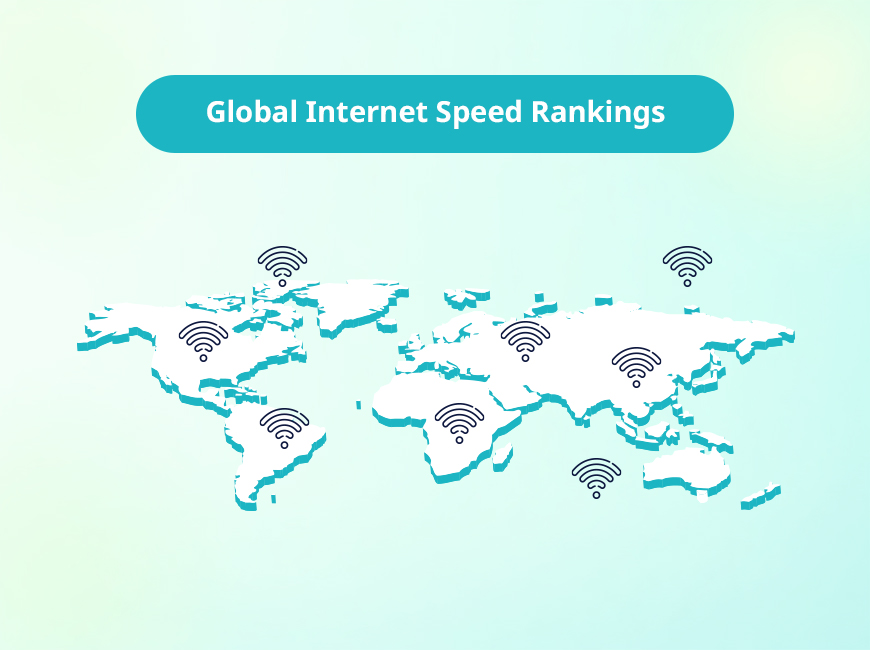
If you’ve ever felt the frustration of a lagging connection, you know that internet speed can make or break your day. Fast, reliable internet isn’t just a luxury; it’s essential for everything from remote work to streaming your favorite shows. But which countries are leading the race for the fastest internet? 

This guide breaks down the global internet speed rankings for 2025, exploring the top performers and the factors that give them an edge. 

Key Takeaways: Fastest Internet Speeds in the World (2025)

  • Asian & Middle-East tech hubs dominate: Singapore, Hong Kong, Japan, and South Korea consistently lead the world in internet speed rankings thanks to their advanced digital infrastructure. 
  • Japan’s Record-Breaking Speed: Japan holds the record for the world’s fastest experimental internet speed, achieving an astonishing 22.9 million Mbps with advanced multi-core fiber optic technology. 
  • Global Speeds Are Rising: Internet speeds are increasing worldwide due to the expansion of fiber networks, widespread 5G upgrades, and ongoing network modernization. 
  • The Formula for Fast Internet: The fastest countries combine strong government investment in digital infrastructure, healthy market competition, and high public adoption of fiber internet. 
  • Test Your Own Connection: You can see how your internet measures up to global averages using TestMySpeed.com’s internet speed test. 

Which Country Has the Fastest Internet in the World?

As of 2025: 

  • Singapore holds the crown for fixed-broadband average speeds around 372 Mbps.  
  • On the other end the United Arab Emirates (UAE) leads in mobile speeds, averaging 361.59 Mbps. 

These rankings can shift as countries continue to invest in their networks, but Singapore has consistently remained a top contender due to its comprehensive national fiber network. 

What Are the Fastest Internet Speeds in the World Right Now?

When we talk about the “fastest internet,” there are two key metrics to consider. 

  1. Fixed Broadband Speed: This is the speed of the internet connection to your home or office, typically through fiber, cable, or DSL. 
  1. Mobile Speed: This is the speed you get on your smartphone or other mobile devices through cellular networks like 4G LTE and 5G. 

Global averages in 2025 are around 102 Mbps for fixed broadband and roughly 92 to 170 Mbps for mobile depending on the source. Countries at the top of the list often exceed these averages by three to five times. Countries at the top of the list often exceed these averages by three to five times. 

Wondering How Your Connection Stacks Up?

Test it, then find a faster provider.

Wondering how your connection stacks up? Test it, then see if a faster provider serves your address.

Global Internet Speed Leaders 2025

While rankings fluctuate monthly, the same group of countries consistently appears at the top.  

The following chart shows the top 25 countries for mobile and fixed broadband speeds in Mbps. This provides a clear snapshot of which countries dominate internet performance worldwide: 

# Mobile (Country / Mbps) # Fixed Broadband (Country / Mbps) 
1 United Arab Emirates / 539.84 1 Singapore / 372.02 
2 Qatar / 529.34 2 France / 315.38 
3 Kuwait / 350.89 3 United Arab Emirates / 314.49 
4 Bahrain / 245.67 4 Hong Kong (SAR) / 310.24 
5 Bulgaria / 232.79 5 Chile / 297.75 
6 Brazil / 222.02 6 Iceland / 297.50 
7 China / 209.31 7 United States / 289.34 
8 South Korea / 208.07 8 South Korea / 288.54 
9 Denmark / 202.67 9 Switzerland / 257.38 
10 Saudi Arabia / 196.28 10 Denmark / 255.82 
11 Brunei / 188.39 11 Romania / 254.17 
12 Netherlands / 172.28 12 China / 251.62 
13 United States / 170.81 13 Israel / 249.03 
14 North Macedonia / 169.85 14 Spain / 248.12 
15 Singapore / 163.29 15 Thailand / 247.60 
16 Malaysia / 163.00 16 Macau (SAR) / 244.18 
17 Norway / 160.59 17 Taiwan / 241.35 
18 Georgia / 148.89 18 Canada / 240.34 
19 Estonia / 147.46 19 Netherlands / 221.69 
20 Vietnam / 146.64 20 Portugal / 217.21 
21 Luxembourg / 145.98 21 Kuwait / 215.81 
22 France / 143.62 22 Japan / 215.06 
23 Finland / 142.03 23 Hungary / 211.22 
24 Latvia / 140.26 24 Peru / 210.00 
25 Oman / 138.43 25 Qatar / 205.35 

Source: Soax, May 2025 

Why Some Countries Have the Best Internet in the World

Several key factors contribute to a country’s ability to offer superior internet speeds: 

  • National Digital Strategy: Governments in top-ranking countries actively invest in digital infrastructure. For example, Singapore’s “Next Generation Nationwide Broadband Network” was a government initiative that ensured fiber internet access for nearly all residents. 
  • Fiber-to-the-Home (FTTH) Investments: Fiber optic cables are the backbone of high-speed internet. Countries with extensive FTTH networks, like South Korea and Japan, can deliver faster and more reliable speeds than those relying on older copper cable technology. 
  • Geography and Population Density: It’s easier and more cost-effective to build out advanced networks in smaller, densely populated countries like Singapore and Hong Kong compared to larger, more rural nations. 
  • 5G Rollout and Spectrum Availability: Aggressive 5G deployment is a major factor in mobile speed leadership, as seen in the UAE and Qatar. 

Average Internet Speed by Country (Global Comparison)

The table below shows how average speeds vary across regions. This helps illustrate the global differences in connectivity. Densely populated areas with advanced economies typically have faster speeds, while developing regions are catching up as they expand their infrastructure. 

Asia-Pacific 100.5 Singapore 
Europe 98.2 Monaco 
North America 94.1 United States 
South America 65.4 Chile 
Middle East 62.7 United Arab Emirates 
Africa 27.5 Réunion 

Source: Regional analysis based on Ookla and other industry data. 

Are Global Internet Speeds Increasing Year Over Year?

Yes, global internet speeds are steadily increasing. According to research from Ookla, fixed broadband speeds grew by 17% and mobile speeds by 17% in the past year alone. Several factors are driving this growth: 

  • FTTH expansion: Replacing copper lines with fiber increases reliability and speed. 
  • 5G adoption: Widespread deployment continues to accelerate mobile internet. 
  • Backbone and submarine cable upgrades: Investments in core and undersea infrastructure increase data capacity and global connectivity. 

Regions like the Middle East and Asia-Pacific are seeing some of the fastest year-over-year improvements as they aggressively invest in new network technologies. 

How the U.S. Compares to Other Countries With the Fastest Internet

The United States ranks impressively high in global speed tests, currently placing 6th for fixed broadband. This is largely due to the increasing availability of fiber internet providers like AT&T, Google Fiber, and EarthLink Fiber. 

However, the U.S. is a large country with significant differences between urban and rural areas. While cities may have gigabit speeds, many rural communities still struggle with slow internet. 

Because of this the U.S. trails in mobile speeds at around 171 Mbps.  

U.S. vs Global Internet Speed Leaders (2025)

Metric U.S. Speed World Leader Speed Difference 
Avg. Broadband Download 253.94 Mbps 286.66 Mbps (Singapore) -32.72 Mbps 
Avg. Mobile Download 111.45 Mbps 361.59 Mbps (UAE) -250.14 Mbps 

FAQs: Fastest Internet Speeds in the World (2025)

What country has the fastest internet in the world in 2025?

As of 2025, Singapore has the fastest fixed broadband speeds, averaging around 372 Mbps. For mobile internet, the United Arab Emirates leads, with speeds exceeding 360 Mbps.

What is considered a fast internet speed in 2025?

A “fast” internet speed depends on usage, but generally:

  • 100 Mbps+ is considered fast for most households
  • 300–500 Mbps is ideal for streaming, gaming, and remote work
  • 1 Gbps+ is considered ultra-fast and future-ready

Top-performing countries often exceed these speeds by several multiples.

Why do some countries have faster internet than others?

Countries with the fastest internet typically invest heavily in:

  • Fiber-optic infrastructure (FTTH)
  • Nationwide digital strategies
  • Competitive ISP markets
  • Advanced mobile networks like 5G

Smaller, densely populated countries like South Korea and Japan also benefit from easier infrastructure deployment.

What is the difference between mobile and fixed broadband speeds?

  • Fixed broadband refers to wired connections like fiber, cable, or DSL used at home or in offices.
  • Mobile speeds come from cellular networks like 4G LTE and 5G.

Fixed connections are usually more stable and faster, while mobile speeds depend on network coverage and signal strength.

What internet speed do I need for streaming and gaming?

For smooth performance:

  • Streaming (HD/4K): 25–100 Mbps
  • Online gaming: 50–200 Mbps (low latency matters more than speed)
  • Multiple users/devices: 200–500+ Mbps

Higher speeds help prevent buffering and lag, especially in busy households.

Conclusion: The Future of Global Internet Speeds

The race for faster internet is far from over. Global speeds will continue to climb as fiber and 5G become the new standards worldwide. Countries like Singapore, Hong Kong, and Japan are setting the benchmark, but emerging technologies will soon reshape the landscape. 

Keep an eye on advancements like multi-core fiber, 6G networks, and low-Earth orbit satellite constellations, which promise to bring even faster, more accessible internet to every corner of the globe in the next decade. 

Curious about your own connection? With TestMySpeed.com, you can regularly check your internet speeds and see how you stack up against the fastest connections around the globe.
If you’ve ever stared at a download bar crawling along and wondered why your “100 Mbps” internet plan isn’t downloading a 100 Megabyte file in one second, you are not alone. It is one of the most common points of confusion in the digital world, and frankly, the terminology doesn’t help. 

Understanding the difference between megabytes, gigabytes, and the speeds advertised by internet service providers (ISPs) is crucial for managing your expectations, and your patience. Whether you are a gamer trying to reduce lag, stream in 4K, or a remote worker uploading large files, knowing your “bits” from your “bytes” ensures you get the performance you are paying for. 

Key Takeaways

  • Speed vs. Storage: Internet speed is measured in bits (Mbps), while file storage is measured in bytes (MB).
  • The Conversion Rule: There are 8 bits in every byte. This means a 100 Mbps internet connection can theoretically download 12.5 Megabytes of data per second (100 ÷ 8 = 12.5). 
  • Gigabit Internet: While 1 Gbps (Gigabit) speeds are becoming common, most households may find 500 Mbps adequate. 
  • Verify Your Plan: You can easily check if you are getting the speeds you pay for by running a quick internet speed test. 

Understanding File Sizes: KB, MB, GB, and TB

Understanding File Sizes: KB, MB, GB, and TB 

Before we dive into internet speeds, we need to understand digital storage. This is the “weight” of the files you use every day. Digital information is stored in units called bytes. As files get larger, we use prefixes like Kilo-, Mega-, Giga-, and Tera- to describe them. 

Here is a breakdown of how these units stack up: 

  • Kilobyte (KB): The smallest common unit for files. Think of a simple text document or a low-res image. 
  • Megabyte (MB): 1,024 KB. This is the standard for MP3 songs or high-quality photos. 
  • Gigabyte (GB): 1,024 MB. This is where we get into heavy territory, like high-definition movies or modern video game files. 
  • Terabyte (TB): 1,024 GB. Massive storage, usually found in external hard drives or cloud servers holding millions of files. 

For a deeper dive into digital sizes, CNET offers a great explanation of how these units compare. 

Comparing Data Sizes: How Bits, Bytes, KB, MB, GB, and TB Compare

Unit Bytes Real-World Example 
Bit (b) 0.125 A single binary value (1 or 0) 
Byte (B) 1 One character of text (e.g., the letter “a”) 
Kilobyte (KB) 1,024 About 7 text messages 
Megabyte (MB) 1,024 KB A 1-minute MP3 song 
Gigabyte (GB) 1,024 MB A 1-hour HD video stream 
Terabyte (TB) 1,024 GB 6.5 million PDF document pages 
Bits and Bytes, Sorted.

See how your speed compares.

Now that the units make sense, see how your speed compares and what else is available.

Understanding Internet Speed: Megabits vs. Megabytes

This is where the confusion usually happens. Storage is measured in Bytes (Capital B), but internet speed is measured in bits (lowercase b). 

  • Mbps (Megabits per second): This is the standard metric for internet bandwidth. It measures how fast data travels across a network. 
  • MB (Megabytes): This measures file size or storage capacity. 

When you see an ad for “Fast Internet,” ISPs are talking about megabits vs megabytes. If your ISP sells you a “200 Mbps” plan, they are promising a transfer rate of 200 megabits per second, not 200 megabytes. 

The difference in capitalization is subtle but important. A lowercase “b” always stands for bits (speed), while an uppercase “B” stands for bytes (storage). 

Speed vs. Storage Comparison 

Type Unit Purpose Example Use 
Storage MB, GB, TB File size, storage capacity USB drives, SSDs, game installations 
Speed Mbps, Gbps Data transfer rate Streaming Netflix, Zoom calls, downloading files 

How to Convert Mbps to MB/s

So, why does this matter to you? It’s all about math. Since there are 8 bits in 1 byte, you need to divide your internet speed (Mbps) by 8 to see how many Megabytes (MB) you can download per second. 

The Math in Action: 
If you have a 100 Mbps connection: 
100 Mbps ÷ 8 = 12.5 MB per second. 

If you are trying to download a 500 MB file: 
500 MB ÷ 12.5 MB/s = 40 seconds. 

If you thought 100 Mbps meant 100 Megabytes per second, you might have expected that file to download in 5 seconds. That discrepancy can lead to a lot of frustration if you don’t know the conversion rules. 

Note: These calculations represent theoretical maximum speeds. In reality, variables like Wi-Fi interference, network congestion, and hardware limitations often mean your actual download speed will be slightly slower. 

Practical Download Timetable

Here is a realistic look at how long different files take to download on common connection speeds. 

File Size 25 Mbps 100 Mbps 1 Gbps (1,000 Mbps) 
1 GB (Standard Movie) ~5.5 min ~1.4 min ~10 sec 
5 GB (HD Movie) ~27 min ~7 min ~50 sec 
50 GB (Console Game) ~4.5 hr ~1.1 hr ~7 min 

Do You Need Gigabit Internet?

Most households do not need gigabit internet, but it can be a smart choice for homes with heavy, simultaneous internet use. Gigabit internet (1 Gbps) is the flashy new standard in connectivity, offering speeds of 1,000 Mbps. It sounds incredible, and for many, it is. But does the average household actually need it? 

For remote workers or large families with 10+ devices connected simultaneously, gigabit internet ensures that no one experiences buffering. However, for a couple living in an apartment who just want to stream 4K content and browse social media, a 500 Mbps, or even 200 Mbps plan is often sufficient. 

We break this down further in our guide: What Is Gigabit Internet & How Fast Is It?  

Why consider upgrading? 

  • Multiple Users: If you have three people gaming and streaming at once. 
  • Heavy Uploads: If you are a content creator uploading 4K video files. 
  • Future Proofing: Files are only getting bigger (see: 100GB+ video game updates). 

Gigabit is worth it if you: 

  • Upload large files 
  • Have many simultaneous users 
  • Want the fastest big downloads and have gear that can use it (gigabit router, device, and an Ethernet connection or optimal Wi-Fi conditions). 

Running a Speed Test

Now that you know the difference between a bit and a byte, how does your current connection stack up? You can find out in seconds by running a speed test on TestMySpeed.com. 

When you run the test, you will see a few key metrics: 

  1. Download Speed: How fast you pull data from the web (measured in Mbps). 
  1. Upload Speed: How fast you send data to the web (measured in Mbps). 
  1. Latency (Ping): The reaction time of your connection. High latency causes lag in gaming. Learn more in our What is Latency? guide. 

Pro Tips for an Accurate Test: 

  • Use a Wired Connection: Wi-Fi signals fluctuate. An Ethernet cable gives the truest result. 
  • Get Close to the Router: If you must use Wi-Fi, stand near the router to minimize interference. 
  • Close Background Apps: Don’t stream a movie while testing your speed! 

If your results are lower than expected, review our guide on 15 Reasons for Slow Internet to troubleshoot.

FAQs: Internet Speed Differences

What’s the difference between MB and Mbps?

MB (Megabyte) is a unit of storage size. Mbps (Megabits per second) is a unit of internet speed. There are 8 bits in 1 byte, meaning storage units are 8x larger than speed units.

How fast is 100 Mbps internet?

100 Mbps is fast enough for most small households. It can handle multiple HD streams and Zoom calls simultaneously. It translates to a download speed of 12.5 MB per second.

Do I need 1 Gbps at home?

Not necessarily. 1 Gbps is excellent for large households, heavy gamers, or content creators, but casual streamers can usually get by with 200-500 Mbps.

How do I check my internet speed?

Go to TestMySpeed.com to test your internet speed. The speed test results will show you the download and upload speeds, as well as latency (ping) and jitter.

How many devices can my internet support?

This depends on your bandwidth. A 25 Mbps connection might struggle with more than 2 devices, while a 1 Gbps connection can easily support 20+ smart devices, phones, and computers at once.

Why It Doesn’t Really Matter for Casual Users

While the calculation is interesting, do you need to factor bits and bytes every time you download a photo? Probably not. 

Most modern web browsers and download managers calculate the estimated time remaining for you automatically. They do the math of converting your Mbps speed into a countdown timer. 

Your main focus should simply be, “Is my internet fast enough for what I want to do?” 

If your Netflix buffers, your Zoom calls freeze, or your gaming lags, the specific difference between a Megabit and Megabyte matters less than the fact that you need a faster plan.  

While you determine if your speed is the right one for you, make sure to bookmark TestMySpeed to stay on top of all things internet. 

Ready to see if your ISP is delivering the speeds you pay for? Test Your Speed Now 

5G is the fifth generation of cellular wireless technology, building on decades of mobile network evolution. Unlike previous upgrades that primarily focused on faster speeds, 5G technology fundamentally reimagines how wireless networks operate. This new standard delivers not just quicker downloads, but also lower latency and the capacity to connect far more devices simultaneously. 

5G operates on three distinct frequency bands, each serving different purposes.  

  • Low-band 5G provides wide coverage similar to 4G. 
  • Mid-band 5G delivers the sweet spot of speed and range. 
  • High-band 5G (mmWave) offers incredible speeds over shorter distances. 

Understanding your current connection performance helps put 5G’s capabilities in perspective. Running an internet speed test provides baseline measurements to compare against 5G speeds you might experience. 

Key Takeaways: 5G Technology

  • 5G is the fifth generation of wireless technology, offering faster speeds and lower latency than 4G LTE. 
  • Real-world 5G performance varies by location, device, and network conditions. 
  • 5G can serve as a mobile connection and, in some areas, a home internet alternative. 
  • Testing your connection and checking availability are the best ways to understand what 5G can deliver.

Mobile Network Generations Explained (1G–5G)

Mobile networks have evolved dramatically over the past four decades, with each generation bringing revolutionary capabilities: 

  • 1G (1979): Analog voice calls only, reaching speeds of 2.4 Kbps 
  • 2G (1991): Digital voice, SMS messaging, and basic data at 40 Kbps 
  • 3G (2001): Mobile internet browsing and multimedia, delivering up to 2 Mbps 
  • 4G LTE (2009): High-definition streaming and video calls, achieving up to 100 Mbps in real-world conditions 
  • 5G (2019): Ultra-fast speeds, massive device connectivity, and near-instantaneous response times 

Each generation typically overlaps for years during rollout and retirement, but 5G’s deployment timeline has accelerated due to growing demand for bandwidth-intensive applications. The jump from 4G to 5G service represents the largest performance leap in mobile network history, with theoretical speeds reaching 20 Gbps. While this is a significant speed gain, network congestion and internet traffic patterns significantly impact real-world performance across all generations and other wireless technologies. 

How Fast Is 5G Compared to 4G LTE?

The speed difference between 5G vs 4G varies dramatically based on implementation and location. In laboratory conditions, 5G can theoretically reach 20 Gbps download speeds compared to the 1 Gbps maximum of 4G LTE-Advanced. However, real-world performance tells a different story. 

Current 5G deployments in the United States typically deliver download speeds between 50–400 Mbps, while 4G LTE averages 15–50 Mbps. This represents roughly a 3-10x improvement, though results fluctuate based on carrier, device, and network conditions. 5G latency ranges from 10 milliseconds on a strong mmWave, but the average typically performs somewhere in the high teens to 30 milliseconds.  

Several factors influence actual performance, including network congestion, device capabilities, and signal strength. Understanding why internet speeds vary helps explain why your 5G experience might differ from advertised speeds. 

What Speeds You Can Actually Expect From 5GMB/s?

Real-world 5G speeds depend heavily on which band you’re connected to and your proximity to cell towers. Here’s what users typically experience: 

  • Low-band 5G: 30–100 Mbps download speeds with coverage similar to 4G LTE 
  • Mid-band 5G: 100–400 Mbps downloads with good range and penetration 
  • High-band 5G mm Wave: 500–2,000 Mbps in ideal conditions, but limited range and building penetration 

For 5G home internet services, expect speeds between 50–300 Mbps for most users, with some locations achieving higher performance during off-peak hours. These speeds support multiple users streaming, gaming, and working simultaneously. 

Running regular speed tests helps track your actual 5G performance over time. Test your connection to see how your current speeds compare to 5G capabilities in your area. 

Curious About 5G Home Internet?

See which 5G providers serve your address.

Curious about 5G home internet? See which 5G providers are available at your address and what speeds to expect.

Why Is 5G Faster?

Radio Frequency Spectrum Explained

5G technology achieves faster speeds primarily through more efficient use of radio spectrum. While 4G networks operate on crowded frequency bands below 6 GHz, 5G utilizes three distinct spectrum ranges: 

  • Low-band 5G spectrum (below 1 GHz) provides wide coverage but modest speed improvements over 4G.  
  • Mid-band 5G spectrum (1–6 GHz) offer the best balance of speed and coverage, delivering substantial performance gains.  
  • High-band 5G (mmWave) (~24–52 GHz) enables incredible speeds but requires dense tower deployments due to limited range. 

This multi-band approach allows carriers to optimize coverage and capacity based on local needs. Urban areas benefit from high-speed 5G (mmWave) deployments, while rural regions rely on low-band 5G coverage for basic connectivity improvements.

Massive MIMO and Network Capacity

Massive Multiple Input, Multiple Output (MIMO) technology helps 5G handle more traffic by using large antenna arrays and smart technology to send multiple signals at the same time. 4G LTE also uses MIMO to improve speed and reduce slowdowns, but 5G, especially on mid-band networks, often uses much larger antenna arrays to support more connections at once. 

This antenna multiplication allows carriers to serve more users simultaneously while maintaining high speeds for each connection, especially in congested places like stadiums, downtown areas, and crowded neighborhoods. Advanced beamforming technology directs signals precisely to individual devices, reducing interference and improving overall network efficiency. 

Edge Computing and Network Efficiency

5G networks integrate edge computing infrastructure that processes data closer to users rather than routing everything through distant servers. This architectural change reduces the physical distance data travels, significantly improving response times and reducing 5G latency. 

Edge computing particularly benefits applications requiring real-time responses, such as online gaming, video conferencing, and emerging technologies like augmented reality. The combination of faster processing and shorter data paths creates the ultra-responsive experience that defines modern 5G networks. 

How Does 5G Affect Latency?

Latency, the time it takes for data to travel between a sender and receiver, is a key factor for real-time applications.  

5G networks reduce latency to 10–20 milliseconds, a significant improvement over 4G’s 30–50 milliseconds. This is achieved through advancements like edge computing, improved network architecture, and more efficient protocols. The result is a more responsive experience for gaming, video calls, and web browsing, enabling new applications that require instant feedback. 

What Can You Do With 5G?

5G enables familiar activities at higher quality and new applications once impossible on mobile networks. It supports seamless 4K video streaming, lag-free cloud gaming, and instant file downloads, boosting mobile productivity.  

Its increased capacity lets households connect dozens of smart devices—like security cameras and appliances—without slowing performance, supporting the growing Internet of Things. 

Professionals also benefit, with 5G enabling smooth HD video calls, instant access to cloud apps, and hassle-free collaboration on large files, eliminating delays common with traditional networks. 

Can 5G Replace Traditional Home Internet?

Yes, 5G home internet can serve as a great replacement for some types of traditional home internet, including broadband. Fixed wireless 5G delivers speeds comparable to cable but with easier installation. This makes it a great option for renters or those in temporary housing. It’s particularly beneficial for rural areas where laying fiber or cable is expensive, helping to bridge connectivity gaps.  particularly beneficial for rural areas where laying fiber or cable is expensive, helping to bridge connectivity gaps.  

However, 5G home internet isn’t for everyone. Heavy users with multiple simultaneous streams might find fiber more consistent, and competitive gamers may prefer the ultra-low latency of wired connections. Understanding different internet connection types helps determine the best fit for your needs. 

How to Check If 5G Is Available in Your Area

Review Carrier Coverage Maps

Major wireless carriers offer maps showing general 5G availability. These are a good starting point, but remember that obstacles like buildings can affect signal strength, so the maps don’t guarantee service at a specific address. Real-world performance can differ from one address to another and indoors.

Confirm Your Device Supports 5G

Your device must be compatible with your carrier’s specific 5G frequency bands to get the fastest speeds. An older “5G-ready” phone might only connect to slower low-band 5G. Check your device’s specifications against the carrier’s network to ensure you can access their full service.

Understanding and Testing Your 5G Connection

5G technology offers a major upgrade in speed and capacity, but your experience will depend on your location, network conditions, and your device. Because performance varies between urban and rural areas, it is important to test your connection rather than relying on theoretical speeds. 

To get the most out of your 5G service, we recommend: 

  • Checking real-world performance: Run regular speed tests to monitor your actual connection quality. 
  • Ensuring device compatibility: Verify that your phone supports your carrier’s specific 5G bands for the best results. 
  • Monitoring network growth: Keep track of local improvements to make informed decisions about your service plan. 

Test your current speed or explore 5G options to see how this technology can improve your daily connectivity. 

FAQs: 5G Technology

Is 5G better than Wi-Fi? When should I use each?

5G and Wi-Fi each have their strengths, and the better option depends on your needs. 5G offers mobility and wide-ranging coverage, making it ideal when you’re on the go or lack access to a reliable Wi-Fi network. Wi-Fi, on the other hand, is generally better for home use, especially if you have a strong, stable connection. Wi-Fi is often more cost-effective for data-intensive tasks like streaming or downloading large files since it doesn’t use your mobile data plan.

Does 5G use more data?

Yes, 5G can use more data than previous networks because it allows faster download and streaming speeds, which can lead to higher data consumption. High-resolution streaming, gaming, and app updates can quickly use up data on a 5G connection. It’s a good idea to monitor your usage and consider an unlimited data plan if you’re a heavy user.

Is 5G home internet good for gaming and remote work?

5G home internet can be great for gaming and remote work, thanks to its low latency and high speed. A strong 5G connection ensures smoother online gaming experiences and supports bandwidth-heavy tasks like video conferencing. However, performance may vary depending on your location and the quality of your 5G provider’s network.

Why does my phone show 5G but it isn’t faster than LTE?

This can happen for several reasons. Your phone may be connected to a low-band 5G signal, which prioritizes coverage over speed and can be similar to LTE in performance. Network congestion or a high number of users on the same 5G band can also reduce noticeable speed improvements.

How can I tell if I’m on low-band, mid-band, or high-band 5G (mmWave)?

The type of 5G you’re connected to may show up differently depending on your carrier and phone. Some devices display icons such as “5G,” “5G+”, or “5G UW” to identify the type. Alternatively, you can check your carrier’s documentation or conduct a speed test—low-band generally offers slower, wider coverage, while mmWave offers extremely high speeds but limited range.

Will switching to 5G use more data or drain my phone battery faster?

Yes, 5G can use more data and may drain your battery faster initially. The faster speeds encourage heavier data use, such as streaming in ultra-high-definition or downloading large files quickly. Additionally, phones may consume more battery searching for or maintaining a 5G signal, especially in areas with spotty coverage. Keeping your phone updated and toggling LTE as needed can help optimize battery life.

If you’ve ever shopped for an internet plan, you’ve likely stared at a confusing jumble of letters and numbers. “Speeds up to 300 Mbps!” or “Get blazing fast internet up to 1 Gbps!” But what does all that mean for you when you’re trying to binge that new show on Netflix or have an important Teams call in the morning? 

It’s easy to get lost in the jargon. We’re here to clear up the confusion between Mbps (megabits per second) and Gbps (gigabits per second) so you can stop overpaying for speed you don’t use or finally get the upgrade your household needs. 

Key Takeaways

  • Mbps stands for megabits per second. It’s the standard speed measurement for most homes. 
  • Gbps stands for gigabits per second. 1 Gbps = 1,000 Mbps. 
  • 300-500 Mbps is suitable for most. 
  • Gigabit internet (1 Gbps+) is best for heavy users: think 4K streaming on multiple TVs, fast large file downloads, or pro-level gaming.

Not sure what you’re currently getting? Click here to run a quick speed test and see how your connection stacks up. 

What Does Mbps Mean?

Mbps (megabits per second) measures how much data can travel to your device in one second. Think of it like a water pipe: the higher the Mbps, the wider the pipe, and the more water (data) can flow through at once. 

To put it in perspective, here are some quick conversions: 

  • 1 Mbps = 0.001 Gbps 
  • 100 Mbps = 0.1 Gbps 
  • 1,000 Mbps = 1 Gbps

Real-World Examples of Mbps

  • 5 Mbps: The bare minimum. Okay for browsing the web or streaming one video in standard definition (SD). 
  • 100–300 Mbps: The “sweet spot” for most families. You can have multiple HD streams going, kids playing games, and parents working from home without much trouble. 
Deciding Whether Gigabit Is Worth It?

Test your speed, then compare gigabit plans.

Deciding whether gigabit is worth it? Test your current speed, then compare gigabit plans at your address.

What Does Gbps Mean?

Gbps (gigabits per second) is the equivalent to 1,000 Mbps. That is incredibly fast. 

With 1 Gig internet, you have a massive amount of bandwidth available to your home. However, it’s important to remember that speed isn’t magic. You might pay for 1 Gig, but Wi-Fi interference, thick walls, and older devices can all limit the actual speed that reaches your laptop or phone 

Benefits of Gigabit Internet

  • Little-to-no Buffering: Stream 4K or even 8K video on 5+ devices at the same time. 
  • Lightning-Fast Downloads: Download a 2-hour HD movie in seconds, not minutes. 
  • Massive Bandwidth: Support a fully connected smart home. Security cameras, smart speakers, and thermostats all use data; a 1 Gig connection ensures they don’t clog up the network for everyone else. 

Fun Fact: If you wanted to download a massive 10 GB file, under ideal conditions: 

  • On 100 Mbps, it would take about 13 minutes. 
  • On 1 Gbps, it would take a little more than 1 minute. 

Wait, What is MB/s?

You might see “MB/s” (with a capital B) when you are downloading a file on your computer, which looks different than the “Mbps” (lowercase b) your ISP advertises. 

  • Mbps (Megabits per second): Used for internet speeds. 
  • MB/s (Megabytes per second): Used for file sizes and storage. 

There are 8 bits in every 1 Byte. This means if you have a 100 Mbps internet connection, your actual download speed for files is roughly 12.5 MB/s. It’s not a mistake—it’s just a different unit of measurement! 

Quick Conversions: How Many Mbps is 1 Gbps?

If you are comparing internet plans, here is a simple chart to help you visualize the difference. 

Unit Value in Mbps Value in Gbps 
Megabit (Mb) 1 Mbps 0.001 Gbps 
Gigabit (Gb) 1,000 Mbps 1 Gbps 

Note: Fiber internet is evolving. Common speeds are between 1-5 Gbps and up to 10 Gbps in some markets. 

Do You Need Gigabit Internet?

Internet providers love to sell the fastest package, but is 500 Mbps fast enough for you? Or do you really need to pay extra for 1 Gbps or more? 

You probably DON’T need gigabit internet if:

  • You live alone or with one other person. 
  • You mostly browse the web, use social media, and stream music. 
  • You stream video in HD (1080p) rather than 4K. 

You MIGHT need gigabit internet if:

  • You have a smart home: Dozens of devices (cameras, smart fridges, assistants) all sipping data at once add up. 
  • You are a content creator: If you upload huge video files to YouTube or Twitch daily. 
  • You have a full house: If you have 4+ people all streaming 4K, gaming, and video calling simultaneously. 
  • You work with big files: Photographers, video editors, or architects moving gigabytes of data to the cloud. 

Internet Speed by Activity

Not everyone needs the fastest plan on the market. The Federal Communications Commission (FCC) provides guidelines on the minimum speeds required for common online tasks. 

Activity Recommended Download Speed Notes 
General Browsing & Email 1–5 Mbps Basic web surfing uses very little data. 
Streaming Music 1–5 Mbps Services like Spotify or Apple Music run easily on low speeds. 
Telecommuting (Video Calls) 10–25 Mbps Zoom and Teams need stable upload speeds as much as download. 
Online Gaming 25 Mbps Stability (low latency) matters more than raw speed here. 
Streaming HD Video 5–10 Mbps Per stream. Multiply this if multiple people watch at once. 
Streaming 4K Video 25 Mbps Netflix recommends 15–25 Mbps for a single 4K stream. 
Downloading Large Files 100+ Mbps Essential for downloading games (50GB+) or large work files. 
Smart Home Devices 5–10 Mbps Cameras and hubs use small amounts individually but add up quickly. 

Mbps vs. Gbps: What Are the Real Differences?

To make it easier, let’s break down which speed tier fits your lifestyle.

Feature Mbps Plans (100–500 Mbps) Gigabit Plans (1 Gig+) 
Best For Average households (2–4 people) Power users & large families (5+ people) 
Streaming Great for HD, good for 1–2 4K streams Flawless for multiple 4K/8K streams 
Gaming Excellent for most gamers Professional gaming (nice for downloading updates) 
Downloads Fast (large files take minutes) Instant (large files take seconds) 
Cost Budget-friendly Premium pricing 

Don’t Forget About Upload Speed

Most of the time, when we talk about speed, we talk about download speed—how fast you pull data from the internet (like watching Netflix). But upload speed, sending data to the internet matters too, especially for video calls and online gaming. 

  • Cable Internet: Usually has much slower upload speeds compared to download speeds (e.g., 300 Mbps down, but only 10 Mbps up). 
  • Fiber Internet: Often offers “symmetrical speeds,” meaning if you pay for 1 Gig, you get 1,000 Mbps for both downloading and uploading. 

If you work from home and send large files or host Zoom calls often, a plan with higher upload speeds (often found in Gig plans) might be worth the investment.

How Can You Check Your Current Speed?

Before you call your ISP to upgrade, you need to know what you are actually getting. You might be paying for 500 Mbps but only getting 100 Mbps due to a bad router location or an old modem. If your test results are lower than what your plan promises, troubleshoot your equipment before spending more money on a faster plan. 

FAQs: Mbps vs Gbps

How many Mbps is 1 Gig?

There are 1,000 Mbps in 1 Gbps (or 1 Gig).

Is 1 Gig internet good?

Yes, 1 Gig internet is excellent. It is currently one of the fastest residential speeds available, allowing for seamless 4K streaming, instant downloads, and support for dozens of smart devices simultaneously.

How do you convert 1 Gbps to Mbps?

To convert Gbps to Mbps, you simply multiply by 1,000. For example, 2 Gbps is equal to 2,000 Mbps.

I have a 1 Gig plan, but I’m not getting 1 Gig speeds. Why?

This is common. While 1 Gig enters your home, speeds drop over Wi-Fi due to distance from the router and physical obstructions like walls. Additionally, older devices (laptops or phones) may not have the hardware capability to handle gigabit speeds. For the fastest results, use a wired Ethernet connection.

Is 1,000 Mbps the same as 1 Gig?

Yes, 1,000 Mbps is exactly the same as 1 Gbps, or “1 Gig.”

Is 500 Mbps good for gaming?

Absolutely. Most online gaming uses very little data; it relies more on stability than raw speed.

The Verdict: 500 Mbps vs 1 Gbps

Fast internet is essential for everything we do, and if you’re reading this, you probably have some sort of problem with your internet connection. From streaming 4K movies to winning that 30-minute match on Warzone or managing critical remote work calls. But even a fast connection can feel unusable if it suffers from packet loss. 

So, what is it? Put simply, packet loss happens when data traveling across the internet fails to reach its destination. 

Instead of a smooth stream of information, your connection has “holes” in it. This leads to frustrating real-world problems: your Zoom call freezes right when you’re speaking, your game character rubber-bands across the map, or your movie buffers endlessly. 

If you suspect your connection is dropping the ball (or the packet), don’t worry. It is usually fixable. 

Check your connection now: Run a speed test on TestMySpeed to see if packet loss is affecting you right now. 

Key Takeaways

  • Packet loss occurs when data packets fail to reach their destination, causing buffering and disconnects. 
  • Major causes include network congestion, faulty hardware, Wi-Fi interference, and ISP routing issues. 
  • Quick fixes range from switching to Ethernet and rebooting your router to updating firmware. 
  • Diagnosis requires specific tools like a packet loss test or command-line tools like traceroute. 
  • TestMySpeed is your best first step to quantify loss and verify if your fixes worked. 

What is Packet Loss?

When you send an email or watch a video, that data doesn’t travel as one big chunk. It is broken down into tiny units called “packets.” 

Packet loss is the percentage of these packets that are lost (dropped) during transmission. If you send 100 packets and only 98 arrive, you have 2% packet loss. While that sounds small, in the world of real-time data, even 1% can cause noticeable glitches. 

Packet Loss vs. Latency vs. Jitter

These terms often get confused, but they are different metrics. Here is a quick breakdown: 

Metric What it is Real-world impact 
Packet Loss Data packets never arrive at all. Parts of a conversation go missing; erratic behavior in games. 
Latency (Ping) The time it takes for a packet to travel. A delay between an action and the result (lag). 
Jitter The variation in packet arrival times. Choppy audio or video as packets arrive out of order. 

Example: High latency means you hear your friend two seconds after they speak. Packet loss means you miss every third word they say. 

Types of Packet Loss

Not all loss is created equal. Knowing the type can help you find the fix. 

  • Congestion-based loss: Think of this like a traffic jam. When too much data tries to move through a network at once, routers drop packets to keep traffic moving. 
  • Physical/link-layer loss: This happens due to “dirty” signals. Damaged cables, electrical interference, or weak Wi-Fi signals cause packets to arrive corrupted and unusable. 
  • Routing/ISP loss: Sometimes the issue isn’t in your home. It could be a failing router at your Internet Service Provider (ISP) or an issue on the “backbone” of the internet. 
  • Application-level loss: Sometimes the software itself is buggy, or the server you are connecting to is overloaded. 

Common Causes: What Causes Packet Loss?

If you are wondering what causes packet loss, it usually boils down to a bottleneck or a breakdown somewhere in the chain. 

Home Network Causes

  • Network Congestion: If someone is downloading a huge 100GB game file while you are trying to video conference, your bandwidth is saturated. 
  • Wi-Fi Interference: Wi-Fi is convenient, but unstable. Distance from the router, thick walls, and interference from baby monitors or microwaves can drop packets. 
  • Faulty Hardware: An overheating modem or a router with outdated firmware can struggle to process data efficiently. 

Physical Hardware Problems

  • Bad Cables: A chewed-up Ethernet cable or a loose coax connection at the wall are silent killers of internet quality. 
  • Old Tech: Using outdated CAT5 cables for gigabit speeds can result in errors. 

ISP and Software Issues

  • ISP Infrastructure: Sometimes, the lines leading to your house are damaged or the ISP’s local node is congested. 
  • Software Bugs: Outdated network drivers on your PC or misconfigured Quality of Service (QoS) settings can drop data unnecessarily. 

How Packet Loss Affects Your Internet Experience

  • Video Calls / VoIP: This is where it hurts the most. According to Zoom’s 2025 system requirements, a stable connection is vital. Loss leads to robotic voices, dropped audio, and calls disconnecting entirely. 
  • Online Gaming: In fast-paced games, packet loss looks like “rubber-banding”—where players teleport around the screen. It can also cause unregistered hits. 
  • Streaming: While buffering is usually a speed issue, packet loss can cause visual artifacts (blocky screens) or audio sync issues. 

How to Measure Packet Loss (and Why It Matters)

You can’t fix what you can’t measure. Here is how to confirm the problem.

1. Run a Packet Loss Test 

The easiest first step is to run a packet loss test on TestMySpeed. This will give you a clear snapshot of your download/upload speeds, latency, and jitter. 

2. Use Command Line Tools (Ping) 

You can check for loss manually on your computer: 

  • Windows: Open Command Prompt and type ping -n 50 google.com 
  • macOS: Open Terminal and type ping -c 50 google.com 

Watch the results. If you see “Request timed out” or a summary saying “X% loss,” you have a problem. 

3. Continuous Monitoring 

For intermittent issues, a simple ping might miss the problem. Tools like Traceroute (or MTR) can show you exactly where the loss is happening—whether it’s your router (Hop 1) or the ISP (Hop 2-4). 

How to Fix Packet Loss

Once you’ve confirmed the issue, try these fixes in order.

1. Switch to Wired Ethernet

This is the “magic bullet” for most packet loss. Wi-Fi is prone to interference. Connecting your PC or console directly to the router with an Ethernet cable eliminates wireless variables.

2. Reboot and Update

It sounds cliché, but restarting your modem and router clears out internal memory errors and congestion. While you’re at it, log into your router’s admin page and check for firmware updates. 

3. Check Your Cables

Inspect your Ethernet cables. Are the clips broken? Are they bent at sharp angles? Swap them out for new CAT6 cables to rule out physical damage.

4. Manage Bandwidth Usage Optimize Your Wi-Fi

If you must use Wi-Fi: 

  • Move closer to the router. 
  • Switch to the 5 GHz or 6 GHz band (if you have a modern Wi-Fi 6E or Wi-Fi 7 router) to avoid interference from neighbors. 
  • Change your Wi-Fi channel to a less crowded one. 

5. Limit Bandwidth Hogs

Pause large downloads, 4K streams, or cloud backups while you are on important calls or gaming. If your connection is maxed out, your router will start dropping packets to keep up.

6. Update Drivers

On your computer, go to Device Manager and ensure your Network Interface Card (NIC) drivers are up to date. Old drivers can cause compatibility issues with newer routers.

Advanced Fixes & Network Optimization

If the basics didn’t work, it’s time to dig deeper. 

  • Configure QoS: Quality of Service (QoS) is a router setting that prioritizes traffic. Set it to prioritize “gaming” or “voice/video” so those packets get through first, even if someone else is streaming Netflix. 
  • Hardware Replacement: If your router is more than 5 years old, it might struggle with modern traffic loads. Upgrading to a mesh system or a gaming router can handle data more efficiently. 
  • VLANs: For business networks, segmenting traffic (putting voice phones on a separate virtual network) keeps heavy data transfers from impacting calls. 
  • Escalate to ISP: If your traceroute shows loss happening after your home network (hops 2+), the issue is with your provider. Save your logs and contact their support. 

Best Practices & Ongoing Maintenance

Prevent packet loss from coming back with a little maintenance: 

  • Regular Testing: Schedule a monthly check-up using TestMySpeed to catch issues early. 
  • Keep Drivers Updated: Make it a habit to check for router firmware and PC driver updates. 
  • Label Your Cables: In a complex home setup, knowing which cable goes where makes troubleshooting significantly faster. 

Action Step: Re-run a test on TestMySpeed after applying these fixes. Seeing that “0% loss” result is incredibly satisfying! 

FAQs: Understanding Packet Loss

What is packet loss and how is it measured?

Packet loss is when data units (packets) fail to reach their destination. It is measured as a percentage of lost packets. You can measure it using a packet loss test or via command line tools like Ping. 

How much packet loss is acceptable?

Ideally, 0%. However, for general browsing, you might not notice 1-2%. For VoIP, Zoom, and gaming, anything over 0.5% – 1% can cause noticeable audio glitches or lag. 

Why is my Wi-Fi causing packet loss but Ethernet doesn’t?

Wi-Fi transmits data through the air using radio waves. These waves can be blocked by walls, absorbed by furniture, or disrupted by other electronics (interference). Ethernet is a shielded, direct physical connection, making it immune to these issues. 

Can packet loss be caused by my ISP?

Yes. If the ISP’s local node is congested or their physical lines are damaged, packets can be dropped before they even reach your house. 

Will upgrading to fiber fix packet loss?

Likely, yes. Fiber internet is more resistant to interference and congestion than cable or DSL, offering lower latency and significantly lower packet loss rates. 

Does a VPN affect packet loss?

It can go both ways. A low-quality VPN adds an extra “hop” your data must travel through, potentially increasing loss. However, a premium VPN can sometimes fix packet loss if your ISP is taking a bad routing path to a game server. 

Packet Loss Is Common but Solvable

Packet loss is a common but solvable issue. It turns a high-speed connection into a frustrating experience, but by measuring the problem and working from your local hardware outwards to the ISP, you can fix it. 

Don’t settle for stuttering streams or dropped calls. Use the checklist above, isolate the cause, and get your internet running smoothly again. 

Ready to fix your connection? Run a speed test on TestMySpeed now to find out if packet loss is affecting you. 

Fast, reliable internet is essential for everything we do today. From streaming 4K movies and competitive gaming to remote work and video calls. But sometimes, even a “fast” internet connection feels slow. You might have great download speeds, but your video calls still freeze, or your game’s characters teleport across the screen.

The invisible, typical culprit? Network jitter.

Network jitter, the irregular arrival time of data packets, can ruin your online experience even if your speed test shows high numbers. It creates lag, choppy audio, and frozen streams that make real-time communication frustrating.

Not to worry. Here we explain exactly what jitter is, why it happens, and practical steps to fix it.

Ready to check your connection? Run a speed test on TestMySpeed to see if jitter is affecting your performance.

Key Takeaways

  • Jitter: Jitter is the inconsistent arrival of data packets, which disrupts real-time apps like Zoom and online gaming.
  • Main causes: Network congestion, wireless interference, and outdated hardware are top culprits.
  • Simple fix: Testing your connection regularly helps you spot jitter early.
  • Optimization: You can fix jitter by using wired connections, prioritizing traffic with QoS, and upgrading old routers.
  • First step: Run a speed test to diagnose if jitter is slowing you down.

What Is Network Jitter?

In simple terms, network jitter is the variation in the delay of data packets traveling across your network.

Think of your internet connection like a delivery truck convoy. In a perfect world, every truck (data packet) arrives at the destination at exact, regular intervals. Jitter is what happens when some trucks hit traffic, some speed up, and others get lost. They arrive at random times, bunching up or leaving long gaps.

This creates disruption in real-time applications like VoIP, online gaming, and video calls, where timing is everything.

Jitter vs. Latency vs. Packet Loss

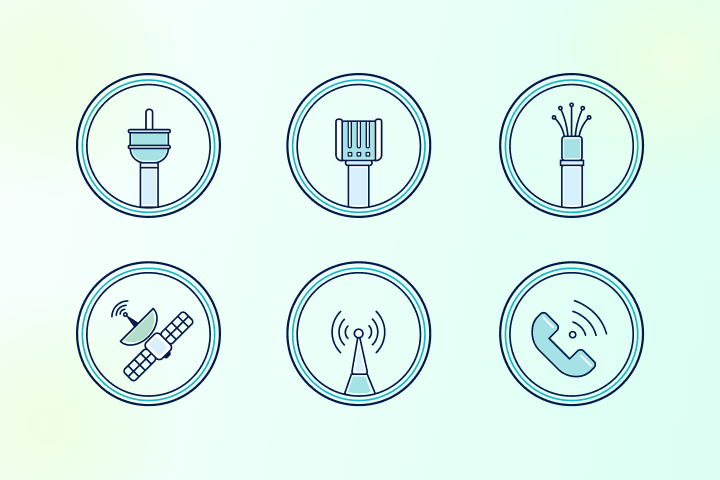
There are six main internet connection types available today: Fiber, Cable, DSL, Satellite, Fixed Wireless, and 5G. The main factor in your decision is usually availability; depending on where you live, you likely have access to only two or three of these.

Here is a quick breakdown of what each type typically offers:

MetricIdeal Range (2026 Standards)
JitterBelow 30ms (ideally <20ms for gaming)
LatencyBelow 50ms
Packet Loss0%

TestMySpeed CTA banner, mint gradient background with a teal speedometer icon, an eyebrow line, a header about connection consistency, body copy about testing again or finding steadier providers, and a button.

High Jitter Means Inconsistent, Not Just Slow.

Test your connection or find steadier providers.

High jitter means your connection is inconsistent, not just slow. Test your connection or find steadier providers at your address.

Types of Network Jitter

Not all jitter is the same. Understanding the type can help you fix it.

  • Constant Jitter: Predictable, steady delays. This often points to a consistent bottleneck in your network.
  • Transient Jitter: Sudden, short-term spikes. usually caused by a temporary glitch or burst of traffic.
  • Short-term Jitter: Rapid fluctuations lasting only milliseconds. This is common in unstable Wi-Fi connections.

What Causes Network Jitter?

If you are experiencing high jitter, one of these five culprits is likely to blame:

1. Network Congestion

This is the most common cause. When too many devices in your home (or neighborhood) compete for bandwidth, data packets get stuck in a queue. It’s like a traffic jam on the highway.

2. Wireless Interference

Wi-Fi signals are radio waves, and they can be disrupted. Microwaves, baby monitors, and even your neighbor’s Wi-Fi network can interfere with your signal, causing packets to arrive irregularly.

ning, check our guide on 15 reasons for slow internet to see if network congestion is the culprit.

3. Hardware Limitations

Using an outdated router (5+ years old) or a modem that can’t handle modern speeds will cause bottlenecks. Old firmware or overheating hardware can also lead to inconsistent performance.

4. Bandwidth Usage

Are you downloading a massive 100GB game file while trying to host a Zoom meeting? Heavy bandwidth usage saturates your connection, leaving no room for real-time data to pass through smoothly.

5. Route Changes

Sometimes, the issue isn’t in your home. Data travels across the public internet through various “hoops.” If a major pathway changes or goes down, your packets might take a longer, slower route, increasing latency and jitter.

Effects of Network Jitter

High jitter ruins the experience for specific activities:

  • VoIP & Video Calls: You’ll hear robotic voices, choppy audio, or talk over one another because of delays.
  • Online Gaming: This is the “lag” gamers dread. High jitter causes rubber-banding (where your character snaps back to a previous location) and delayed reactions.
  • Streaming: While buffering usually relates to speed, high jitter can cause stuttering live streams or pixelation, especially in 4K.

How to Measure Network Jitter

You can’t fix what you don’t measure. Here is how to spot jitter:

  1. Online Speed Tests: Use tools that specifically track jitter, not just download speed. TestMySpeed provides detailed metrics including ping and jitter.
  1. Ping Commands: On your computer (Command Prompt on Windows or Terminal on Mac), type ping google.com -n 30. Watch the time (ms) values. If they jump wildly (e.g., 20ms, then 150ms, then 30ms), you have jitter.
  1. Continuous Monitoring: For advanced users, tools like PRTG Network Monitor can track jitter over 24 hours to find patterns.

Pro Tip: Test your internet at different times of the day (morning vs. peak evening hours) to get accurate results.

How to Fix Jitter and Optimize Your Network

If your speed test results show high jitter (above 30ms), try these fixes:

1. Switch to Wired Ethernet

This is the single most effective fix. Wi-Fi is convenient, but Ethernet is stable. Using a Cat6 Ethernet cable eliminates wireless interference entirely.

2. Optimize Your Wi-Fi

If you must use Wi-Fi:

  • Switch to the 5 GHz or 6 GHz band (faster and less crowded than 2.4 GHz).
  • Move your router to a central, open location.
  • Use a mesh system if your home has dead zones.

3. Enable Quality of Service (QoS)

Most modern routers have a QoS setting. This feature allows you to tell your router which traffic matters most. You can prioritize “gaming” or “video calls” over “downloads,” ensuring your Zoom call doesn’t lag just because someone is downloading a file.

4. Manage Bandwidth Usage

Schedule heavy downloads (like game updates or cloud backups) for 2 a.m. when no one is using the internet.

5. Upgrade Hardware

If you are renting a generic router from your ISP, it might be time to buy your own. Look for routers that support Wi-Fi 6E or Wi-Fi 7 for better handling of multiple devices.

Jitter Is Annoying, but Fixable

Network jitter is a common annoyance, but it is manageable. You don’t have to settle for glitchy video calls or laggy gaming sessions. By understanding what causes jitter—congestion, interference, or bad hardware—you can take control of your connection.

Start by measuring your connection today. Knowledge is power, and knowing your jitter score is the first step toward a smoother online life.

Remember to check your stability now: Run a speed test on TestMySpeed to see if jitter is affecting your connection.

FAQs: Understanding Jitter

What is network jitter?

Network jitter is the variation in latency (delay) over time. It means your data packets are arriving at irregular intervals.

How does jitter affect video calls and gaming?

It causes “lag spikes,” robotic audio, frozen video frames, and delayed inputs in games.

What causes high jitter?

The main causes are network congestion, wireless interference, outdated hardware, and poor cabling.

How can I reduce jitter?

Use a wired Ethernet connection, enable QoS on your router, and minimize bandwidth-heavy tasks during important calls.

Can a VPN help with jitter?

Sometimes. If your ISP is taking a bad route to a game server, a VPN might force a more direct path. However, adding encryption usually adds a small amount of latency.

Your internet speed and streaming experience are directly linked, but that doesn’t mean you can make all the difference in video quality or your enjoyment. The good news is that you don’t need the fastest, most expensive internet connection on the market. How much internet speed you need depends on what you’re watching and how many devices are sharing your home network.

Most homes need about 5 Mbps per HD (1080p) stream and 15-25 Mbps per 4K stream. From there, it’s math: multiply by the number of devices streaming simultaneously, add a little headroom, and you have your target number.

The faster your internet speed, the better quality video you can stream. And with less buffering and fewer disruptions.

Key Takeaways: Streaming Video and Internet Speed

  • Per-stream Mbps is what matters. Plan for about 5 Mbps for 1080p and 15-25 Mbps for 4K, depending on the platform and your settings.
  • Simultaneous streams need more speed. Two devices streaming at the same time require about twice the bandwidth, plus a little extra for any other devices using your network.
  • Buffering isn’t always about speed. The quality of your Wi-Fi, network congestion, and older devices can affect streaming quality, even with a fast plan.
  • Live streaming is less forgiving. It relies on real-time, steady connectivity rather than on the buffered playback used by on-demand video.
  • Streaming uses a lot of data. Netflix 4K can use up to 7 GB per hour, per device. Pay attention to your usage if you have a data cap on your internet plan.

Ready to see how your internet connection performs? Run a speed test, then compare your results to the tables below.

How Fast Should Your Internet Be for Streaming Video?

It depends on the quality you’re streaming and how many other users are sharing your network, but generally you’ll need 15-25 Mbps for 4K streaming and at least 5 Mbps for HD streams. Those speeds are per device, so multiply them by the number of other streams on your network and add 20% headroom for other connections.

Mbps Per Stream By Resolution

Here’s a look at the minimum and recommended download speed you need for the various video resolutions commonly available from today’s streaming platforms:

Video QualityTypical ResolutionGood Starting Point (Per Stream)Notes
SD480p1–3 MbpsFine for phones, small screens
HD720p3–5 MbpsCommon for tablets and smaller TVs
Full HD1080p5–10 MbpsThe everyday sweet spot for most homes
Ultra HD4K15–25 MbpsBig screens, sharper detail
8K4320pAt least 50 MbpsOften much higher, depending on settings

Official Streaming Service Recommendations

Each platform publishes its own speed requirements, and they do vary. Here’s a consolidated look at what the major services recommend:

Service720p1080p4KSource
Netflix3 Mbps5 Mbps15 MbpsNetflix Help Center
YouTube2.5 Mbps5 Mbps20 MbpsGoogle Support
Disney+5 Mbps (HD)5 Mbps25 MbpsDisney+ Help Center
Hulu3 Mbps (library)3 Mbps16 MbpsHulu Help Center
Hulu Live TV8 Mbps8 MbpsN/AHulu Help Center

Minimum speeds are the lowest speed at which playback will work under ideal conditions. That means that there isn’t any congestion on your provider’s network, no congestion on your home network, and that, if your device is connected wirelessly, your Wi-Fi network is working optimally. The moment your Wi-Fi dips, someone else starts a video call, or your router gets congested, that minimum threshold becomes a recipe for buffering.

Recommended speeds include a little headroom to account for the normal variability of your home network and your provider’s network. Aim for at least the recommended speeds to avoid buffering and frustration.

TestMySpeed CTA banner, mint gradient background with a teal speedometer icon, an eyebrow line, a header about checking your speed against the streaming thresholds, and a run speed test button.

Know Your Number Before You Blame the Buffer.

See if your speed meets the streaming thresholds.

You’ve seen what 4K and live TV actually require. Run a free speed test and compare your real numbers to the tables above.

How Do You Calculate Internet Speed for Multiple Streams and Devices?

The Simple Method (5 Steps)

You don’t need complicated math. Here’s how to size your plan:

  1. Choose your typical resolution. Are most of your streams 1080p or 4K?
  2. Count simultaneous streams. How many TVs, tablets, and phones are actively streaming at the same time during peak household hours?
  3. Multiply per-stream Mbps. Use the tables above as your baseline.
  4. Add other high-usage activities. Gaming downloads, video calls, and cloud backups all consume bandwidth. Budget 5-10 Mbps per active video call, and more for active game downloads.
  5. Add a 25-30% buffer for Wi-Fi variability. Wireless connections aren’t perfectly efficient. A buffer keeps things smooth when signal strength fluctuates.

Quick Examples

  • Two 4K TVs at once: Start with 2 × (15–25 Mbps) = 30–50 Mbps, then add a 20% buffer.
  • One 4K TV + two 1080p streams: (15–25) + (2 × 5) = 25–35 Mbps, plus 20% buffer.
  • Mostly 1080p across three devices: 3 × 5 Mbps = 15 Mbps and 20% buffer.

How Does Internet Speed Affect Streaming Video Quality?

When you stream a video, your device continuously pulls data from a server. If your internet speed is too slow, the stream pauses while it loads more data. That pause is buffering, which makes for an aggravating viewing experience.

Here’s how your internet speed affects streaming:

What is Buffering?

Buffering is when your device temporarily downloads part of the video before it plays. A little buffering at the start is normal. Frequent buffering during a show usually indicates inconsistent download speeds or congestion on your home network.

Why Higher-Quality Video Needs More Bandwidth

It comes down to bitrate. A 4K stream delivers more pixel data per frame than a 1080p stream, and that data must arrive continuously. Higher resolution combined with a higher bitrate means your connection needs to maintain that speed consistently, not just average it out over a few minutes.

This is also why HDR content can push requirements slightly higher than those for standard 4K. HDR adds color and brightness data to the already-large 4K stream.

Do Frame Rates Affect Streaming Requirements?

Yes. A 60fps (frames per second) stream carries twice as much frame data as a 30fps stream at the same resolution. Live sports and some premium content are delivered at higher frame rates, which increases the required throughput. If you’re watching 4K at 60 fps with HDR, you’re at the top end of what any platform requires of your internet connection.

How Does Latency Affect Streaming?

For on-demand video, internet latency (the delay between a data request and its arrival) matters very little. Streaming apps compensate by buffering ahead. A connection with higher latency but consistent download speed will still stream video without too much trouble.

Latency does affect the quality of live content, watch parties, and interactive streaming. When you’re watching a live football game or participating in a synchronized watch party, data delivery delays create a lag between what you see and what’s actually happening. For most viewers, latency under 100ms is sufficient for live streaming, but the lower the latency, the better the experience.

Why Live Streaming Needs Steadier Real-Time Delivery

On-demand video can buffer ahead because the content already exists on a server. Live streams don’t have that luxury. The data is generated and transmitted in real time, which means your connection needs to be fast and stable, not just fast on average. That’s why platforms like Hulu recommend 8 Mbps for live TV, even though their on-demand libraries only require 3 Mbps.

What Else Affects Streaming Quality Besides Download Speed?

If your internet connection has a decent download speed but struggles to deliver consistent video streams, check these common bottlenecks.

On-Demand vs. Live Content

On-demand video can buffer streams by downloading data ahead of playback, which hides small speed dips. Live content has less wiggle room, so it can break down sooner on the same connection.

Simultaneous Users and Device Load

A single 4K stream might be fine. Add another stream, a video call, and a console updating in the background, and your connection is suddenly juggling multiple heavy tasks.

Distance to the Server

The internet is not one clean pipeline. Your stream travels through multiple networks, and performance can vary by region and time of day. You cannot control where a streaming service’s servers are, but you can control what happens inside your home.

Wi-Fi Signal Strength and Interference

Wi-Fi is convenient, but it is also the #1 reason “fast internet” feels slow. Thick walls, floors, neighboring networks, and router placement can cut the speed your device actually receives.

Peak-Time Congestion

Streaming demand spikes in the evenings. Even with a solid plan, you may see slower performance at peak hours, especially on crowded networks.

Device Limits

Older smart TVs and older streaming sticks often have weaker Wi-Fi radios. You might have a strong router and a fast plan, but the device itself still struggles to maintain a stable connection.

How Can You Improve Streaming Quality Without Upgrading Your Internet?

Before you pay more each month for faster internet that you may not need, try these easy fixes that can make a big improvement.

Use a Wired Connection When You Can

While not as convenient as Wi-Fi, a wired Ethernet connection is typically more stable for TVs and consoles than Wi-Fi. If your streaming device has an Ethernet port and you can run a cable to it, this will significantly improve streaming quality.

Reduce Competing Traffic

If streaming quality tanks when someone starts a download, that is a clear sign your network is overloaded and the router is struggling to balance bandwidth between your devices. Pause large downloads and close unused apps while you stream to free up more bandwidth for your device.

Improve Wi-Fi Signal in Simple Ways

  • Place your router in a central, elevated spot in your home
  • Avoid tucking it behind a TV or inside a cabinet
  • Use the 5 GHz Wi-Fi (faster) band for devices closer to the router, and 2.4 GHz (better range) for the devices that are farther from it

Adjust Streaming Quality Settings When Needed

Most apps auto-select the video quality, which is normally fine. But if you have data caps on your internet plan or if buffering is a constant problem while you stream, you can lower the video quality to help stabilize playback and moderate your data use.

Know When Upgrading Your Plan Actually Helps

Upgrading your internet plan makes sense if:

  • Your internet speed test results are slower than your target streaming quality requirements
  • Your home frequently runs multiple simultaneous streams
  • You already optimized your Wi-Fi network, and still cannot stream reliably

If your speed test meets the recommended thresholds but streaming is still rough, focus on improving Wi-Fi performance and device setup first.

How Much Data Does Streaming Use?

It depends on the video quality that you’re streaming, but a 4K video stream can use about 7 GB per hour.

Data Usage By Quality

QualityData Per Hour (Per Device)
SD (480p)Up to 1 GB
HD (1080p)Up to 3 GB
4K (Ultra HD)Up to 7 GB

Other platforms vary, but the pattern is consistent: higher quality always means more data. A household with three people watching 4K content simultaneously could consume over 20 GB in a single evening.

Data Caps: What To Do If You Have One

While unlimited data is becoming more common with internet plans, many providers impose monthly data caps, which can add overage fees or throttle your speeds once you hit the limit. Streaming video can clearly chew up a lot of your monthly data usage. If you have a cap:

  • Lower your default streaming quality. Setting HD as your maximum instead of 4K can cut consumption by more than half.
  • Schedule large downloads overnight. Game updates, software downloads, and cloud backups are easier to manage when they don’t compete with streaming and don’t count against daytime patterns.
  • Use your provider’s data monitoring tools. Most internet providers have a usage dashboard in their app or account portal. Check it weekly to see how much you’ve used and, more importantly, how much you have left.

What Internet Plan Speed Is Good for Streaming?

You don’t need to get the fastest possible speeds for streaming. It’s better to choose a plan that matches how you and others in your household use the internet.

The FCC raised the fixed broadband benchmark to 100 Mbps download and 20 Mbps upload. This is a useful baseline for households with multiple devices, remote work, and regular streaming. But even these benchmarks may be too little for most modern households.

Simple Plan Tiers by Streaming Scenario

  • Mostly 1080p, 1–2 streams at a time: Often comfortable in the 25–100 Mbps range, depending on Wi-Fi and other usage.
  • Mixed household, several devices, occasional 4K: 100–200 Mbps is a common “no drama” zone.
  • Multiple 4K streams, heavy usage, smart home devices: 200 Mbps and up gives more headroom and fewer slowdowns.

FAQs About Video Streaming Internet Speed

What internet speed do I need for 4K video streaming?

It depends on the platform, but the minimum speed is 15 Mbps. Minimum required speeds will work as long as your provider’s network and your home network are not bogged down by congestion, interference, or dated hardware. For reliable 4K streaming with some headroom, plan for at least 25 Mbps per 4K stream.

How Many Mbps Do I Need To Stream on Multiple Devices?

Add up the per-stream requirements for simultaneous streaming using the tables above, then add a 25-30% buffer to account for network congestion and Wi-Fi dropoff. For example, two 4K TVs and one 1080p tablet would need roughly 55 Mbps, or about 70 to 75 Mbps with the added headroom.

Why Does Streaming Buffer Even When My Speed Test Is Fast?

A fast speed test doesn’t rule out Wi-Fi interference between your router and your TV, congestion during peak evening hours, other apps or devices using your internet connection, or an older streaming device. Start by connecting your device via Ethernet and running a new test directly on the device. That narrows down whether the issue is Wi-Fi or the network.

What Speed Do I Need for Live Streaming?

Most live streaming services recommend 8 Mbps for HD live TV. Live streaming doesn’t buffer ahead like on-demand content does, so a stable and consistent connection matters as much as raw speed.

How Much Data Does Streaming Use Per Hour?

According to the Netflix Help Center, SD uses up to 1 GB per hour, HD uses up to 3 GB per hour, and 4K uses up to 7 GB per hour, per device. Other services will vary, but these are a reliable ballpark for budgeting against a data cap.

Is 25 Mbps Enough for Streaming?

For a single-stream household watching at 1080p, yes, 25 Mbps is enough. For a single 4K stream, 25 Mbps meets the recommended threshold for most platforms. But if two or more people are streaming simultaneously, 25 Mbps will feel tight. We recommend at least 50-100 Mbps to allow enough bandwidth for multiple devices.

Choose the Right Speed to Stop Buffering

You can solve most of your streaming problems without calling your internet provider or upgrading your plan. To find the right speed for your household, use the recommended speeds per stream and multiply them by the number of users in the house. For most homes, a 100 to 200 Mbps plan is sufficient, but don’t forget to add a little more to account for expected network congestion and Wi-Fi drop.

Before assuming you need a faster plan, run an internet speed test and compare your results to the speed recommendations in the tables above. If your tested speed meets your calculated target but you’re still experiencing streaming issues, the fix is likely in your setup: router placement, Ethernet connections, or reducing competing traffic.

If your speed test consistently comes up short, or if you’re regularly running 3 or more 4K streams, then you might want to consider upgrading to a faster internet plan.

Cloud computing has changed the way we store, access, and process data. It has also quickly become an integral part of business and personal computing life. 

While all the processing usually takes place on a server, cloud computing relies on internet connectivity to function. And overall internet speed determines how efficiently we can engage with the cloud. Here’s a look at why internet speed is so crucial for cloud computing and why you should consider top speeds if you rely on the cloud.

Key Takeaways about Internet Speed for Cloud Computing

  • Cloud computing performance depends on consistent bandwidth, strong upload speeds, and low latency, not just top download speeds.
  • For 1080p video meetings, plan for about 4 Mbps download and 3 Mbps upload per participant.
  • Even normal cloud desktop use can cause speed spikes; browsing alone can require about 6 Mbps.
  • To size your plan, multiply per-user requirements by the number of simultaneous users, then add 20–30% headroom for Wi-Fi overhead and background syncing.

Internet Speed and Personal Cloud Computing

For personal cloud computing, a fast internet connection lets you access your data and applications quickly and smoothly. A slow internet connection will cause delays, buffering, stalls, and slow backups and syncs.

Using a faster internet connection for your cloud-based needs ensures a consistent data transfer rate and will foster:

  • Smoother streaming: If you stream movies or music from the cloud, a fast internet speed with low internet latency will minimize buffering.
  • More responsive applications: Cloud-based applications will respond more quickly with a fast internet connection and reduce data loss as the files sync.
  • Better gaming experience: If you game online, having the right internet speed for gaming helps avoid lag and improve gameplay. 
  • Reliable connections for all users: Faster internet speeds and more internet bandwidth ensure stable connections for all simultaneous users on your network.

Life in the cloud requires fast & reliable internet service.

default graphic

Internet Speed and Business Cloud Computing

More and more companies are pushing data, processing, and communications to the cloud. This is especially true with the rising number of remote workers in the marketplace and the need for online collaboration tools. A slow internet connection can stall real-time data-driven decisions and degrade critical communications. 

Video conferencing has become a collaboration staple in a remote working world. While it requires plenty of speed and bandwidth, video conferencing performs best with low latency. High latency can cause video and audio sync issues, garbled audio, and stuttering video.

How Cloud Computing Affects Your Internet Speed

The overall effect of cloud computing on your internet speed will depend on the specific cloud services you use, the tasks you perform, and your internet connection speed. 

Here are some additional things to keep in mind about how cloud computing can affect your internet speed: 

  • Video streaming services such as Netflix and Hulu require a lot of bandwidth, so they can slow down your internet connection if you are using them at the same time as other bandwidth-intensive applications. 
  • If many people in your area are accessing the internet at the same time, this causes congestion and will slow your internet speeds. This is most common in the evenings, when most people are home streaming, gaming, and browsing.
  • Your ISP can also affect your internet speed. Some internet providers offer dedicated high-speed internet plans for cloud computing, which can help to improve your internet speed.

Best Internet Speed for Cloud-Based Computing

The best internet speed for cloud computing depends on what you’re doing in the cloud and the number of people using the internet connection at the same time. Take a look at the table below to see what speeds various cloud-based activities require. They are based on one person, so consider them recommendations per person, given the internet connection.

Cloud Task Speed Requirements

Cloud taskRecommended bandwidth (per active user)When it matters mostNotes
1080p video meetings (per participant)3.8 Mbps download / 3.0 Mbps uploadHD camera on, screen sharing, busy networksTreat as per participant. Multiply by the number of callers and add 10-20% headroom.
1080p meetings (alternate)Up to 3.6 Mbps download / 3.6 Mbps uploadMeet-heavy collaborationUp to varies by resolution and network conditions; upload stability is important.
Cloud desktop, virtual desktop infrastructureUp to 10 Mbps per userCloud PCs, remote apps, and desktop streamingLatency is important here; aim for 100 ms or less.
Cloud-based documents (Docs/Sheets/Office Online)0.1–0.5 Mbps typical while editingReal-time typing, comments, and light collaborationThis is usually light bandwidth, but rich docs require more.
Cloud file syncing (Drive, OneDrive, Dropbox)Varies; can spikeUploading lots of files, large files, first-time sync, offline cache re-syncSyncing is mostly about upload and spikes; many tools let you throttle or pause syncing if it’s hogging bandwidth.

Internet Latency and Cloud Computing

Latency (often called lag or ping) is how long it takes your device to send input to a cloud service and receive a response. It affects how “snappy” cloud apps, video calls, and cloud desktops feel.

  • 150 ms or less: typically shouldn’t affect common work that doesn’t involve heavy rendering or video.
  • 150–200 ms: often still fine for text-focused work (typing, basic document tasks).
  • 200 ms or more: can start to affect your experience, especially if your connection is congested.

If your speed is fine but cloud work still feels laggy, check your latency by running a speed test. Once it climbs past 200 ms, performance can feel delayed even on fast connections.

Test Your Internet Connection

An internet speed test is quick and easyand will tell you your download and upload speeds, as well as latency (ping). Check out our guide on speed test results if you need help interpreting them. We recommend running a speed test once a month to monitor your internet connection.

Find how much Internet Speed do you need

Your household may want faster internet speeds.

<50 Mbps

Great for individuals to browse the internet, check email, and other basic browsing.

50-100 Mbps

Great for streaming Netflix, videos, and online meetings.

100-200 Mbps

Great for streaming high quality videos, fast downloads, video games, and multiple devices.

200+ Mbps

Great for doing almost anything at ultra fast speeds.

Optimize Your Internet Connection for Cloud Computing

If you have the fastest internet plan available or notice degradation while accessing the cloud, here are a few tips to help optimize your internet connection for the best cloud computing experience:

Upgrade Your Plan

If you’re regularly experiencing slow speeds, it might be time to consider upgrading to a faster internet plan, especially if multiple devices are connected simultaneously.

Use a Wired Connection

While Wi-Fi is convenient, use an Ethernet connection for faster, more stable performance, especially for critical tasks like video calls.

Optimize Your Wi-Fi

If you have to use Wi-Fi, place your router in a central and unobstructed location, and use the 5GHz band if your devices support it.

Update Router Firmware

Manufacturers regularly release firmware updates that can enhance the performance and security of your router. Check the manufacturer’s instructions to update it.

Reduce Bandwidth Drain

Close unnecessary applications or devices that might be consuming bandwidth and adding demand on your internet connection.

Use a VPN with Care

While virtual private networks (VPN) offer increased security, they can sometimes slow down your connection. If speed is a concern, consider using split-tunneling, which allows you to route only specific traffic through the VPN.

Check for Data Cap

Some ISPs have internet data caps and may throttle your speeds once you hit that limit. Check with your internet provider about their data policy.

Consider Quality of Service (QoS) Settings

Some routers have QoS settings that let you prioritize traffic for specific applications or devices. This can be useful if you need to ensure that cloud computing tasks have priority over other activities.

Frequently Asked Questions about Internet Speed for Cloud Computing

What internet speed do I need for cloud computing?

It depends on your tasks and how many people are online at once. Basic cloud docs do not require fast speeds, but video meetings, syncing, and cloud desktops add up fast. Estimate per active user, multiply by simultaneous users, and then add 20-30 % headroom for Wi-Fi drop and network activity. Google Meet can reach up to 3.6 Mbps upload and download at 1080p.

What upload speed is good for cloud computing?

Upload speed drives file syncing, backups, screen sharing, and how stable video calls feel. If your internet connection gets congested with uploads, cloud work can lag. Zoom recommends at least 3 Mbps upload speed for 1080p video per participant, and you’ll want more if multiple users are calling or uploading.

What latency is good for cloud work, and why does it matter?

Latency (ping/RTT) affects responsiveness, especially for cloud desktops and other interactive work. Latency of 150 ms or less shouldn’t affect typical use, but anything over 200 ms can impact your experience, even if your speeds are fine.

Does cloud computing slow down your internet?

Yes, cloud syncing, backups, or multiple devices competing for bandwidth can slow down your internet connection, especially upload. Bursty uploads can degrade calls and cloud desktops. You can alleviate this by pausing other activities during meetings, using Ethernet for your main device, and optimizing router Wi-Fi placement and QoS in your router settings.

Internet traffic slows your speed as demand spikes. The more people in your area who are online at the same time, the more likely you’ll notice a little sluggishness with your internet connection. This is most common during peak hours, typically in the evenings between 6 and 11 p.m. The increased traffic creates congestion that slows your internet speeds and increases latency and jitter. 

  • Internet Traffic: The amount of data moving over a network increases with more users online. 
  • Network Congestion: The effect that increased traffic has on a network, which can reduce performance. 

Besides an increase in users, there are a few other factors that affect internet traffic and slow performance. We’ll cover what those are, how to test your internet connection for congestion or Wi-Fi issues, and, most importantly, how to optimize your home network to combat the effects of internet traffic. 

Key Takeaways About Internet Traffic and Speed 

  • Internet traffic rises during peak hours and can slow speeds for everyone on shared infrastructure, like cable internet.
  • High traffic can increase latency and jitter, not just your download and upload speeds.
  • A wired test helps separate home Wi-Fi issues from internet traffic and congestion.
  • Small changes, like using Ethernet, placing your router centrally in your house, and pausing large downloads, can minimize the effects of congestion.

Find how much Internet Speed do you need

Your household may want faster internet speeds.

<50 Mbps

Great for individuals to browse the internet, check email, and other basic browsing.

50-100 Mbps

Great for streaming Netflix, videos, and online meetings.

100-200 Mbps

Great for streaming high quality videos, fast downloads, video games, and multiple devices.

200+ Mbps

Great for doing almost anything at ultra fast speeds.

What is Internet Traffic?

Internet traffic is the amount of data that is being transferred over the internet at any given time. Increased internet traffic can slow down your internet speed and response times (latency). This is because the data packets have to compete for internet bandwidth, causing delays and increasing latency. 

Multiple factors impact overall internet traffic: network congestion, peak usage hours, and throttling.

Network Congestion

Network congestion happens when there is too much traffic on a network, which can lead to slower speeds for everyone. This can happen during peak usage times, such as in the evening when people are at home using the internet.

Data Throttling

Data throttling, also known as bandwidth throttling, is a technique used by internet providers to limit speeds and bandwidth. Providers commonly throttle speeds to manage network quality or to enforce data policies and data cap limits. While it helps maintain a stable network experience, it can be frustrating when you’re trying to stream video or work from home.

Peak Usage Times

Peak usage times are the periods of the day when more users are online, leading to increased traffic and congestion. This is typically in the evening, when people are at home using the internet for work, school, or entertainment. During peak usage times, you’ll likely experience slower internet speeds than at other times of day.

Peak hours hit different.

Your internet is slower tonight than it was this morning. Prove it.

Congestion is real and it shows up in the numbers. Run a test right now and see what your ISP is actually delivering at this hour.

Test my speed at peak hours

Symptoms of Increased Internet Traffic 

Metric What Changes During High Traffic What You’ll Notice 
Download Often decreases buffering, lower video quality 
Upload Can drop sharply choppy calls, slow sends 
Latency often increases lag in games/calls 
Jitter increases variability stutters, robotic audio 
Packet loss may appear freezes, disconnects 

Is It Internet Traffic or Your Wi-Fi? How to Test Your Connection When Speeds Are Slow 

Sometimes your internet speed is slow because of network traffic and congestion, and other times it may be your Wi-Fi network or something else in your house. You can run a series of internet speed tests to quickly determine whether it’s a network or provider issue, or something with your router or Wi-Fi setup.

  1. Start with a wired speed test 
    Plug your laptop or PC directly into your router with an Ethernet cable and run a speed test. This will give you the best measurement of your internet connection. 
    • Note the download and upload speeds, as well as the latency.
    • If your download speed is significantly lower than what you’re paying for, it could be internet traffic or an issue on the provider’s end. 
    • If speeds are slow, repeat the test at another time of day. 
  1. Repeat the speed test from a device connected via Wi-Fi near the router. 
    Wi-Fi speeds are almost always slower than wired speeds due to interference from other Wi-Fi devices. 
    • If the results of the Wi-Fi speed test are within about 10-20% of the wired test, then your Wi-Fi network is likely working as it should. 
    • If the results are significantly lower than the wired test, it may indicate an issue with Wi-Fi from your router.
    • Try running the Wi-Fi speed test again on a different device to rule out any device-specific issues. 
  1. What to do with the speed test results 
    • If your wired and Wi-Fi speed tests are close but lower than what you’re paying for from your internet provider, try doing the tests again at a different time of day. Remember, speeds are more likely to be slower in the evening because of internet traffic and congestion.
    • If, after running speed tests at various times of day, your speeds are still low, contact your internet provider. They can usually analyze and diagnose network issues without sending a tech to your house. 
    • If your wired speeds are solid but your Wi-Fi speed is slow, you can take steps to troubleshoot and optimize your router for top performance.

Optimize Your Internet Connection for High Internet Traffic

While there really isn’t much you can do about the amount of traffic on the internet, there are several steps you can take to minimize its impact on your home network.

  • Use a wired connection instead of Wi-Fi: A wired connection is more reliable and offers faster internet speeds than Wi-Fi.
  • Optimize Your Wi-Fi Network
    • Place your router in a central location, away from obstructions and other electronic devices.
    • Consider changing the Wi-Fi channel to minimize interference from neighboring networks.
    • Updating your router’s firmware to enhance its performance and security.
  • Avoid using your internet during peak times: These are when most people are online, so there is more traffic. If you can, avoid using the internet during these times.
  • Limit Bandwidth-Intensive Activities: Streaming high-definition videos, downloading large files, or playing online games can strain your internet connection and slow other online tasks. Consider postponing these activities to non-peak hours or scheduling downloads during off-peak times.
  • Prioritize Essential Services: Identify the online services or applications that are crucial to your needs, such as Zoom meetings for work or online classes. Prioritize these services by closing other bandwidth-consuming applications or background processes that are not essential.
  • Close any unnecessary applications: When you have a lot of applications open, they can all be using your internet at the same time. Closing any unnecessary applications can free up bandwidth and improve your internet speed.
  • Upgrade your internet plan: If you are still experiencing slow internet speeds after trying these tips, you may need to upgrade your internet plan. A higher-speed internet plan will give you more bandwidth, which can help to reduce the impact of internet traffic.

What to Do Next When Internet Traffic Spikes 

Internet traffic spikes can absolutely slow your connection down and cause frustrating sluggishness while gaming, streaming, or browsing, with pages loading slowly. Congestion from internet traffic often shows up as lower speeds and higher latency. If you’re experiencing it during the evening, then it is likely due to increased traffic. But if it happens consistently, then you may have an issue with your Wi-Fi. 

The easiest way to tell what’s going on is to run an internet speed test both via an Ethernet cable (wired) and via Wi-Fi (wireless). If the wired results match your internet plan’s speeds, the issue probably isn’t traffic or congestion. If your Wi-Fi speed is significantly slower, you may need to optimize and troubleshoot your router and Wi-Fi network. 

Slow every evening. Fast every morning. That’s not coincidence.

See which ISPs in your area handle traffic better.

Peak-hour slowdowns are an infrastructure problem, not a you problem. Find out which providers are competing in your area and if any of them have better network management.

Compare providers

FAQs About Internet Traffic and Speed

How does internet traffic affect speed?

Internet traffic is the amount of data that is moving over a network at any given time and is influenced by the number of people and devices that are on the network. When traffic spikes, it can create congestion, which lowers speeds and raises latency. Congestion is sometimes the worst during peak hours in the evenings between 6pm and 11pm. Your Wi-Fi can also be a bottleneck, so slowdowns aren’t always coming from your ISP.

Why is my internet slower at night?

Internet speeds are commonly slower in the evenings and night because it is when most people are online streaming, gaming, and using social media. If you’re on shared infrastructure, like cable internet, you’ll notice the congestion more.

How can I reduce internet traffic at home during peak hours?

There’s not much you can do about internet traffic, but you can improve your connection at home by:

  • Pausing big downloads, updates, and cloud syncs
  • Limiting the number of HD or 4K video streams
  • Scheduling backups and uploads to run overnight
  • Turning on QoS (quality of service) in your router settings to prioritize connectivity by device

How do I know if it’s throttling or congestion?

Internet providers do sometimes throttle internet speeds to manage network congestion, and the easiest way to tell if it’s throttling or congestion to see if all devices are slow or if some devices using specific services are slower.

  • Congestion: Typically most pronounced in the evenings it affects all devices whether connected via Ethernet or Wi-Fi
  • Possible throttling: If your streaming service is buffering and sluggish, but all other activities are performing normally, then your provider may be throttling high data use services like streaming.

Should I run a speed test during peak hours?

Yes, because peak-hour speed tests will show you network performance at that time. Then you can run tests at other times during the day (morning, afternoon and evening) for several days to compare results. This will show you how much your connection is affected by internet traffic, or it may show you that there’s an issue with your provider’s network or issues with your home Wi-Fi network.

Let’s face it; we all know that internet costs are rising, but for many customers, connection speeds aren’t keeping up. That means you’re likely paying a premium price for a high-speed plan, yet you still find yourself staring at a buffering wheel during your favorite show or freezing during a crucial Zoom call. In 2025, with more devices connected than ever before, like smart fridges to VR headsets, a consistent connection isn’t just a luxury; it’s a necessity. 

The only way to know for sure if you’re getting what you pay for is to test, compare, and track your internet performance. Don’t let your ISP (Internet Service Provider) off the hook. 

Check out your current speed by running a free internet speed test.  

Key Takeaways

  • Establish a Baseline: Regular speed tests reveal when your connection is underperforming compared to your “normal.”
  • Test Everywhere: Testing in multiple rooms helps diagnose if the issue is your Wi-Fi router or the ISP connection coming into your home. 
  • Compare to Your Plan: Check if your actual speeds match the “up to” speeds promised on your bill. 
  • Keep a Log: A history of poor results is your best weapon when negotiating with your ISP. 
  • Try Simple Fixes: Sometimes, moving a router or updating firmware can fix speeds without costing a dime. 

What You’re Actually Paying For (and Why Real Speeds Don’t Always Match)

When you signed up for your internet plan, you probably saw a big number like “1 Gig” or “500 Mbps.” But there’s a catch: ISPs almost always advertise “up to” speeds. This means that under perfect, laboratory conditions, that’s the speed you could get. Real-world conditions are rarely perfect. 

Factors That Impact Actual Speeds

  • Wi-Fi Interference: Walls, microwaves, and even your neighbor’s Wi-Fi can interfere with your signal. 
  • Outdated Hardware: An old router can’t handle the speeds of modern fiber connections. 
Paying for Speed You Are Not Getting?

Test it now, then see who delivers.

Paying for speed you are not getting? Test it now, then see which providers deliver at your address.

Quick Definitions 

  • Download Speed: How fast you pull data from the internet (loading web pages, streaming Netflix).  
  • Upload Speed: How fast you send data to the internet (posting to Instagram, your video feed on Zoom). 
  • Latency (Ping): The reaction time of your connection. High latency causes lag in gaming. 
  • Jitter: The variation in latency over time. High jitter causes choppy voice and video calls. 
Term What it Affects Good Range 
Download Speed Streaming, browsing 100+ Mbps 
Upload Speed Video calls, gaming 10-20+ Mbps 
Latency Gaming response time < 50 ms 
Jitter Call smoothness < 30 ms 

Step 1: Establish Your Baseline Internet Performance

Test Your Speed Correctly 

You can’t fix what you don’t measure. To get an accurate picture, you need more than just one test. 

  1. Test at different times: Speeds often dip in the evenings. 
  1. Compare Wired vs. Wi-Fi: If possible, plug a computer directly into your router with an ethernet cable. This tells you the true speed coming into your house, ruling out Wi-Fi interference. 
  1. Test multiple devices: If your phone is slow but your laptop is fast, the issue might be the phone. 

Identify Wi-Fi Weak Spots 

Walk around your home and run a test in every room. You might find that the living room is blazing fast, but the bedroom is a dead zone. 

  • Location-based issues: If speeds drop only in the back office, you might need a Wi-Fi extender or a mesh system. 
  • Device-based issues: If only your old tablet is slow everywhere, it’s time for an upgrade. 

Step 2: Compare Your Results to Your Plan

Check Whether You’re Getting the Speeds You Pay For 

Grab your latest bill or log into your ISP account. Find the “advertised speed” for your plan. Now, look at your internet speed test results. 

  • The Reality Check: If you pay for 500 Mbps but consistently get 50 Mbps over a wired connection, you have a serious problem. 
  • Reasonable Variation: Getting 450 Mbps on a 500 Mbps plan is normal. Getting 100 Mbps is not. 

Evaluate Whether You’re Overpaying 

Are you paying for “Gigabit” speed (1000 Mbps) but only using the internet to check email and watch YouTube? You might be overpaying. 

Household Size Activity Level Recommended Speed 
1-2 People Web browsing, Email 50-100 Mbps 
2-4 People HD Streaming, Zoom calls 200-400 Mbps 
4+ People 4K Streaming, Gaming 500+ Mbps (Gigabit) 

Step 3: Document Speed Issues for ISP Discussions 

If you call your ISP and say, “my internet feels slow,” they might just tell you to reboot your modem. If you say, “I’ve tested my speed every day for a week at 7 PM, and I’m getting 20 Mbps when I pay for 200,” they have to listen. 

  • What to record: Date, Time, Speed (Mbps), and whether you were on Wi-Fi or wired. 
  • Why it matters: This log is your evidence for requesting bill credits or a technician visit. 

Step 4: Determine Whether It’s Your Network or Your Provider

If Multiple Devices Are Slow → Network/ISP Issue 

If your TV, phone, and laptop are all buffering, the problem is likely the router or the service coming from the street. 

If Only One Device Is Slow → Device Issue 

If your PS5 is lagging but Netflix works fine on the TV, check the PS5’s settings or location. 

Check for Regional Outages 

Before you spend hours troubleshooting, check if your whole neighborhood is down. Sites like Downdetector or your ISP’s app can show service outages. 

Step 5: Use Your Data to Negotiate or Switch Providers

Armed with your data, call your ISP. 

  • Ask specific questions: “I see consistently high latency in the evenings. Is there node congestion in my area?” 
  • Demand value: “I’m getting half the speed I pay for. Can you lower my bill or fix the line?” 

Avoid Overpaying for Internet You Don’t Need

Marketing departments love to sell you the fastest, most expensive package. But do you need it? Gigabit internet is amazing, but overkill for a couple who just browse Facebook. Use your test history to see your actual usage needs and “right-size” your plan to save money. 

Troubleshooting Checklist

Before you sit on hold for an hour, try these quick fixes: 

  1. Restart Everything: Unplug your modem and router for 30 seconds. It fixes 90% of problems. 
  1. Update Firmware: Log into your router admin page and check for updates. 
  1. Move Your Router: Get it out of the closet! Ideally, it should be central and high up. 
  1. Replace Old Cables: That yellow ethernet cable from 2010 might be slowing you down. 
  1. Reduce Traffic: Disconnect devices you aren’t using. 

Get the Speeds You Pay For, Every Time

You work hard for your money, and your internet connection is vital for modern life. Don’t settle for sluggish speeds. By monitoring and testing regularly, you protect yourself from overpaying and ensure you have the bandwidth you need for work, play, and everything in between. 

Verify your speed today with TestMySpeed

FAQs: Internet Speed

How do I know if I’m getting the speeds I pay for? 
Compare the “Download Mbps” result from a speed test to the speed listed on your monthly internet bill. If the test result is significantly lower (e.g., 50% less) consistently, you aren’t getting what you pay for. 

Why are my speeds slower than advertised? 
“Advertised” speeds are maximums. Real speeds are lowered by Wi-Fi interference, network congestion (traffic), old routers, and distance from the ISP hub. 

What internet speed does my home actually need? 
For a family of 4 streaming video and working from home, 500 Mbps is a safe bet. A single person can usually get by just fine with 100 Mbps. 

How often should I test my internet speed? 
We recommend testing once a month to ensure consistency, or immediately any time you notice buffering or lag.