Let’s face it; we all know that internet costs are rising, but for many customers, connection speeds aren’t keeping up. That means you’re likely paying a premium price for a high-speed plan, yet you still find yourself staring at a buffering wheel during your favorite show or freezing during a crucial Zoom call. In 2025, with more devices connected than ever before, like smart fridges to VR headsets, a consistent connection isn’t just a luxury; it’s a necessity. 

The only way to know for sure if you’re getting what you pay for is to test, compare, and track your internet performance. Don’t let your ISP (Internet Service Provider) off the hook. 

Check out your current speed by running a free internet speed test.  

Key Takeaways

  • Establish a Baseline: Regular speed tests reveal when your connection is underperforming compared to your “normal.” 
  • Test Everywhere: Testing in multiple rooms helps diagnose if the issue is your Wi-Fi router or the ISP connection coming into your home. 
  • Compare to Your Plan: Check if your actual speeds match the “up to” speeds promised on your bill. 
  • Keep a Log: A history of poor results is your best weapon when negotiating with your ISP. 
  • Try Simple Fixes: Sometimes, moving a router or updating firmware can fix speeds without costing a dime. 

What You’re Actually Paying For (and Why Real Speeds Don’t Always Match)

When you signed up for your internet plan, you probably saw a big number like “1 Gig” or “500 Mbps.” But there’s a catch: ISPs almost always advertise “up to” speeds. This means that under perfect, laboratory conditions, that’s the speed you could get. Real-world conditions are rarely perfect. 

Factors That Impact Actual Speeds

  • Wi-Fi Interference: Walls, microwaves, and even your neighbor’s Wi-Fi can interfere with your signal. 
  • Outdated Hardware: An old router can’t handle the speeds of modern fiber connections. 

Quick Definitions 

  • Download Speed: How fast you pull data from the internet (loading web pages, streaming Netflix).  
  • Upload Speed: How fast you send data to the internet (posting to Instagram, your video feed on Zoom). 
  • Latency (Ping): The reaction time of your connection. High latency causes lag in gaming. 
  • Jitter: The variation in latency over time. High jitter causes choppy voice and video calls. 
Term What it Affects Good Range 
Download Speed Streaming, browsing 100+ Mbps 
Upload Speed Video calls, gaming 10-20+ Mbps 
Latency Gaming response time < 50 ms 
Jitter Call smoothness < 30 ms 

Step 1: Establish Your Baseline Internet Performance

Test Your Speed Correctly 

You can’t fix what you don’t measure. To get an accurate picture, you need more than just one test. 

  1. Test at different times: Speeds often dip in the evenings. 
  1. Compare Wired vs. Wi-Fi: If possible, plug a computer directly into your router with an ethernet cable. This tells you the true speed coming into your house, ruling out Wi-Fi interference. 
  1. Test multiple devices: If your phone is slow but your laptop is fast, the issue might be the phone. 

Identify Wi-Fi Weak Spots 

Walk around your home and run a test in every room. You might find that the living room is blazing fast, but the bedroom is a dead zone. 

  • Location-based issues: If speeds drop only in the back office, you might need a Wi-Fi extender or a mesh system. 
  • Device-based issues: If only your old tablet is slow everywhere, it’s time for an upgrade. 

Step 2: Compare Your Results to Your Plan

Check Whether You’re Getting the Speeds You Pay For 

Grab your latest bill or log into your ISP account. Find the “advertised speed” for your plan. Now, look at your internet speed test results. 

  • The Reality Check: If you pay for 500 Mbps but consistently get 50 Mbps over a wired connection, you have a serious problem. 
  • Reasonable Variation: Getting 450 Mbps on a 500 Mbps plan is normal. Getting 100 Mbps is not. 

Evaluate Whether You’re Overpaying 

Are you paying for “Gigabit” speed (1000 Mbps) but only using the internet to check email and watch YouTube? You might be overpaying. 

Household Size Activity Level Recommended Speed 
1-2 People Web browsing, Email 50-100 Mbps 
2-4 People HD Streaming, Zoom calls 200-400 Mbps 
4+ People 4K Streaming, Gaming 500+ Mbps (Gigabit) 

Step 3: Document Speed Issues for ISP Discussions 

If you call your ISP and say, “my internet feels slow,” they might just tell you to reboot your modem. If you say, “I’ve tested my speed every day for a week at 7 PM, and I’m getting 20 Mbps when I pay for 200,” they have to listen. 

  • What to record: Date, Time, Speed (Mbps), and whether you were on Wi-Fi or wired. 
  • Why it matters: This log is your evidence for requesting bill credits or a technician visit. 

Step 4: Determine Whether It’s Your Network or Your Provider

If Multiple Devices Are Slow → Network/ISP Issue 

If your TV, phone, and laptop are all buffering, the problem is likely the router or the service coming from the street. 

If Only One Device Is Slow → Device Issue 

If your PS5 is lagging but Netflix works fine on the TV, check the PS5’s settings or location. 

Check for Regional Outages 

Before you spend hours troubleshooting, check if your whole neighborhood is down. Sites like Downdetector or your ISP’s app can show service outages. 

Step 5: Use Your Data to Negotiate or Switch Providers

Armed with your data, call your ISP. 

  • Ask specific questions: “I see consistently high latency in the evenings. Is there node congestion in my area?” 
  • Demand value: “I’m getting half the speed I pay for. Can you lower my bill or fix the line?” 

Avoid Overpaying for Internet You Don’t Need

Marketing departments love to sell you the fastest, most expensive package. But do you need it? Gigabit internet is amazing, but overkill for a couple who just browse Facebook. Use your test history to see your actual usage needs and “right-size” your plan to save money. 

Troubleshooting Checklist

Before you sit on hold for an hour, try these quick fixes: 

  1. Restart Everything: Unplug your modem and router for 30 seconds. It fixes 90% of problems. 
  1. Update Firmware: Log into your router admin page and check for updates. 
  1. Move Your Router: Get it out of the closet! Ideally, it should be central and high up. 
  1. Replace Old Cables: That yellow ethernet cable from 2010 might be slowing you down. 
  1. Reduce Traffic: Disconnect devices you aren’t using. 

Get the Speeds You Pay For, Every Time

You work hard for your money, and your internet connection is vital for modern life. Don’t settle for sluggish speeds. By monitoring and testing regularly, you protect yourself from overpaying and ensure you have the bandwidth you need for work, play, and everything in between. 

Verify your speed today with TestMySpeed 

FAQs: Internet Speed

How do I know if I’m getting the speeds I pay for? 
Compare the “Download Mbps” result from a speed test to the speed listed on your monthly internet bill. If the test result is significantly lower (e.g., 50% less) consistently, you aren’t getting what you pay for. 

Why are my speeds slower than advertised? 
“Advertised” speeds are maximums. Real speeds are lowered by Wi-Fi interference, network congestion (traffic), old routers, and distance from the ISP hub. 

What internet speed does my home actually need? 
For a family of 4 streaming video and working from home, 500 Mbps is a safe bet. A single person can usually get by just fine with 100 Mbps. 

How often should I test my internet speed? 
We recommend testing once a month to ensure consistency, or immediately any time you notice buffering or lag. 
If you’re reading this, you might be curious about how your internet connection stacks up against the rest of the country. From bustling cities to quiet rural towns, internet speeds vary dramatically across the U.S. Fast, reliable internet has become essential for everyday life, shaping everything from how we work and learn to how we stream movies and connect with family. 

This guide will break down the latest data on internet speeds in the United States. We’ll define key terms like download and upload speeds, reveal the states with the fastest and slowest connections, identify the top Internet Service Providers (ISPs), and explore what factors cause these huge differences in performance. 

Key Takeaways for 2026

  • Average Internet Speed in the U.S.: The national average download speed is 214 Mbps, a 9% increase from 196 Mbps in 2024. 
  • Fastest State: Delaware leads the nation with an average download speed of 246.95 Mbps. 
  • Slowest State: Idaho has the slowest average internet speed in the US at 124.57 Mbps. 
  • Fastest ISPs in the U.S.: Fiber providers like EarthLink Fiber, AT&T Fiber, and Google Fiber consistently deliver top speeds, with Xfinity being a leading cable provider. 

National Internet Speed Ranking (Top 5): 

  • Delaware (246.95 Mbps) 
  • Maryland (238.26 Mbps) 
  • New Jersey (235.67 Mbps) 
  • Connecticut (233.88 Mbps) 
  • Florida (232.80 Mbps) 

Key Trend: The continued expansion of fiber optic networks is the primary driver for increasing the average internet speed in the US, particularly in coastal and southern states. 

Understanding Internet Speed: Download vs. Upload

Before we dive into the rankings, it’s helpful to understand what we mean by “internet speed.” Speed is typically measured in megabits per second (Mbps) and broken down into two numbers: 

  • Download Speed: This is how quickly your device can pull data from the internet. It affects how fast websites load, videos stream, and files download. 
  • Upload Speed: This is how quickly your device can send data to the internet. It’s important for video calls, online gaming, and uploading large files. 

For most people, download speed is the more critical number, which is why it’s the primary metric used in this report. 

The Average Internet Speed in the U.S. (2026 Overview)

In 2026, the average internet speed in the US is 214 Mbps. This represents a 9% increase from the 2024 average of 196 Mbps. This steady growth is largely thanks to nationwide initiatives like the Internet for All program and private investment in expanding high-speed fiber networks. 

These averages are calculated using data from millions of speed tests conducted by users across the country. Reputable sources like the Federal Communications Commission (FCC), Ookla, and M-Lab collect and analyze this data to provide a clear picture of the nation’s connectivity. 

Internet Speed Rankings by State

While the national average is rising, performance varies significantly from state to state. Below is a comprehensive table showing the internet speed ranking for all 50 states, highlighting the vast differences in digital infrastructure. 

Rank State Avg. Download Speed (Mbps) 
Delaware 246.95 
Maryland 238.26 
New Jersey 235.67 
Connecticut 233.88 
Florida 232.80 
Virginia 230.49 
Rhode Island 227.10 
Texas 225.74 
California 223.59 
10 Nevada 220.91 
11 Colorado 219.79 
12 Massachusetts 218.54 
13 Utah 218.06 
14 New Hampshire 217.06 
15 Oklahoma 216.91 
16 Oregon 209.69 
17 New York 208.05 
18 Indiana 206.46 
19 Tennessee 205.07 
20 Pennsylvania 204.66 
21 Louisiana 203.11 
22 Illinois 201.12 
23 Washington 201.11 
24 Arizona 200.64 
25 South Carolina 199.35 
26 North Carolina 197.61 
27 Missouri 196.43 
28 Georgia 194.98 
29 Arkansas 194.82 
30 Michigan 193.19 
31 Alabama 191.88 
32 Ohio 188.20 
33 Mississippi 187.07 
34 Kansas 186.88 
35 Kentucky 183.31 
36 Wisconsin 183.11 
37 DC 182.39 
38 Nebraska 177.37 
39 New Mexico 173.62 
40 Maine 173.23 
41 North Dakota 171.03 
42 Vermont 166.40 
43 West Virginia 164.85 
44 South Dakota 164.71 
45 Minnesota 164.68 
46 Iowa 150.74 
47 Wyoming 147.19 
48 Hawaii 146.07 
49 Montana 129.73 
50 Alaska 125.09 
51 Idaho 124.57 

Source: HighSpeedOptions 

The Fastest Internet Speeds in the U.S. 

States with the fastest internet speed in the US are largely concentrated in the Northeast, where dense populations and strong competition among providers have fueled major infrastructure investments. These states benefit from extensive fiber optic networks, which deliver more reliable and faster connections than older cable or DSL technologies. 

Top 5 States with the Fastest Internet: 

State Avg. Download Speed (Mbps) Most Common High-Speed Internet Type 
Delaware 246.95 Fiber & Cable 
Maryland 238.26 Fiber & Cable 
New Jersey 235.67 Fiber & Cable 
Connecticut 233.88 Fiber & Cable 
Florida 232.80 Fiber & Cable 

The Slowest Internet Speeds in the U.S. 

On the other end of the spectrum, states with slower speeds are often more rural and mountainous. The high cost of laying fiber optic cables and the smaller customer base in these regions make it difficult for providers to invest in new infrastructure. This digital divide highlights a significant challenge for remote work, education, and economic growth in these areas. 

However, government programs like the BEAD Program are working to close this gap by funding broadband expansion in underserved communities. 

5 States with the Slowest Internet: 

State Avg. Download Speed (Mbps) Most Common High-Speed Internet Type 
Idaho 124.57 Cable & DSL 
Alaska 125.09 Cable & Satellite 
Montana 129.73 Cable & DSL 
Hawaii 146.07 Cable & DSL 
Wyoming 147.19 Cable & DSL 

What are the Fastest ISPs in the U.S.? 

When it comes to providers, fiber optic internet is the undisputed king of speed. The fastest ISPs in the country leverage fiber technology to offer symmetrical download and upload speeds that can reach well beyond 1,000 Mbps (1 Gbps). 

  • National Fiber Leaders: Google Fiber, EarthLink Fiber, and AT&T Fiber are consistently ranked among the fastest providers nationwide. Their pure fiber networks offer superior performance and reliability compared to other connection types. 
  • Top Cable Providers: While not as fast as fiber, cable internet from providers like Xfinity and Spectrum offers a widely available alternative with speeds that are more than enough for most households. Innovations like DOCSIS 4.0 technology are helping cable catch up, promising multi-gigabit speeds in the near future. 
  • The Rise of 5G Home Internet: 5G home internet from providers like T-Mobile and Verizon is becoming a viable alternative, especially in areas with limited wired options. While speeds can be less consistent than fiber or cable, it’s an important technology for expanding broadband access. 

What Impacts Internet Speed by State? 

The disparity in internet speed by state is not random. Several key factors contribute to why one state might have blazing-fast connections while another lags behind: 

  • Fiber Availability: This is the single biggest factor. States with extensive fiber-to-the-home networks consistently have higher average speeds. 
  • Population Density: It’s more cost-effective for providers to build and maintain networks in densely populated urban areas than in sprawling rural regions. 
  • Competition and Investment: When multiple providers compete for customers in a market, it drives down prices and encourages investment in faster, better infrastructure. 
  • Geography and Terrain: Laying fiber optic cables across mountains, vast deserts, or remote islands is incredibly challenging and expensive, which slows down deployment in states with difficult terrain. 

Want to see how your own connection measures up? You can use a free tool like the TestMySpeed to check your personal internet speed and compare it to your state’s average. 

Frequently Asked Questions: Speeds by State  

What is the average internet speed in the U.S. in 2026? 
The average download speed in the U.S. is 214 Mbps as of early 2026. This is a significant increase from previous years, driven by the expansion of fiber optic networks. 

Which state has the fastest internet speed in the U.S.? 
Delaware has the fastest internet speed in the US, with an average download speed of 246.95 Mbps. 

What are the top 5 fastest ISPs in the U.S.? 
While rankings can vary, the fastest ISPs are typically fiber providers. Google Fiber, EarthLink Fiber, AT&T Fiber, Verizon Fios, and Xfinity (as a top cable provider) are all considered among the fastest and most reliable options available. 

Why is internet slower in some states? 
Internet is slower in certain states primarily due to a lack of modern infrastructure, particularly fiber optic networks. Rural geography, low population density, and less competition among providers are major contributing factors. 

How can I check my internet speed and compare it to my state average? 
You can use a free online speed test tool like TestMySpeed to measure your current download and upload speeds. You can then compare your results to the state averages listed in the table in this article. 

What’s Next for U.S. Internet Speeds 

The future of internet in the U.S. looks bright and fast. We can expect the internet speed ranking to continue shifting as several key developments unfold: 

  • Continued Fiber Expansion: With ongoing private investment and government funding, fiber networks will reach more communities, pushing the national average speed even higher. 
  • Closing the Rural Divide: Initiatives aimed at bringing high-speed internet to rural and underserved areas will begin to narrow the digital divide, improving speeds in states that currently lag. 
  • 5G Home Internet Growth: As the 5G network expands and matures, it will provide a competitive high-speed option for millions more Americans. 

These trends suggest that by 2027, even more households will have access to the gigabit speeds needed to power our increasingly connected lives. 

Think about the smartphone you’re using right now. What can it do? How much did it cost you, and what’s the ongoing cost? How many people share the same experience, and how many could go without one for any period? The influence of smartphones in today’s world continues to grow, and understanding their impact is crucial to understanding the modern digital landscape.

Here’s what you need to know about smartphones in 2025:

1. Global Smartphone Market Growth: Key Stats for 2025

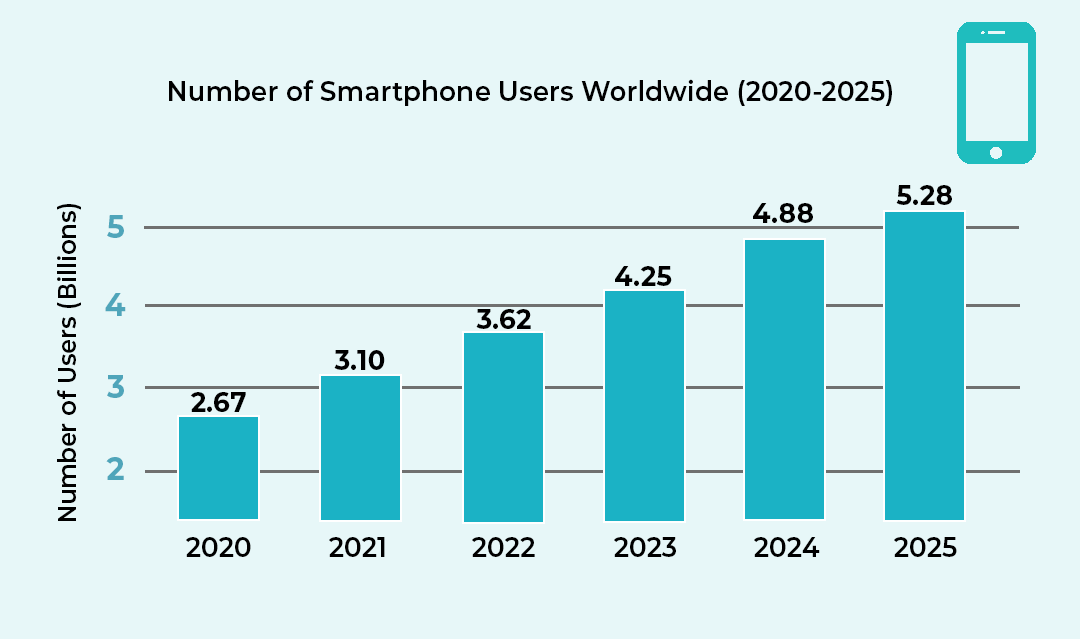
As of 2025, there are approximately 7.43 billion smartphones worldwide. This is a significant increase from previous years, with smartphones making up the majority of these devices. This rapid growth shows how mobile technology is evolving, especially with the rise of 5G networks and advancements in mobile technology. Mobile app stores continue to generate billions each year, and investments in smartphone innovation are robust, with companies aiming to be the next leaders in a market that remains incredibly dynamic. 

smarthgphone users graph

Comparatively, 8.31 billion mobile phones are currently in use worldwide. Exactly how quickly they’ll shift to a smartphone remains to be seen, but it will likely be as soon as they can afford it and have access to the technology. 

Based on predictions, by 2026 there will be 7.58 billion smartphones across the world. As a reminder, such a level of connectivity is unprecedented. 

2. Smartphone Usage Habits in 2025: How Much Time Do People Spend on Their Phones?

Smartphones have become essential for modern life—so much so that many people feel phone dependency. It’s rare to find someone without a mobile device, and the average person spends more than 4.5 hours per day on their smartphone. This dependency is more pronounced among younger generations, with the global smartphone penetration rate estimated to hit 90% in 2025. 

Smartphones aren’t just for communication; they’re integral to everything from mobile shopping to entertainment and work-related tasks. It’s no surprise that the average smartphone user checks their device 58 times a day, an increase from previous years. This trend indicates the growing reliance on smartphones for everything, from managing daily tasks to quick social media updates. 

Interestingly, smartphones are also replacing other electronic devices. While laptops and desktops remain relevant for heavy computing, smartphones have taken the lead in many categories like mobile shopping, where purchases made via smartphones continue to surge. 

3. Demographics of Smartphone Use: Who’s Using Smartphones in 2025?

While smartphone ownership is widespread in many parts of the world, there’s still substantial growth potential in emerging markets. In 2025, it’s anticipated that the global smartphone user count will reach 5.28 billion, with nearly every individual in developed countries owning a smartphone, and many in developing countries expected to follow suit soon. 

Let’s break down smartphone usage by demographic: 

  • Income: People with higher incomes are more likely to own high-end smartphones, while lower-income households tend to own older models or more affordable options. However, smartphone penetration across all income groups has surged in the past decade. 
  • Geography: Countries like Indonesia, Nigeria, and Vietnam are seeing rapid adoption rates, which are expected to further fuel the global smartphone market. Asia remains a focal point for the growth of mobile users with China coming in first place, but companies will also need to adapt to local needs and affordability to expand their reach effectively. 

4. 5G Technology and the Future of Smartphones in 2025

The transition to 5G technology is well underway, and by 2025, the global 5G user base is expected to exceed 2.5 billion. This enhanced connectivity is driving new opportunities for smartphones, such as faster downloads, improved mobile gaming experiences, and increased reliance on mobile for work and entertainment. 

Smartphones are also playing a pivotal role in the Internet of Things (IoT), connecting with smart devices from home security systems to wearables and beyond. By 2025, 75 billion IoT devices are expected to be connected, with smartphones being a central hub for many of these devices. 

5. Phones vs Other Electronics: Why Smartphones Are Dominating

When comparing phones vs other electronics, smartphones are taking a dominant role in the daily lives of consumers. In February 2025, mobile devices (including smartphones and tablets) accounted for 62.23% of global web traffic, while desktops contributed 35.91%. Tablets and computers are still crucial for certain tasks, but for many, smartphones have become the go-to device for almost everything. Among U.S. adults aged 18 to 34, over 70% primarily use mobile devices to access the internet, with 40% relying solely on smartphones. In contrast, only 28% of individuals aged 50 and above exhibit mobile-only online behavior. From browsing the web to checking social media, to shopping online and even managing financial transactions, phones are increasingly becoming a central hub for people’s daily lives. 

6. Smartphone Addiction: How Phone Dependency Is Changing Our Lives

Smartphone addiction is a growing concern in the digital age, with many individuals spending excessive time on their devices. As we become more reliant on our phones, issues such as mental health problems, sleep deprivation, and reduced productivity are emerging as side effects of phone dependency. In fact, 87% of smartphone users check their phones within one hour of going to bed, and 69% check them within five minutes of waking up. 

7. The Rise of Mobile Shopping: A Key Driver of Smartphone Growth

The mobile shopping industry is booming, with smartphones becoming the primary device for purchasing goods online. Mobile commerce is expected to account for 72% of all e-commerce sales globally by 2025. This shift in consumer behavior is driven by the convenience of shopping on-the-go, as well as the growing availability of mobile payment systems like Apple Pay and Google Wallet. 

8. Social Media and Smartphones: The Perfect Match

Smartphones have revolutionized how we use social media. With apps like Instagram, TikTok, and Facebook at our fingertips, smartphones have made social media access more ubiquitous than ever before. The rise of mobile-only social platforms has further fueled the shift towards smartphones as our main digital interface. 

  • Usage Trends: More than 99% of social media users access platforms via mobile devices, a figure that has steadily increased year-over-year. 

Conclusion: The Future of Smartphones in 2025 and Beyond

In 2025, smartphones are no longer just a luxury—they are a necessity. With mobile shopping on the rise and phone dependency becoming a part of modern life, smartphones are only expected to increase in importance. Their role in the Internet of Things and their ability to replace other electronics will continue to shape the future of technology. Whether you’re an individual, a developer, or a company, understanding this shift will be key to adapting to the tech landscape of tomorrow. 

If you’re reading this, you probably have some sort of problem with your internet connection. And with that, we deeply sympathize with your plight. It can be absolutely disruptive to a day, harm your work, and even be hazardous to your safety in some circumstances. The internet is a lifeline for many, especially after the pandemic showed us how much we have to rely on it at times.

And the internet can be tricky to work with. It feels like it’s working one moment and is cut out the next, and it’s tough to find clues about how the internet is not working when it is working (if temporarily). On top of that, your connection is based on several different parts and factors, many of which are outside of your direct control.

While fixing up your internet is a complex issue, we hope that you’ll be able to get more information from the following information. Go through the steps and see what you can do, before you pull your hair out with frustration.

Restart Your Equipment and Computer

Sometimes just resetting your computer, router, and related equipment solves the issue. It isn’t the most scientific approach to solving the problem, but it often works for one reason or another, and it is quick to try out (five minutes or less).

To reset your modem and router (or likely a combo), first, check the LED status light. Look for the internet signal light to be on, as well as a WiFi light if applicable. There might be several WiFi lights for the different bands of internet your modem uses. The lights should generally be flickering. If they are off or red, then something is wrong with that piece of equipment, and you should keep that in mind for later if resetting doesn’t work.

There may be a button on your modem and router to make it restart or reconnect, but in general, the way to restart your internet equipment is to unplug it. Wait ten seconds after doing so, and then plug it back in. It may take a few minutes to completely reboot, so don’t panic if your internet doesn’t turn on immediately.

Did this fix your internet issues? If so, that’s great! Keep an eye on things and make note of when you had to do a restart. If not, then you need to move onto the other possibilities.

You may also want to reset your computer and other related equipment. Sometimes it might have an issue accepting the signal, or your computer’s WiFi receiver may need a reboot. It’s necessary every once in a while anyway, so it cannot hurt in most cases.

Note that we only recommend restarting everything as a solution if it permanently solves the problem. If it only solves the problem for a short period of time, then you aren’t really fixing the problem and you should move onto the other steps. If you’re ISP thinks they’re solving the problem by telling you to reset things and then you keep having problems after the call is done, you need to press the issue on this point.

Diagnosing the Problem

So as was predictable if you’re reading this, restarting your equipment didn’t solve the problem. This means you must investigate the matter more, which we know is a chore. However, we are here to help you diagnose the problem, so note all the following:

One thing you will want to pay attention to is whether the disconnections, interruptions, or slowdowns occur at certain times of the day.

Try to see if you can localize the problem and notice if it is happening more on one device or in a certain area of the house. This can help better identify the problem if it is a hardware issue of one sort or another.

If you can (perhaps using a data plan), check online to see if there are reports of outages in your area. Perhaps a line was knocked down or there is a malfunction in a nearby area. If so, the problem will be resolved in time.

What type of problem do you have? Do you need to reset the router frequently? Do you regularly have issues staying connected to something that needs a constant connection (getting booted from a game just for you to reconnect in a few seconds is frustrating)? Do you get the feeling that your equipment is just not enough for the connection you are paying for? To fix the problem, you need to ask the right questions first.

Speed Tests

One thing you can do is perform a speed test. You’ll get information on whether there is a connection, how fast your connection is versus the advertised speed (more on that later), and  

There are several great speed test sites online, and for these purposes, any of the major ones will do. Make sure they have a server in your area and have minimal extra fluff on their main page that will interfere with the results. 

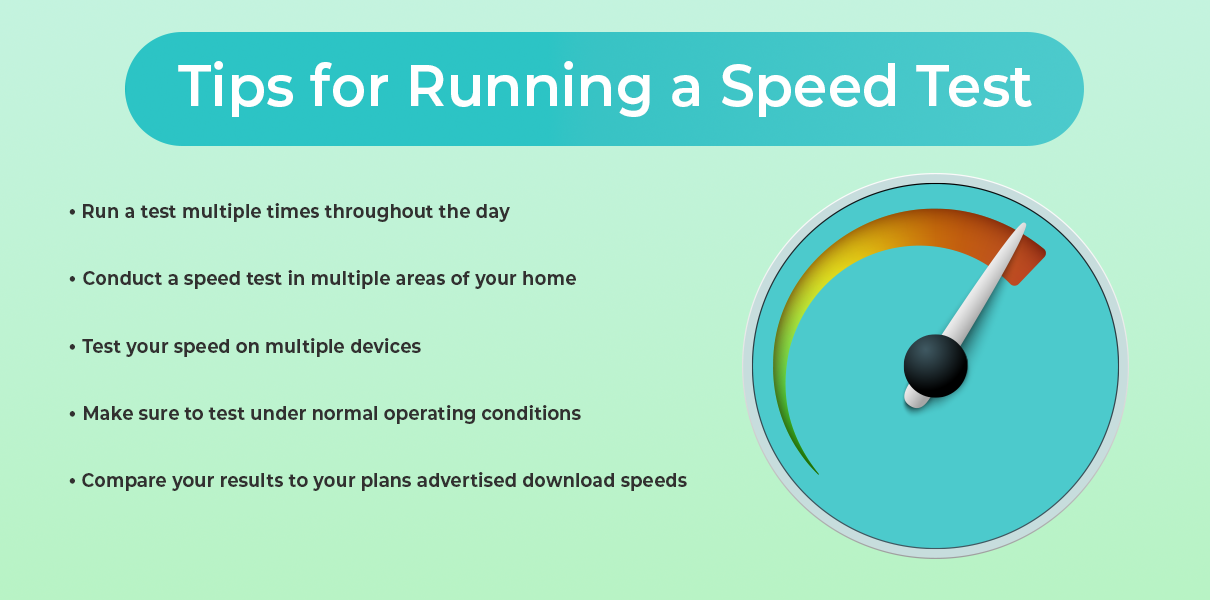
To run the best speed test possible, make sure you do the following: 

tips for running speed test
  • Try to perform a speed test at multiple times of the day. This way you can tell if there are slow hours. 
  • Try to perform a speed test from multiple areas around your house where you would use the internet. If there is interference, it might only show up in one place. 
  • Perform a speed test with multiple devices. Your smartphone and your computer will work just fine, especially if done from the same general location. This can rule out whether the problem is with your device instead of the entire internet infrastructure. 
  • Do it under normal operating conditions, meaning that you shouldn’t be doing any heavy online work or doing any major downloads while you are performing the test. It could interfere with the readings. 
  • Compare your download and upload speeds versus the advertised speeds of your ISP, especially if you are using an ethernet cable (WiFi users can experience some dropoff). Advertised speeds are usually mentioned as “up to X Mbps” but you should be getting at least 80 percent of your download speeds at most times. If you are consistently not, you should be investigating why or looking for another Internet provider. 

In general, what helps is taking as many notes as possible. You might not want to get too detailed with it as after a certain point it’s the ISP’s job to diagnose the problem, but knowing the potential sources makes everyone’s lives a lot easier. 

Using the Tools You Have

Use the tools that exist on your computer and possibly in your modem and router. Automatic troubleshooting has come a long way since the days of early dial-up. If you have a more advanced modem-router combo, you might have an app associated with your internet service or equipment. That app will be able to tell you quite a bit about your connection, including if there have been any problems lately. Results may vary, but it is likely a quicker diagnosis than relying on the ISP for help or trying to piece the problem out yourself. 

Now might be a great time to check to see what is available on your system and whether you think it will be of any help. 

When Your WiFi Is the Problem

If you ruled out your ISP or note quickly that there is something off with your equipment, then your WiFi is the problem. If an ethernet cable fixes everything but your smartphone connection doesn’t work through most of the house, then your WiFi is the problem. 

Your home may not be conducive to your current WiFi setup. There might be too many walls blocking the way, or some materials might be blocking the signal in ways you wouldn’t find in other homes. You probably shouldn’t remodel your home to get a better internet signal (but don’t let us stop you).  

What you can do is perhaps rearrange your setup to put your modem and router in a more central location. If your home is too big for your router’s current range, you can either upgrade your router or you can add additional nodes or a WiFi extender. They are not terribly expensive, and you can tune your setup and add extra extenders as needed to get maximum coverage. They do have their limits and they won’t be as good as a direct connection, but if you have something strong to start with you can easily work with them. 

However, sometimes you just need to replace your router or your modem/router combo to fix your connection. If you are provided one or rent one through your ISP, you’ll need to bring it up with them. You might be due for an upgrade. If you got it yourself, you can get another one for yourself and make the upgrade, ideally with some improvements to performance in the process so it’ll last you the next few years.  

Switching WiFi Bands

Most routers work over two different bands: 2.4GHz and 5GHz. The 5 GHz is faster but typically has less range, while the reverse is true for 2.4 GHz. When both work, some routers will use both bands to create the fastest possible speeds. There are also now even faster 6GHz bands, but they are not so commonly used yet (look out for them in the next few years). 

However, to get a better connection on your end, you might want to connect to one band or another from your device or change the settings on your router. If you are close to your router, try out the 5GHz band if you aren’t already connected. Far away on the other side of your house? Then try out the 2.4GHz band. However, this will not solve permanent problems, and you won’t be getting the most out of your router this way. We do not recommend you do this, although it can work in a short-term pinch or when you are far away from your router. 

Resetting Your Setup

Sometimes you don’t know what went wrong or what wrong button you pressed, but you want your internet back and you don’t want to worry about it anymore. In such cases, you might want to take the “admittedly extreme” option of resetting your network settings. 

To do so on your Mac computer, follow these instructions

To do so on your Windows computer, follow these instructions instead. 

Note that this can be a bit of a pain given that you are starting from scratch, but if there was a setting or bug that was causing your internet problems, this should fix it. Plan for some time to set up networks, network names, passwords, etc. again. 

Resetting Your Equipment

There is also the option to just restore your router and modem back to their factory settings, in case there were some options that were changed for the worse and you’re not sure what might work best. 

To do so, look for a tiny pin size hole in your equipment. You want to press a button that is on the inside of that hole. There might be something that came with the router to do so, but if you lost this (many of us do), then a pin or a toothpick will likely do the trick. If you do not see such a hole or are nervous about doing so, consult the manual that came with the router and/or modem. If these are long gone, then a search online should yield the manual you need, so long as you know the model of your equipment.  

Note that getting everything back to normal on top of this can take some time as well, and as such, you may need to wait. Schedule some time to read a book or clean the house while the equipment is sorting itself out. 

Is It Malware?

Cybersecurity is becoming ever more important to keep your information and your connection safe, and you might see your connection suffer if you’ve been neglecting it (or even if you haven’t). Malware can slow down your connection and your computer through its own ends (perhaps using your device as part of a botnet, etc.), and it can cause other issues. An unstable internet connection is bad. Identity theft is much worse. 

While there are plenty of cybersecurity protocols and habits you should be following, here are the ones most relevant to your internet connection:  

Regularly do a scan of your computers (and perhaps your smartphone) for viruses, malware, and the like. You should do so at least once a week, and whenever you feel there might be something interfering with your  

While there are debates as to whether a premium antivirus software is necessary or not, you should have some form of protection and should note that many of the free options (though not all) are not secure enough for your needs. Do your research here. 

Be careful of what you download and invite onto your device. There is little your protection software can do if you are opening the front door for threats. Don’t download files from unknown sources, and take advantage of opportunities to scan attachments in advance of opening an email or file. 

Is it Your Antivirus?

Ironically enough, many people have reported having trouble with certain downloads or their connections in general with their Antivirus program. While this is a risky move long-term, turning off your firewall might alleviate the problem, allowing you to better understand the cause. It could be a particular setting or one site you are trying to use sets off the alarms, despite you knowing it is perfectly safe (do make sure that it is perfectly safe). 

If your internet is entirely down, especially across the house, then this is almost certainly not the cause. But take this as a chance to review your settings and the program that you are using. 

Issues with Your IP Address

It is somewhat uncommon compared to the other issues, but your computer might be having issues configuring an IP address. You need an IP address, but for some reason there might be multiple of your devices using the same address, leading to conflicts. If you have more than one router on the same network (not a mesh network or a router and extenders, mind you), then this issue can pop up. 

We recommend checking to see if you have a valid IP address quickly to see if that’s the issue. 

Advanced Troubleshooting

If you’ve already gone through the basics and still have persistent internet issues, it’s time to dig a little deeper. These advanced troubleshooting techniques can help uncover more complex or less obvious problems—and give you a better chance at solving them without waiting endlessly on hold with your ISP. 

Check Device Logs and Router Log

1. Check Device Logs and Router Logs 
Most modern routers have a logging feature that tracks connection history, dropped packets, and internal errors. You may need to log in to your router through a web browser (usually something like 192.168.1.1 or 192.168.0.1) and dig through the settings to find system logs. These can help pinpoint if the problem is with your internet signal or your internal network. Look for repeated errors or disconnects at specific times. 

2. Run a Continuous Ping Test 
If your connection drops briefly or you notice lag, open a Command Prompt (Windows) or Terminal (Mac) and type: ping google.com -t (Windows) or ping google.com (Mac).  

Let it run for several minutes. If you see timeouts or massive spikes in response time, you likely have packet loss or high jitter—common signs of a weak connection or interference. 

You can also try ping your_router_ip (usually 192.168.1.1) to see if the problem is internal or external.  

3. Use Traceroute to Pinpoint the Problem 
Traceroute helps you find where your connection slows down or fails by mapping the path your data takes to reach a website. In the Command Prompt or Terminal, type: 
tracert google.com (Windows) or traceroute google.com (Mac/Linux).  

If there’s a big delay or failure at a specific hop, the issue could be with your ISP or somewhere along the broader network. 

4. Check for Bandwidth Hogs 
One rogue device or app can tank the entire network. Log in to your router and check the list of connected devices. See if any are using a large amount of bandwidth—especially unexpected ones like smart TVs, cloud backup tools, or unknown devices (which could be someone piggybacking on your network). 

5. Look for Firmware or Driver Issues 
Outdated firmware on your router or drivers on your devices can cause all sorts of strange problems. Check for firmware updates on your router’s admin page, and update your network adapter drivers through your device settings or manufacturer’s site. 

6. Test with a Static IP Address 
Sometimes DHCP issues (where devices are dynamically assigned an IP address) can cause instability. Assigning your device a static IP can bypass that. It’s a more advanced move, so look up your router’s configuration guide if you’re unsure. 

7. Interference from Nearby Networks 
In crowded areas, too many WiFi networks using the same channel can cause serious interference. Use a free WiFi analyzer app to scan for nearby networks and change your WiFi channel accordingly in your router’s settings. For 2.4 GHz, channels 1, 6, and 11 are typically best. 

8. Use Quality of Service (QoS) Settings 
If video calls or gaming are constantly getting interrupted by other devices downloading or streaming, set up QoS rules in your router. This prioritizes important traffic so that one user’s movie night doesn’t ruin another user’s Zoom meeting. 

General Ways to Improve Your Connection

Not having major issues, but still wanting an improved connection for streaming, gaming, or video calls? Try out the following if you want to make some improvements: 

  • Check the location of your router. Could anything be blocking it off, if only temporarily? Ideally, your router should be close to your device (just not too close), not be surrounded by other objects, and not be blocked off by too many walls and ceilings. If placement is an issue, you might want to invest in a different setup or get a range extender. A mesh setup can also work if you’re willing to invest more, but that’s only needed for very large homes or smart homes. 
  • No matter how you set up your router, a direct ethernet connection is going to be your best option for the fastest, most consistent connection. Nothing beats a direct line. 
  • Note that if you haven’t changed your ethernet cable in some time, then perhaps a simple cord is the cause of your internet issues. Change it out and see if things improve. 
  • Check to see if there are a bunch of background programs using up your bandwidth. While some apps mean well regularly updating, they can do so at inopportune times. 
  • While unlikely, make sure that your network is private and has a good password. You don’t want your neighbors to be leeching off of your connection unless you have a previous agreement. 
  • You may want to change your password for your WiFi if you haven’t done so in a long time. A little caution cannot hurt. 

Upgrade Your Internet Service

Perhaps your internet works perfectly fine for the service you paid for, but that just isn’t enough anymore. Apps and programs often require more bandwidth than ever before, and the 4k content on streaming services today requires a strong connection. What worked ten or even five years ago might not work now, and will not work as time goes on. 

There are certainly more advanced guides to finding a better internet service, and our guides can help you make a decision on who to go with. Just take your time with it, know how much speed you need (erring on the side of much faster to prepare for the future), and don’t be afraid to switch providers. Many ISPs will buy out old agreements to get a new customer. 

Conclusion

There are few things more frustrating than internet problems, especially when you feel as though you don’t have any control over the problem. But often you do have some measure of control, and we hope that you feel empowered to take control of your connection and fix what you need to. If things aren’t going well, take action and either adjust your setup or contact your provider. You deserve to have the best connection available, and we hope that you manage to solve your problems as soon as possible.